---
title: "FlexBox"
description: "em { color: #ff9966; } code { background: #FF06050A; color: #6394C8; } .item { color: #6394C8; font-size: 1.5rem; padding: 1rem; display: flex;..."
date: 2018-04-22
published: true
tags:
  - dev
  - webdev
template: blog-post
---


<style>
    em {
        color: #ff9966;
    }
    code {
        background: #FF06050A;
        color: #6394C8;
    }
    .item {
        color: #6394C8;
        font-size: 1.5rem;
        padding: 1rem;
        display: flex;
        justify-content: center;
        align-items: center;
        height: 100px;
        width: 100px;
        background: #351D57;
        margin: 5px;
        border: 2px solid #A83E75;
        box-shadow: 5px 5px 10px -5px rgba(0, 0, 0, .6);
    }

    .flex_container {
        padding: 1rem;
        box-shadow: 5px 5px 10px -5px rgba(0, 0, 0, .6);
        background: rgba(99, 148, 200, .2);
        animation: animate_container 2s cubic-bezier(.66, -0.0, .28, 1.0) infinite both alternate;
    }

    .flex_container:hover {
        animation: none
    }

    @keyframes animate_container {
        0%{
            width: 95%;
        }

        20% {
            width: 95%;
        }

        80% {
            width: 200px;
        }

        100% {
            width: 200px;
        }
    }

    h3 {
        padding: 1rem;
        margin: 2rem;
        display: block;
        width: 100vw;
        background: white;
        color: white;
        background: #333;
        position: sticky;
        top: 0px;
        box-shadow:  0 0 #333,
                     -100vw 0 #333,
                     100vw 0 #333;
    }
</style>

## Flexbox-zombies

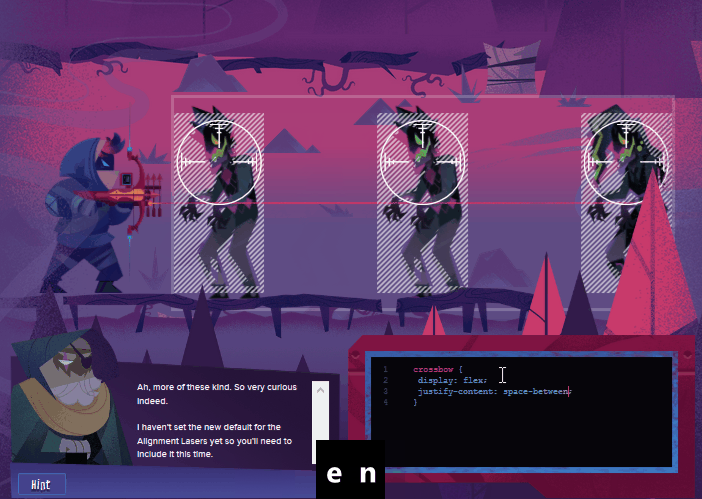
I recently finished up the flexbox-zombies course to learn more about flexbox, and to become proficient with it.  I can truly say that this course has changed the way that I create layouts.  Flexbox is very intuitive now.  What this course does really well at is explaining the concepts and hitting you with a ton of examples that you can work through really quickly.

![flexbox-zombies](https://images.waylonwalker.com/flex.png)

> A clip from the final round against Dave


## Basic Setup

Flexbox requires a wrapper container to work  I will refer to this as the  flex container, and the items in that container as items.

### Markup

I will use the following markup throughout the article, each with different css applied.


**note**  The animated container is inspired by the flexbox-zombies course.  I really like how it allows you to see the responsiveness of each layout.  In the early example the reasoning may not be aparent, but as we go along some of the flexbox parameters will make more sense if we are viewing them on a dynamic layout since flexbox is designed for building responsive design.


```HTML
<div class='flex_container'>
    <div class='item'>1</div>
    <div class='item'>2</div>
    <div class='item'>3</div>
    <div class='item'>4</div>
</div>
```

<div id="c0">
    <div class='flex_container'>
        <div class='item'>1</div>
        <div class='item'>2</div>
        <div class='item'>3</div>
        <div class='item'>4</div>
    </div>
</div>

### Base Style
```css
    .item {
        color: #6394C8;
        font-size: 1.5rem;
        padding: 1rem;
        display: flex;
        justify-content: center;
        align-items: center;
        height: 100px;
        width: 100px;
        background: #351D57;
        margin: 5px;
        border: 2px solid #A83E75;
        box-shadow: 5px 5px 10px -5px rgba(0, 0, 0, .6);
    }

    .flex_container {
        padding: 1rem;
        box-shadow: 5px 5px 10px -5px rgba(0, 0, 0, .6);
        background: rgba(99, 148, 200, .2);
        animation: animate_container 2s cubic-bezier(.66, -0.0, .28, 1.0) infinite both alternate;
    }

    /* Animate the .flex_container to show responsiveness */

    .flex_container:hover {
    /* But not on hover, let the user pause the annimation*/
        animation: none
    }

    @keyframes animate_container {
        0%{
            width: 95%;
        }

        20% {
            width: 95%;
        }

        80% {
            width: 200px;
        }

        100% {
            width: 200px;
        }
    }
```
## Basic Technique

### 1. Turn on the crossbow

_applied to the flex container_
```display: flex;```

Turning on flexbox on the flex container will cause all child elements to align in a row at the top left corner of the parent container.  By defualt they will shrink to the minimum content size, but not automatically grow larger than their specified size.

``` css
    .flex_container {
                display: flex;
        }
```
<style>
    .c1 .flex_container {
            display: flex;
            flex-direction: row;
    }
</style>

<div class='c1'>
    <div class='c1 flex_container'>
        <div class='item'>1</div>
        <div class='item'>2</div>
        <div class='item'>3</div>
        <div class='item'>4</div>
    </div>
</div>


### 2. Aim it if necessary
_applied to the flex container_

This parameter determines the direction that the flexbox container will orient the flex items.

**example** ```flex-direction: row```
**options** = ```('row'(default), 'column',  'row-reverse', 'column-reverse')```

#### row

<style>
    .c2a .flex_container {
            display: flex;
            flex-direction: row;
    }
</style>

``` css
.flex_container {
            display: flex;
            flex-direction: row;
    }
```
<div class='c2a'>
    <div class='c1 flex_container'>
        <div class='item'>1</div>
        <div class='item'>2</div>
        <div class='item'>3</div>
        <div class='item'>4</div>
    </div>
</div>

#### column

<style>
    .c2b .flex_container {
            display: flex;
            flex-direction: column;
    }
</style>

``` css
.flex_container {
            display: flex;
            flex-direction: column;
    }
```
<div class='c2b'>
    <div class='c1 flex_container'>
        <div class='item'>1</div>
        <div class='item'>2</div>
        <div class='item'>3</div>
        <div class='item'>4</div>
    </div>
</div>

#### row-reverse

<style>
    .c2c .flex_container {
            display: flex;
            flex-direction: row-reverse;
    }
</style>

``` css
.flex_container {
            display: flex;
            flex-direction: row-reverse;
    }
```
<div class='c2c'>
    <div class='c1 flex_container'>
        <div class='item'>1</div>
        <div class='item'>2</div>
        <div class='item'>3</div>
        <div class='item'>4</div>
    </div>
</div>

#### column-reverse

<style>
    .c2d .flex_container {
            display: flex;
            flex-direction: column-reverse;
    }
</style>

``` css
.flex_container {
            display: flex;
            flex-direction: column-rerverse;
    }
```
<div class='c2d'>
    <div class='c1 flex_container'>
        <div class='item'>1</div>
        <div class='item'>2</div>
        <div class='item'>3</div>
        <div class='item'>4</div>
    </div>
</div>

### 3. Line them up along the red Justify Laser
_applied to the flex container_

This parameter determines justification of the flex items within the flex container.  Think spacing or positioning around the flex items.

**example** ```justify-content: flex-end;```
**options** = ```('flex-start', 'flex-end', 'space-between', 'space-around', 'space-evenly', 'stretch', 'center', 'start', 'end', 'left', 'right')```


<style>.c3a .flex_container { display: flex; justify-content: flex-start; }</style>
<style>.c3b .flex_container { display: flex; justify-content: flex-end; }</style>
<style>.c3c .flex_container { display: flex; justify-content: space-between; }</style>
<style>.c3d .flex_container { display: flex; justify-content: space-around; }</style>
<style>.c3e .flex_container { display: flex; justify-content: space-evenly; }</style>
<style>.c3f .flex_container { display: flex; justify-content: center; }</style>

#### flex-start

``` css
.flex_container {
            display: flex;
            justify-content: flex-start;
    }
```

<div class='c3a'> <div class='flex_container'> <div class='item'>1</div> <div class='item'>2</div> <div class='item'>3</div> <div class='item'>4</div> </div> </div>

#### flex-end

``` css
.flex_container {
            display: flex;
            justify-content: flex-end;
    }
```

<div class='c3b'> <div class='flex_container'> <div class='item'>1</div> <div class='item'>2</div> <div class='item'>3</div> <div class='item'>4</div> </div> </div>

#### space-between

``` css
.flex_container {
            display: flex;
            justify-content:space-between;
    }
```

<div class='c3c'> <div class='flex_container'> <div class='item'>1</div> <div class='item'>2</div> <div class='item'>3</div> <div class='item'>4</div> </div> </div>

#### space-around

``` css
.flex_container {
            display: flex;
            justify-content: space-around;
    }
```

<div class='c3d'> <div class='flex_container'> <div class='item'>1</div> <div class='item'>2</div> <div class='item'>3</div> <div class='item'>4</div> </div> </div>

#### space-evenly

``` css
.flex_container {
            display: flex;
            justify-content: space-evenly;
    }
```

<div class='c3e'> <div class='flex_container'> <div class='item'>1</div> <div class='item'>2</div> <div class='item'>3</div> <div class='item'>4</div> </div> </div>

#### center

``` css
.flex_container {
            display: flex;
            justify-content: center;
    }
```

<div class='c3f'> <div class='flex_container'> <div class='item'>1</div> <div class='item'>2</div> <div class='item'>3</div> <div class='item'>4</div> </div> </div>


### 3b. Align them along the  blue Alignment Laser
_applied to the flex container_
* ```align-items: flex-end;```
* options = ('flex-start', 'flex-end', 'normal', 'end', 'self-start', 'self-end', 'center', 'start' 'end')

<style>.c4a .flex_container { height: 200px; display: flex; align-items: flex-start; }</style>
<style>.c4b .flex_container { height: 200px; display: flex; align-items: flex-end; }</style>
<style>.c4c .flex_container { height: 200px; display: flex; align-items: center; }</style>

#### flex-start

``` css
.flex_container {
            display: flex;
            justify-content: flex-start;
    }
```

<div class='c4a'> <div class='flex_container'> <div class='item'>1</div> <div class='item'>2</div> <div class='item'>3</div> <div class='item'>4</div> </div> </div>

#### flex-end

``` css
.flex_container {
            display: flex;
            justify-content: flex-end;
    }
```

<div class='c4b'> <div class='flex_container'> <div class='item'>1</div> <div class='item'>2</div> <div class='item'>3</div> <div class='item'>4</div> </div> </div>

#### center

``` css
.flex_container {
            display: flex;
            justify-content: center;
    }
```

<div class='c4c'> <div class='flex_container'> <div class='item'>1</div> <div class='item'>2</div> <div class='item'>3</div> <div class='item'>4</div> </div> </div>


### 4. Take care of any one-off alignments
_applied to items_
* ```align-self: flex-start;```
* options = ('flex-start', 'flex-end', 'normal', 'end', 'self-start', 'self-end', 'center', 'start' 'end')
<style>
    .c5d .flex_container { height: 200px; display: flex; align-items: stretch; }
    .c5d .item:nth-of-type(1){ align-self: flex-start  }
    .c5d .item:nth-of-type(2){ align-self: center}
    .c5d .item:nth-of-type(3){ height: auto; align-self: stretch;}
    .c5d .item:nth-of-type(4){ height: auto; align-self: flex-end;}
</style>

#### combine

the align-self property is used to take care of one off alignments and is applied to the item itself.  All of the parameters are the same as ```align-items```.  In this example we will apply all of the previous example alignment types into one.


``` css
.flex_container {
    display: flex;
     }
.item:nth-of-type(1){
     align-self: flex-start
     }
.item:nth-of-type(2){
     align-self: center
     }
.item:nth-of-type(3){
     height: auto; align-self: stretch;
     }
.item:nth-of-type(4){
     height: auto; align-self: flex-end;
     }
```

<div class='c5d'> <div class='flex_container'> <div class='item'>1</div> <div class='item'>2</div> <div class='item'>3</div> <div class='item'>4</div> </div> </div>

### 6. growth along the red Justify Laser
_applied to items_
* ```flex-grow: 1```

<style>.c6a .flex_container { display: flex; align-items: flex-start; } .c6a .item:nth-of-type(3){background: #B5F685; flex-grow: 1;}</style>
<style>.c6b .flex_container { display: flex; align-items: flex-start; } .c6b .item:nth-of-type(3){background: #B5F685; flex-grow: 1;} .c6b .item:nth-of-type(1){background: #B5F685; flex-grow: 2;}</style>

#### flex-grow

By setting ```flex-grow: 1;``` on item ```3``` it will take up any available free space.
``` css
.flex_container {
            display: flex;
    }
.item:nth-of-type(3) {
    flex-grow: 1
}
```

<div class='c6a'> <div class='flex_container'> <div class='item'>1</div> <div class='item'>2</div> <div class='item'>3</div> <div class='item'>4</div> </div> </div>

#### multiple flex-grow

By setting ```flex-grow: 2;``` on item  ```1``` will take up the available free space 2x faster than ```3```

``` css
.flex_container {
            display: flex;
            justify-content: flex-start;
    }
.item:nth-of-type(3) {
    flex-grow: 1
}
.item:nth-of-type(1) {
    flex-grow: 2
}
```

<div class='c6b'> <div class='flex_container'> <div class='item'>1</div> <div class='item'>2</div> <div class='item'>3</div> <div class='item'>4</div> </div> </div>

### 7. setting length of items along the red Justify Laser
_applied to items_
_in order of importance_
* ```min-width```
* ```max-width```
* **```flex-basis```**
* ```width```

### 8. Out of Order
_applied to items_
_behaves similar to z-index_
* ```order``` - takes an integer value

<style>.c8a .flex_container { display: flex;} .c8a .item:nth-of-type(3){background: #B5F685; order: 1;}</style>
<style>.c8b .flex_container { display: flex;} .c8b .item:nth-of-type(3){background: #B5F685; order: -1;}</style>

#### order 1

``` css
.flex_container {
            display: flex;
    }
.item:nth-of-type(3) {
    order: 1
}
```

<div class='c8a'> <div class='flex_container'> <div class='item'>1</div> <div class='item'>2</div> <div class='item'>3</div> <div class='item'>4</div> </div> </div>

#### order -1

``` css
.flex_container {
            display: flex;
    }
.item:nth-of-type(3) {
    order: -1
}
```

<div class='c8b'> <div class='flex_container'> <div class='item'>1</div> <div class='item'>2</div> <div class='item'>3</div> <div class='item'>4</div> </div> </div>

### 9. Get your own Line
_applied to the flex container_

* ```flex-wrap``` - options= ```(wrap, nowrap(default))```
* prefers wrap over shrink
* but will still shrink after fully wraped

<style>.c9a .flex_container { display: flex; flex-wrap: wrap;} .c9a {height: 700px;}</style>

#### wrap

``` css
.flex_container {
            display: flex;
            flex-wrap: wrap;
    }
```

<div class='c9a'> <div class='flex_container'> <div class='item'>1</div> <div class='item'>2</div> <div class='item'>3</div> <div class='item'>4</div> </div> </div>

### 10. Aligning wrapped content
_applied to the flex container_

*  ```align-content``` - same specs as align-items but works on wrapped content.

<style>.c10a .flex_container { display: flex; flex-wrap: wrap; align-content: center;} .c10a .flex_container{height: 700px;}</style>

#### wrap

``` css
.flex_container {
            display: flex;
            height: 700px;
            flex-wrap: wrap;
            align-content: center;
    }
```

<div class='c10a'> <div class='flex_container'> <div class='item'>1</div> <div class='item'>2</div> <div class='item'>3</div> <div class='item'>4</div> </div> </div>

### 11. Shortcuts

**flex**
_applied to the flex items_
*  ```flex: grow, shrink, basis```
* defaults - ```flex: 1 1 0px```
* setting ```flex: none``` is equivalent to ```flex: 0 0 auto```


**flex-flow**
_applied to the flex container_
* ```flex: flex-direction flex-wrap```
*

### Chapter 7: In a Perfect World (flex-basis)

```flex-basis```
* Starting point, ideal size, hypothetical size
* applied to items
* overrides width
* shinks if necessary

When Shooting Horizontally it controls width

When Shooting Vertically it controls height
