---
title: "Gitui is a blazing fast terminal git interface"
description: "Gitui is a terminal-based git user interface (TUI) that will change the way that you work with git. I have been a long-time user of the git cli, and it's..."
date: 2021-01-17
published: true
tags:
- git
template: blog-post
---
Gitui is a terminal-based git user interface (TUI) that will change the way
that you work with git. I have been a long-time user of the git cli, and it's
been hard to beat, mostly because there is nothing that keeps my fingers on the
keyboard quite like it, except `gitui` which comes with some great ways to very
quickly walk through a git project.
## installation
Go to their [releases]https://github.com/extrawurst/gitui/releases) page,
download the latest build, and pop it on your PATH. I have the following
stuffed away in some install scripts to get the latest version.
_install latest release_
``` bash
GITUI_VERSION=$(curl --silent https://github.com/extrawurst/gitui/releases/latest | tr -d '"' | sed 's/^.*tag\///g' | sed 's/>.*$//g' | sed 's/^v//')
wget https://github.com/extrawurst/gitui/releases/download/v${GITUI_VERSION}/gitui-linux-musl.tar.gz -O- -q | sudo tar -zxf - -C /usr/bin/
```
## run `gitui`
It opens blazing fast.
``` bash
gitui
```
## Quick Commits
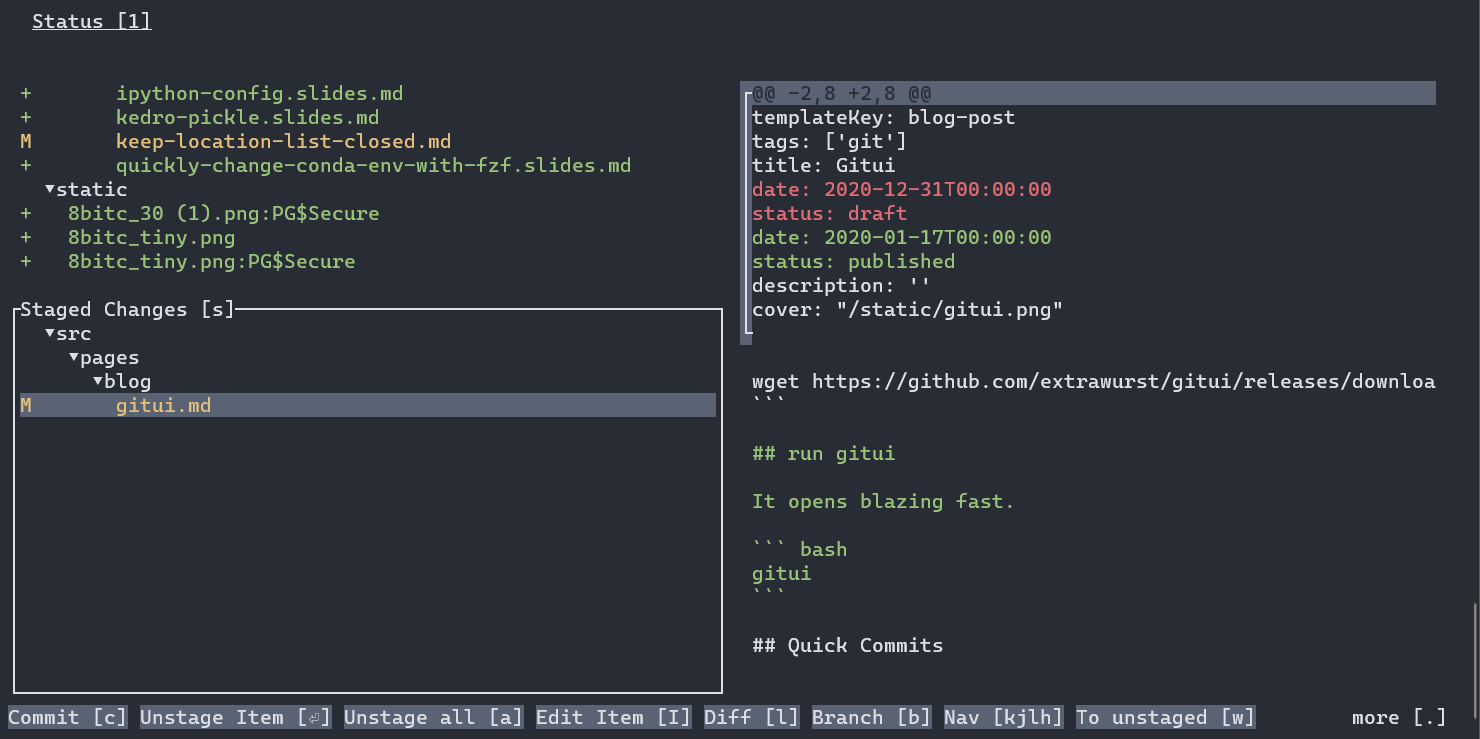
Sometimes I edit a number of files and want to commit them one at a time, this
is painful in the git cli and my main use case for `gitui`. `gitui` shows
unstaged changes at the top, staged changes on the bottom, and a diff on the
right.
## Navigate with hjkl
By default, `gitui` uses arrow keys, but simply copying
[vim_style_key_config.ron](https://github.com/extrawurst/gitui/blob/master/vim_style_key_config.ron)
to your config directory will get you vim-like keybindings.
## workflow
Generally, I pop open `gitui`, use j/k to get to the file I want to commit,
glance at the diff to the right, press enter to stage the file, sc to switch
focus to the saged files and commit, write my commit message hit enter and
done.
* w/s: to toggle focus between working and staged changes
* j/k: to scroll each section
* h/l: switch between left and right side
* enter: toggle file from working or staging
* c: start a commit message
* p: push
* : quit
## Other Panes
I am in the `Status [1]` pane 90% of the time, but it also has three other
panes for `Log [2]`, `Stashing [3]`, and `Stashes [4]`. I do not really use
the stashes panes, but the `Log [2]` pane is quite useful to quickly go through
the last set of commits and see the diff for each of them.
## What UI do you use for git
Let me know what ui you use for git, do you stick to the cli, use a gui, or use
a similar `TUI` interface?