---
title: "How I navigate tmux in 2021"
description: "change_speed = (speed) => [...document.querySelectorAll('video')].map(v => v.playbackRate=v.playbackRate+speed)"
date: 2021-05-11
published: true
tags:
- cli
- linux
- tmux
template: blog-post
---
In 2021 I changed the way I navigate between tmux sessions big time. Now I can
create, kill, switch with ease, and generally keep work separated into logical
groups.
## Update
Since making this post, I have made ~20 other posts in short form that all have
a YouTube video to go along with them you can find them all on my
[tmux-playlist](https://www.youtube.com/playlist?list=PLTRNG6WIHETB4reAxbWza3CZeP9KL6Bkr).
## [Chris Toomey's](https://twitter.com/christoomey) Tmux Course
I took Chris's [tmux course](https://thoughtbot.com/upcase/tmux) in December
2020 and it was fantastic. Even as a seasoned tmux user, I learned quite a bit.
Before the course, I was proficient in navigating within each of my tmux
sessions but rarely started more than one session. A few months later, I have
adopted a lot of what I learned from Chris and made it my own.
I am now keeping projects to their own session and can move between them
fluidly with just a few keystrokes. For high-traffic projects, I have them
bound to a single keystroke for instant switching. This change has been a
game-changer from the mess of windows I used to have and the nightmare it was
to find work I was doing and end up duplicating project work in two separate
windows.
> 📝 **NOTE:** Some of my config comes straight from the course, and some of it has
> been extended to my liking.
Let's take a quick look at how I am navigating through tmux on a day-to-day basis.
> 👆 Overview of how I navigate tmux
## tmux ls
Throughout this article, I have several recordings showing how I use manage
sessions with my keybindings. I will often run a `tmux ls` command to
highlight running sessions at various points to help guide the viewer.
## ta
_my attach/session switch script_
At the heart of my tmux navigation is a highly customized version of Chris's
tat script that I renamed `ta`. Many folks add this to their bashrc `alias
ta=tmux attach`. Simply calling ta will do the same thing as shown below. If
you're in a tmux session, it does nothing, and if you're not in one, it will
attach you to the first one.
> get the full [script](https://github.com/WaylonWalker/devtainer/blob/main/bin/.local/bin/ta) from GitHub.
> 👆 attaching to a session by default
In my `~/.bashrc` or `~/.zshrc` I add the `ta` command to keep myself in a tmux
session at all times. Whenever I open my terminal, I am automatically dropped
into a tmux session, but if I am opening a split while in tmux it's smart
enough to know not to nest tmux sessions.
``` bash
ta
```
Another article can dive into my `ta` command. This one is more about the
methodology, workflow, and keybindings to get me there. It's available in my
[script](https://github.com/WaylonWalker/devtainer/blob/main/bin/.local/bin/ta).
### but there's more
_gettin fuzzy_
Give it a directory, and a `fzy` dropdown will let you choose a subdirectory to
start your session in, and name the session after that directory.
``` bash
ta ~/git
```
> 🔥 Bonus, use direnv to automatically set settings, echo your git status,
> activate your environment or whatever else you need.
> 👆 give it a directory, it will ask for input to which project and start a new
> named session in that directory.
Note that starting from outside currently does not start in a split layout like
it does when starting from within tmux. I am still playing with this, but
generally, I want my terminal session to be plain when I first start my
terminal. I usually am starting work after the first default session.
> 🤔 I still use both fzy and fzf. It probably doesn't make sense to use both,
> but I am currently giving fzy a try.
## prefix+w
_tmux choose-tree_
By default, tmux comes with a `tmux choose-tree` command bound to `prefix+w`,
which opens in full screen. The upper section of the screen will show every
window opened. While selected, you can show the splits in each window by
hitting l, or fold it with h. You can search for a session name by hitting /.
``` bash
# ~/.tmux.conf
# expanded to show all splits
bind s choose-tree
# simpler window to show only sessions
bind S choose-session
```
### Keybindings in choose-tree/choose-session
The default keybindings of the tmux `choose-tree` and `choose-session` that I
use are listed below. J/K are very intuitive, but I just learned about h,l,/.
When I do use one of these, the / (search) can be super helpful to find
sessions/windows faster.
| action | key |
|--------|-----|
| fold | h |
| unfold | l |
| up | k |
| down | j |
| search | / |
## prefix+c-w prefix+c-g
_open a project_
I have set up to make it easy to open my non-work projects _(in my ~/git directory)_
and my work projects _(in my ~/work directory)_. I bound `prefix+c-g` and
`prefix+c-w` to open a new session in their respective directories. I like
mapping common prefix commands with control to keep my pinky mashed on
that control key.
``` bash
# ~/.tmux.conf
bind C-w new-window -n "work-session-picker" "ta ~/work"
bind C-g new-window -n "git-session-picker" "ta ~/git"
```
## prefix+c-j
_jump to session_
Now that I have `ta` rocking with a good create or attach setup, I am rarely
toggling through a list of running sessions, but I am doing it with
`prefix+c-j` when I do it. Keeping my finger on control and pressing `+j`.
This keybinding uses fzf to fuzzy match to an existing session and attach.
``` bash
bind C-j new-window -n "session-switcher" "tmux list-sessions | sed -E 's/:.*$//' | grep -v \"^$(tmux display-message -p '#S')\$\" | fzf --reverse | xargs tmux switch-client -t"
```
## M-N M-P
_next/prev_
Next and Previous sessions. This is super handy when working with under 3
sessions to be able to cycle through sessions holding `shift+alt` and pressing
`n` or `p`.
## tkill
_time to clean up_
It's easy to get a long crufty list of sessions running throughout the day.
Typically this is not too bad on system resources compared to running vscode in
every working project, but it does make it more challenging to manage and wade
through the sessions list. I use a handy shell alias that's been in my zshrc
for quite some time.
``` bash
alias tkill="for s in \$(tmux list-sessions | awk '{print \$1}' | rg ':' -r '' | fzy); do tmux kill-session -t \$s; done;"
```
I don't have this one set up with a nice hotkey, but it works for my
fingers. I often pop open a lower split(`M-s`), run `tkill`, and close (`M-x`).
## Last Session
_back_
While `M-n` and `M-p` work well with a small, focused number of sessions, I often
end up with too many sessions open, and it's not efficient to remember a double
`M-N` followed by a triple `M-P` to get back and forth. Most often, I want to
get between two sessions quickly, no matter what the order is.
``` bash
bind -n M-B switch-client -l
bind -n M-b switch-client -l
```
> Once I get two sessions back to back, I can switch between them with insane
> speed and precision.
## More Precision
_one keystroke_
The final layer of precision is for my most current project. I need to get
to these with a single keystroke. These are bound to a set of keybindings that were
readily available, just above the home row.
``` bash
bind C-t new-session -A -s todo "cd ~/work/todo && nvim -O backlog.md doing.md done.md"
bind -n M-i new-session -A -s ww3 "cd ~/git/ww3/ && nvim"
bind -n M-o new-session -A -s images_waylonwalker_com "cd ~/git/images.waylonwalker.com/ && nvim"
```
> These few directories are always at my fingertips, encouraging me to keep better notes
And yes, I did steal this last one from [Harpoon-man](https://twitter.com/ThePrimeagen) By The Way.
## Hub and Spoke
_M-i M-b_
I have really been digging this hub and spoke workflow where I am rocking away
on a project hit `M-I`, take some notes then hit `M-b` to get back to where I
was.
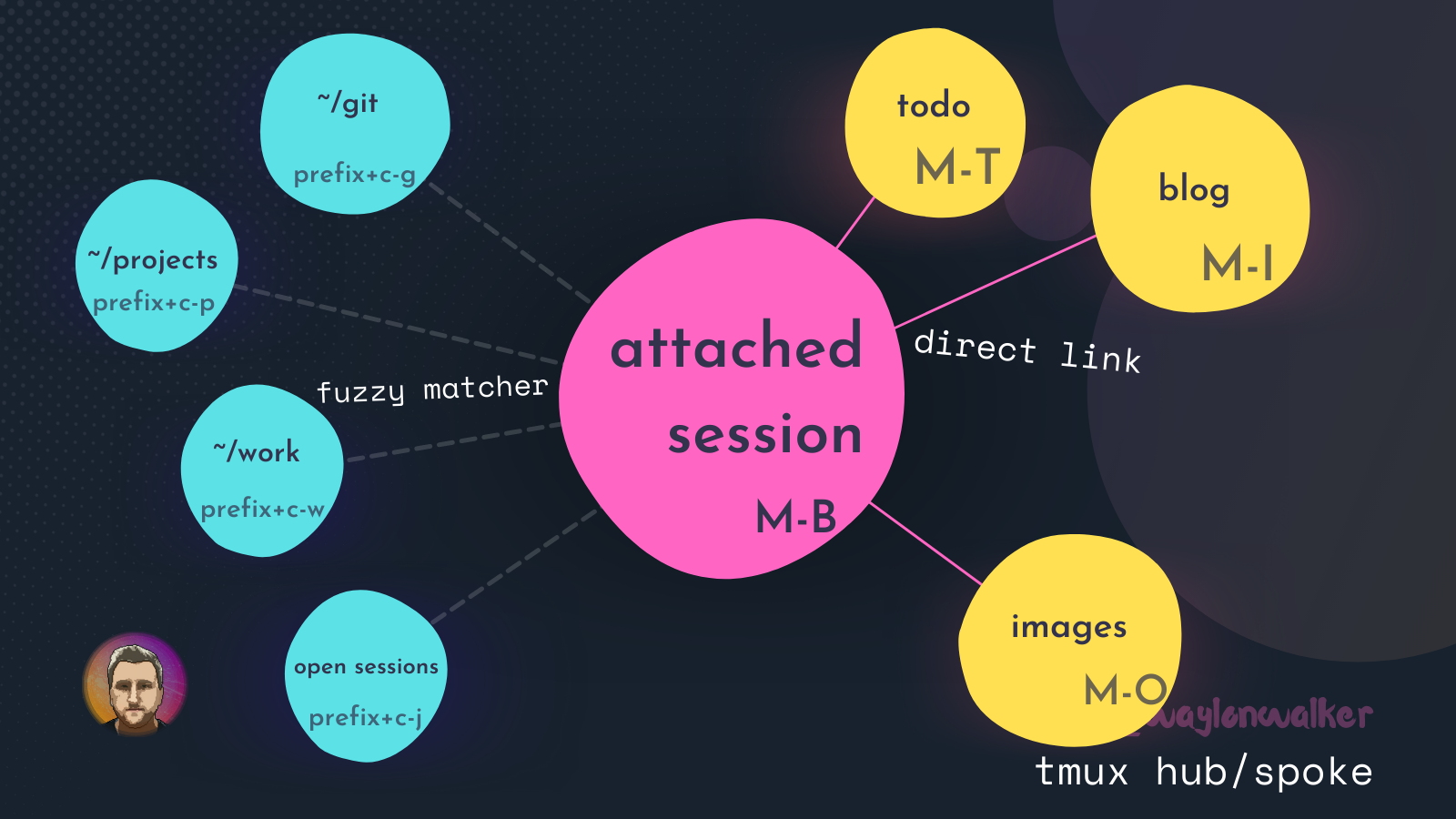
> Model of my current workflow
### Example
Here is an example of how I use the hub and spoke model to get to notes on my
blog and back to my project quickly.
## Example workflow
1. open tmux session with ta
2. `prefix+c-g` start work in a project using a fuzzy matcher
3. `M-t` over to my todo list
4. `M-b` back to my project
5. `M-i` to my blog to look up notes/make notes
6. `M-b` back to my project
7. `prefix+c-g` start work in another project using a fuzzy matcher
8. `M-t` over to my todo list
9. `M-b` back to my project
10. `prefix+c-j` fuzzy back to the first project
11. `M-b` back to the second project
---
Please let me know your thoughts.
[@waylonwalker](https://twitter.com/_WaylonWalker), this one took me a bit
longer to put together with all of the animated gif's, but I think it helps
visually show how I navigate tmux every day.
## Please give it a share if you liked it
If you liked it, give it a share and tag me on
[twitter](https://twitter.com/_WaylonWalker). I don't often ask but this
article took a bit more to put together than my normal post.
---
## Related Links
* [Chris Toomey's](https://twitter.com/christoomey) Tmux Course
* my [ta script](https://github.com/WaylonWalker/devtainer/blob/main/bin/.local/bin/ta).
* my [.tmux.conf](https://github.com/WaylonWalker/devtainer/blob/main/tmux/.tmux.conf)