Posts tagged: gaming
All posts with the tag "gaming"
Steep
Steam achievements and progress for Steep - 0.0% complete with 0/41 achievements unlocked.
Muck
Steam achievements and progress for Muck - 2.04% complete with 1/49 achievements unlocked.
sein
Steam achievements and progress for sein - 8.77% complete with 5/57 achievements unlocked.
Portal
Steam achievements and progress for Portal - 26.67% complete with 4/15 achievements unlocked.
In my adventure to put more homelab in docker, I moved our modded minecraft setup to docker.
Getting Mods #
So far I have found all of our mods from curse forge. modpacks make getting multiple mods working together much easier, someone else has already vetted a pack of often times 100+ mods that all play well together. I have yet to get these working in docker, I will, but for not I just have individual mods.
download file #
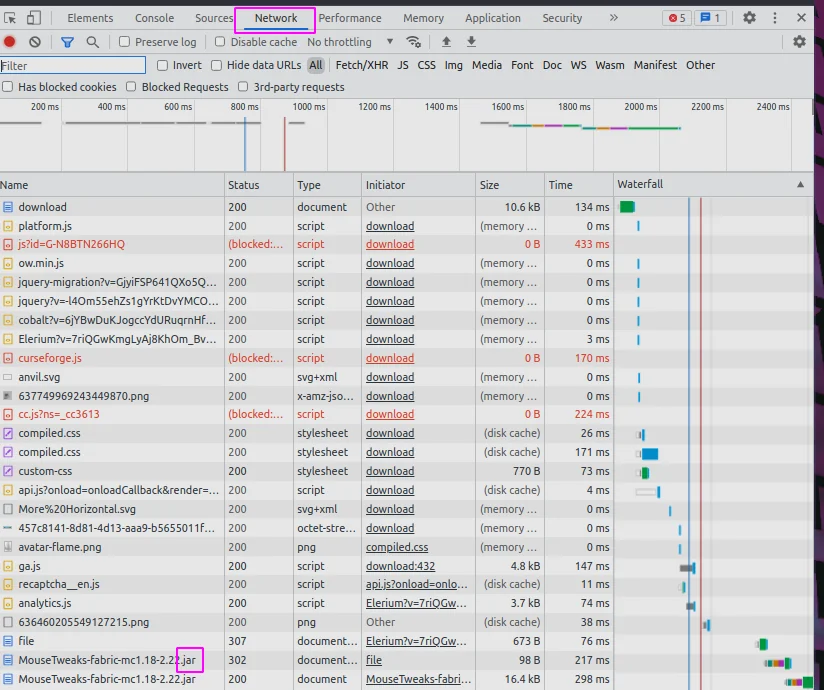
under the hood docker is using wget to get the mod. The link you click on from curseforge will block wget. What I do is pop open the devtools (f12 in chrome), click on the network tab, click the download link on the web page, and watch the real link show up.
Docker-compose #
I am using docker compose, it makes the command much easier to start, and all the things needed stored in a file. I am not using compose to run multiple things, just for the simple start command.
Create a directory for your server and add the following to a
docker-compose.yml file.
version: "3.8"
services:
mc:
container_name: walkercraft
image: itzg/minecraft-server
ports:
- 25565:25565
environment:
EULA: "TRUE"
TYPE: "FORGE"
VERSION: 1.16.5
MODS_FILE: /extras/mods.txt
REMOVE_OLD_MODS: "true"
tty: true
stdin_open: true
restart: unless-stopped
ports:
- 25565:25565
volumes:
- ./minecraft-data:/data
- ./mods.txt:/extras/mods.txt:ro
volumes:
data:
mods.txt #
Once you have your mod file link from the network tab add them to a mods.txt file next to your docker-compose file.
https://media.forgecdn.net/files/3620/189/engineersdecor-1.16.5-1.1.16.jar
start your server #
Once you have made it this far starting the server is pretty simple.
docker compose up -d
kill your server #
If your still in the same directory, taking down the server should be pretty easy as well.
docker compose down
# if that does not work you can kill it
docker ps
# copy the id of your container
docker kill <id>
Hydroneer
Steam achievements and progress for Hydroneer - 0.0% complete with 0/78 achievements unlocked.
I’ve ran a Minecraft server at home since December 2017 for me and my son to play on. We start a brand new one somewhere between every day and every week. The older he gets the longer the server lasts.
In all these years, I’ve been popping open the command line and running the server manually, and even inside of Digital Ocean occasionally to play a more public server with a friend.
My buddy Nic has been sharing me some of his homelab setup, and it’s really got me to thinking about what I can run at home, and Dockerizing all the things. Today I found a really sweet github repo that had a minecraft server running in docker with a pretty incredible setup.
I ended up running the first thing in the Readme that included a volume mount. If you are going to run this container, I HIGHLY reccomend that you make sure that you have your world volume mounted, otherwise it will die with your docker container.
Docker Compose #
With the following stored as my docker-compose.yml in a brand new and
otherwise empty directory I was ready to start the server for the night.
version: "3"
services:
mc:
container_name: walkercraft
image: itzg/minecraft-server
ports:
- 25565:25565
environment:
EULA: "TRUE"
tty: true
stdin_open: true
restart: unless-stopped
volumes:
# attach a directory relative to the directory containing this compose file
- ./minecraft-data:/data
To start the server we open up the terminal in this directory and run the follwing command.
docker compose up -d
Once its up and running we can run commands on the server simply by attaching to it.
docker attach walkercraft
A few common commands we run in the server #
We play very casually most of the time so we will set keepInventory to true so that we do not loose our inventory when we die. Sometimes we also op ourselve so that we can toggle gamemode into creative.
# set the game to keep your inventory when you die.
/gamrule keepInventory true
# give everyone operater priveledges to they can run commands
/op @a
# give playername op
/op playername
RC Plane 3
Steam achievements and progress for RC Plane 3 - 4.44% complete with 2/45 achievements unlocked.