Today I Learned

Short TIL posts

169 posts latest post 2026-06-04 simple view
Publishing rhythm
May 2026 | 4 posts

--name-status is a great way to see what files have changed in a git diff alongside the status code. I recently used this in a script to create a report of new and modified files during a build.

git diff --name-status
git diff --name-status origin/main
git diff --name-status --staged
git diff --name-status 'HEAD@{3 days ago}'

I learned to today that setting MEMORY on your minecraft server causes the JVM to egregiously allocate all of that memory. Not setting it causes slow downs and potential crashes, but setting INIT_MEMORY and MAX_MEMORY gives us the best of both worlds. It is allowed to use more, but does not gobble it all up on startup.

In this economy we need to save all the memory we can!

Here is a non-working snippet for a minecraft server deployment in kubernetes.

      containers:
        - name: dungeon
          image: itzg/minecraft-server
          env:
            - name: EULA
              value: "true"
            - name: INIT_MEMORY
              value: "512M"
            - name: MAX_MEMORY
              value: "3G"

and in docker compose

  dungeon:
    image: itzg/minecraft-server
    environment:
      EULA: "true"
      INIT_MEMORY: "512M"
      MAX_MEMORY: "3G"

I found snow-fall component from zachleat, and its beautiful… to me. I like the way it looks, its simple and whimsical.

Install #

There is an npm package <a href="https://zachleat.com" class="mention" data-name="Zach Leatherman" data-bio="A post by Zach Leatherman (zachleat)" data-avatar="https://www.zachleat.com/og/opengraph-default.png" data-handle="@zachleat">@zachleat</a>/snow-fall if that’s your thing. I like vendoring in small things like this.

curl -o static/snow-fall.js https://raw.githubusercontent.com/zachleat/snow-fall/refs/heads/main/snow-fall.js

I generally save it in my justfile so that I remember how I got it and how to update…. yaya I could use npm, but I don’t for no build sites.

get-snowfall:
    curl -o static/snow-fall.js https://raw.githubusercontent.com/zachleat/snow-fall/refs/heads/main/snow-fall.js

Usage #

Now add the component to your page.

<!-- This belongs somewhere inside <head> -->
<script type="module" src="snow-fall.js"></script> <!-- Adjust the src to your path -->

<!-- This belongs somewhere inside <body> -->
<!-- Anything before will be below the snow. -->
<snow-fall></snow-fall>
<!-- Anything after will show above the snow. -->

Today I learned an important lesson that you should periodically check on your kubeconfigs expiration date. It’s easy to do. You can ask for the client-certificate-data from your kubeconfig, decode it, and use openssl to get the expiration date.

kubectl config view --raw -o jsonpath='{.users[0].user.client-certificate-data}' \
  | base64 -d 2>/dev/null \
  | openssl x509 -noout -dates

Note

This will only work for the first user, if you have more than one user or context defined in your kubeconfig you will need to adjust.

When using two GitHub accounts the gh cli gives very easy gh auth switch workflow from the cli.

from the docs

gh auth switch –help Switch the active account for a GitHub host.

This command changes the authentication configuration that will be used when running commands targeting the specified GitHub host.

If the specified host has two accounts, the active account will be switched automatically. If there are more than two accounts, disambiguation will be required either through the --user flag or an interactive prompt.

# list accounts
gh auth status
# switch accounds (interactive if more than 2, i've never seen this personally)
gh auth switch

gpus are awesome and I need one for Bambu Studio to be usable in a distrobox. Adding the --nvidia flag to distrobox create bind mounts the nvidia /dev/ devices and sets up the necessary environment variables. Once we are in there are a couple of packages to install to make it work.

distrobox create --name bambu-studio --image archlinux:latest --nvidia
distrobox enter bambu-studio
sudo pacman -S nvidia-utils lib32-nvidia-utils vulkan-icd-loader
nvidia-smi
glxinfo | gprep OpenGL
sudo pacman -Syu --needed base-devel git
git clone https://aur.archlinux.org/paru-bin.git
cd paru-bin
makepkg -si
paru -S bambustudio-bin

bambu-studio

distrobox-export --app bambu-studio

The k3s system-upgrade controller is a fantastic tool for upgrading k3s automatically. It has done a fantastic job for me every time I’ve used it. Today I ran it on a cluster that needed to upgrade several minors and I learned that the controller does not pick up on changes to the channel url if you change from minor to minor.

The solution I came up with was to name the plan with the version it supports. Then on each patch upgrade, change both the plan name and the channel. I use gitops with argocd, it automcatically cleaned up old plans, created new plans, and the system-upgrade-controller picked up the plan and started applying immediately.

# Server plan
apiVersion: upgrade.cattle.io/v1
kind: Plan
metadata:
  name: server-plan-v1.33 # <- This is important if you want to change the channel name
  namespace: system-upgrade
spec:
  concurrency: 1
  cordon: true
  nodeSelector:
    matchExpressions:
    - key: node-role.kubernetes.io/control-plane
      operator: In
      values:
      - "true"
  serviceAccountName: system-upgrade
  upgrade:
    image: rancher/k3s-upgrade
  channel: https://update.k3s.io/v1-release/channels/v1.33
---
# Agent plan
apiVersion: upgrade.cattle.io/v1
kind: Plan
metadata:
  name: agent-plan-v1.33 # <- This is important if you want to change the channel name
  namespace: system-upgrade
spec:
  concurrency: 1
  cordon: true
  nodeSelector:
    matchExpressions:
    - key: node-role.kubernetes.io/control-plane
      operator: DoesNotExist
  prepare:
    args:
    - prepare
    - server-plan
    image: rancher/k3s-upgrade
  serviceAccountName: system-upgrade
  upgrade:
    image: rancher/k3s-upgrade
  channel: https://update.k3s.io/v1-release/channels/v1.33

I’d love to see a better way if you have a way to upgrade through minors, or manually control the minor of your cluster let me know.

setting COLUMNS env var to a number greater than 0 will make the terminal resize to that number of columns.

COLUMNS=80 uvx --from rich-cli rich myscript.py

Note

Not all programs respct the COLUMNS env var, but rich does, and a lot of stuff I’m building uses rich.

I discovered this when I was trying to make a low effort readme generated from the code, but did not depend on the size of terminal it was ran on.

# justfile
readme:
    echo "# Workspaces" > README.md
    echo "" >> README.md
    echo '``` bash' >> README.md
    COLUMNS=80 ./workspaces.py --help >> README.md
    echo '```' >> README.md

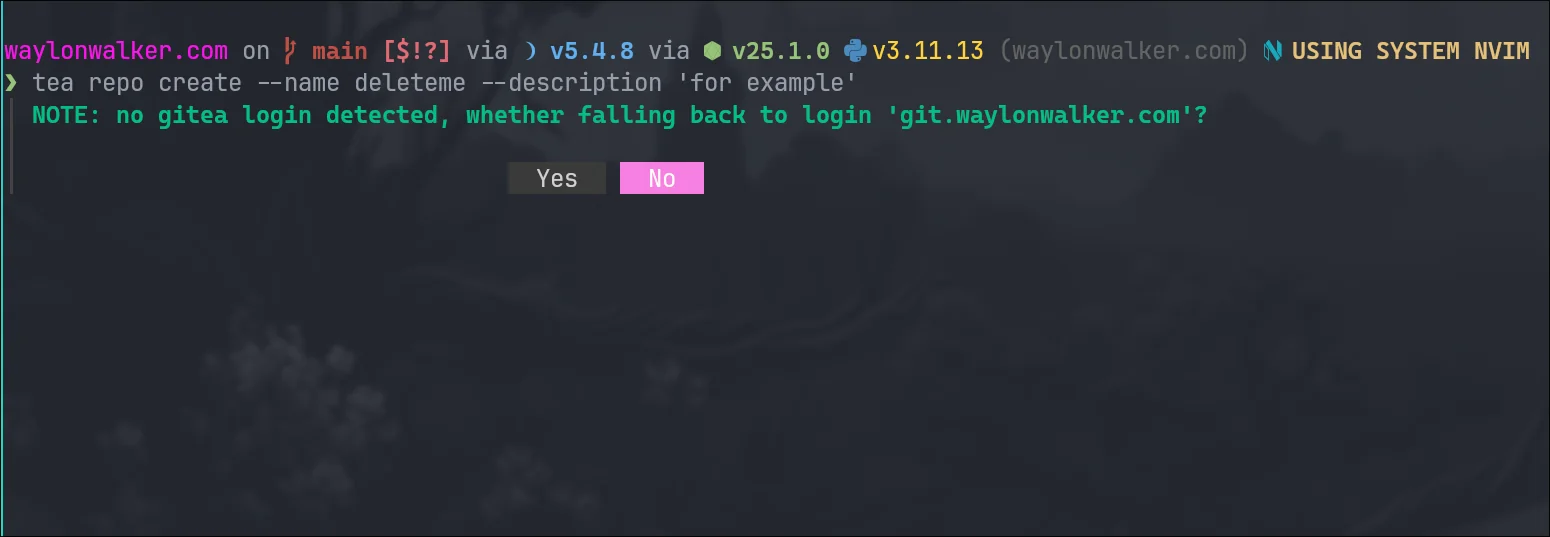
The tea command for gitea (used by forgejo) has a flag for login. With gitea you can have multiple accounts logged in. When you try to run a command such as repo create it will prompt you which login to use, but I learned that you can bake it in to all of them with --login <login-name>

❯ tea repo create --name deleteme --description 'for example'
┃ NOTE: no gitea login detected, whether falling back to login 'git.waylonwalker.com'?
image showing message NOTE: no gitea login detected, whether falling back to login ‘git.waylonwalker.com’?
tea repo create --name deleteme --description 'for example' --login git.wayl.one

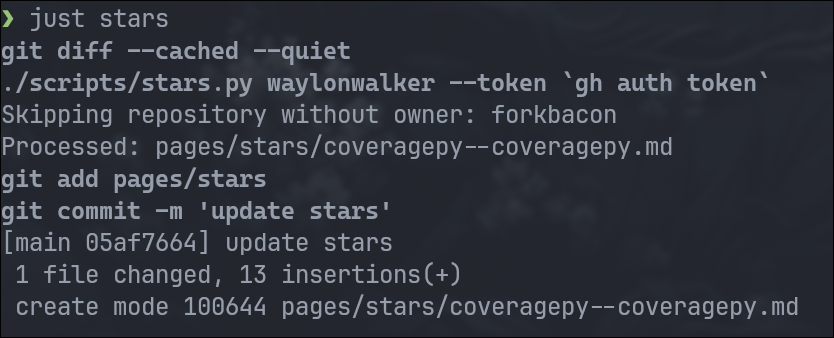
I found an interesting side effect of manually running my script to generate [[ stars ]] posts is that you get notified when one gets renamed. Today I noticed that Ned Batchelder created a coveragepy org.

screenshot-2025-11-12T03-33-12-967Z.png

Today I learned how to use AliasChoices with pydantic settings to setup common aliases for the same field. I’m bad about remembering these things, and hate looking up the docs. I like things to be intuitive and just do the thing I want it to do. Especially when they get configured through something like yaml and do not have a direct lsp look up right from my editor. I figured out how to support what might be common aliases for a storage directory. These can be set up as environment variables and used by config.

from pathlib import Path

from pydantic import Field
from pydantic import AliasChoices
from pydantic_settings import BaseSettings

class Settings(BaseSettings):
    storage_dir: Path | None = Field(
        default=None,
        validation_alias=AliasChoices(
            "STORAGE_DIR", "STORAGE_DIRECTORY", "STORAGE_PATH", "STORAGE_PATHNAME",
            "DROPPER_STORAGE_DIR", "DROPPER_STORAGE_DIRECTORY", "DROPPER_STORAGE_PATH", "DROPPER_STORAGE_PATHNAME",
        ),
        description="Directory for stored files",
    )

I often want to run an s3 sync in an isolated environment, I don’t want to set any environment variables, I don’t want anything secret in my history, and I don’t want to change my dotenv into something that exports variables, I just want s3 sync to work. dotenv run is the tool that I’ve been using for this, and this uv one liner lets it run fully isolated from the project.

one liner #

uv tool run --from 'python-dotenv[cli]' dotenv run -- uv tool run --from awscli aws s3 sync s3://bucket data

multi-line #

same thing formatted for readability

uv tool run \
  --from 'python-dotenv[cli]' \
  dotenv run -- \
uv tool run \
  --from awscli \
  aws s3 sync s3://dropper data

There are probably 10 ways to skin this cat, but this is what I did, if you have a better way let me know, I’ll link you below.

FastAPI.">Starlette has a head request that works right along side your get requests. This morning I fiddled around with custom routes for GET and HEAD, but had to manually set some things about the file, and was still missing e-tag in the end. Turns out as a developer you can just add a head route to your get routes and starlette will strip the content for you, while preserving all of those good headers that fastapi FileResponse created automatically for you.

from fastapi import APIRouter
from fastapi.response import FileResponse
from fastapi import Request
from pathlib import Path

router = APIRouter()

@router.get("/file/{filename}")
@router.head("/file/{filename}")
async def get_file(filename: str, request: Request,):
    headers = {
      "Cache-Control": "no-cache, no-store, must-revalidate",
    }
    from pathlib import Path
    filename = Path(f"data/{filename}")
    if not filename.exists():
        raise HTTPException(status_code=404, detail="File not found")
    return FileResponse(filename, headers=headers)

Here is an example of the response with curl.

❯ curl -I -L "http://localhost:8100/api/file/e5523925-1565-454c-bab3-c70c4deabc83.webp?width=250"
HTTP/1.1 200 OK
date: Wed, 22 Oct 2025 14:16:03 GMT
server: uvicorn
cache-control: no-cache, no-store, must-revalidate
content-type: image/webp
content-length: 17206
last-modified: Tue, 23 Sep 2025 14:03:20 GMT
etag: f891660c1543feb1af7564f08abdd511

❯ curl -I -L "http://localhost:8100/api/file/unknown-file.webp?width=250"
HTTP/1.1 404 Not Found
date: Wed, 22 Oct 2025 14:16:11 GMT
server: uvicorn
content-length: 27
content-type: application/json

Today I learned that while .stignore and .gitignore look very similar they are not. My obsidian directory had been locked up for a few weeks and I had no idea why until I logged into the web ui and saw errors. The errors were some confusing regex validator not matching. I don’t know what the exact error was, but I went in and only ignored the files I cared about instead of the entire gitignore. Primarily I was getting conflicts in my .git directory.

I needed to display some hover text in a web app that I am using tailwind and jinja on. It has no js, and no build other than the tailwind. I want this to remain simple. Turns out that you can use a span with a title attribute to get hover text in HTML.

<p>
I needed to display some hover text in a web app that I am using tailwind and
jinja on.  It has no js, and no build other than the tailwind. I want this to
remain <span style='cursor: help; color:yellow;' title='respective to the
python developer I am and the team it is used for'>simple</span>.
</p>

Today I learned how to use tar over ssh to save hours in file transfers. I keep all of my projects in ~/git (very creative I know, I’ve done it for years and haven’t changed). I just swapped out my main desktop from bazzite to hyprland, and wanted to get all of my projects back. Before killing my bazzite install I moved everything over (16GB of many small files), it took over 14 hours, maybe longer. I had started in the morning and just let it churn.

This was not going to happen for re-seeding all of my projects on my new system, I knew there had to be a better way, I looked at rsync, but for seeding I ran into this tar over ssh technique and it only took me 6m51s to pull all of my projects off of my remote server.

ssh [email protected] 'tar -C /tank/git -cpf - .' \
  | tar -C "$HOME/git" -xpf -

I’ve been leaning on lazy-self-installing-python-scripts more and more, but I did not realize how much tooling that uv gives you to help manage your scripts.

uv init --script up
uv add --script up typer rich
uv remove --script up rich
sed -i '1i #!/usr/bin/env -S uv run --script' up
chmod +x up
./up

The result is a script that looks like this, its executable as what looks like regular command in your shell.

#!/usr/bin/env -S uv run --script
# /// script
# requires-python = ">=3.13"
# dependencies = [
#     "typer",
# ]
# ///


def main() -> None:
    print("Hello from up!")


if __name__ == "__main__":
    main()

This one is one that I’ve been using quite often, I did’t have a hotkey for it, I just used the rm shell command.

!!rm %<TAB><CR>

When you type !! from normal mode it will automatically put you in command mode with .! pre-filled, then you just type rm and <TAB> to auto-complete the current file name, and <CR> to execute the command.

:.!rm %<TAB><CR>

Making it better #

The one quirk that I don’t like about this is that the buffer remains open after deleting, and sometimes I forget to close it and end up re-creating it by mistake when running :wall or :xall.

Create a DeleteFile command with vim command.

:command! DeleteFile execute "!rm %" | bdelete!

Create a DeleteFile command with lua.

vim.api.nvim_create_user_command(
  'DeleteFile',
  function()
    -- Delete the current file from disk
    vim.cmd('!rm %')
    -- Close the buffer without saving
    vim.cmd('bdelete!')
  end,
  {}
)

Vim :noa is a command that runs what you call without autocommands on. This is typically used when you have some BufWritePre commands for formatting, most auto formatters are implemented this way in vim. It can be super useful if you have something like a yaml/json file that you have crafted perfectly how you want it, maybe it has some source code for a small script or sql embeded and your formatter wants to turn it into one line. You could get a better formatter, but for these one off cases that aren’t a big bother to me I run :noa w.

:noa w

Today I gave modd a try, and it seems like a good file watcher executor. I tried using libnotify to send desktop notifications, but all I got was modd, I might not have notifications setup right on the awesomewm machine.

config goes in modd.conf

**/*.py {
  # check formatting via ruff
  prep: ruff format --check .

  # check docstring formatting
  prep: pydocstyle .
  #
  # # check type hints via ty
  prep: ty check .
  #
  # # run linter via ruff
  prep: ruff check .
}

I installed it using installer from jpillora, pulling pre-built binaries right out of the github repo.

curl https://i.jpillora.com/cortesi/modd | bash

Then you can install it, and on file change it will run the commands you configured.

modd