Today I Learned

Short TIL posts

169 posts latest post 2026-06-04 simple view
Publishing rhythm
May 2026 | 4 posts

Kind (Kubernetes in Docker) is a tool that makes it easy to create and tear down local clusters quickly. I like to use it to test out new workflows.

Argocd is a continuous delivery tool that makes it easy to setup gitops workflows in kubernetes.

Here is how you can setup a new kind cluster and install argocd into it using helm, the kubernetes package manager.

kind create cluster --name argocd

# your first time through you need to add the argocd repo
helm repo add argo https://argoproj.github.io/argo-helm
helm repo update

# install argocd into the cluster
helm install argo argo/argo-cd --namespace argocd --create-namespace

# deploy the app of apps
kubectl apply -f apps/apps.yaml

If you want to add repos and apps to your cluster you can use the argo cli to do that, but first you will need forward the argocd port and login.

# Wait until Argo CD API server is available
echo "Waiting for Argo CD API server to be available..."
while ! kubectl wait --for=condition=available --timeout=60s deployment/argo-argocd-server -n argocd; do
  echo "Waiting for Argo CD API server to be ready..."
  sleep 10
done


kubectl port-forward svc/argo-argocd-server -n argocd 8080:443 &
argocd_admin_password=$(kubectl get secret argocd-initial-admin-secret -n argocd -o jsonpath="{.data.password}" | base64 -d)
argocd login localhost:8080 --insecure --username admin --password $argocd_admin_password
argocd repo add https://github.com/fokais-com/app.fokais.git --username waylonwalker --password ${GH_ARGO_PAT}
argocd app create app-fokais-local --repo https://github.com/fokais-com/app.fokais.git --path k8s/overlays/local --dest-server https://kubernetes.default.svc --sync-policy automated --sync-option Prune=true

In my homelab kubernetes cluster I am using kubeseal to encrypt secrets. I have been using it successfully for a few months now wtih great success. It allows me to commit all of my secrets manifests to git with out risk of leaking secrets.

You see kubeseal encrypts your secrets with a private key only stored in your cluster, so only the cluster itself can decrypt them using the kubeseal controller.

kubeseal-post.png

KubeSeal #

https://sealed-secrets.netlify.app/

screenshot of https://sealed-secrets.netlify.app/

installation #

Installation happens in two steps. You need the kubernetes controller and the client side cli to create a sealed secret.

For a more complete instruction see the [docs#installation](https://github.com/bitnami-labs/sealed-secrets?tab=readme-ov-file#installation]

installation - controller #

Warning

 **context**

Make sure that you are in the right context before running any kubectl commands.

kubectl config current-context

sealed-secrets is installed using the helm package manager. To install sealed-secrets run the following command.

helm repo add sealed-secrets https://bitnami-labs.github.io/sealed-secrets
helm install sealed-secrets -n kube-system --set-string fullnameOverride=sealed-secrets-controller sealed-secrets/sealed-secrets

installation - client #

For the client you can check your OS package manager, brew, or the github-releases. For me I found it in the main arch repos.

paru -S kubeseal
# or
sudo pacman -S kubeseal
# or
brew install kubeseal

Note

 You will need to install kubeseal on every device that you will want to

create sealed secrets on.

Example #

Most of these commands come straight from the docs. From my experience I have always specified the namespace, my projects go per namespace and I don’t have any reason that other namepsaces should see the secret, and if they do I deploy another secret in that namespace.

# Create a json/yaml-encoded Secret somehow:
# (note use of `--dry-run` - this is just a local file!)
echo -n bar | kubectl create secret generic mysecret --dry-run=client --from-file=foo=/dev/stdin -o yaml -n thenamespace > mysecret.yaml

note that the key of the secret is foo and the value is bar

results

apiVersion: v1
data:
  foo: YmFy
kind: Secret
metadata:
  creationTimestamp: null
  name: mysecret
  namespace: thenamespace

Note

 The data is base64 encoded.
echo -n bar | base64
# YmFy
# This is the important bit:
kubeseal -f mysecret.yaml -w mysealedsecret.yaml

# At this point mysealedsecret.json is safe to upload to Github,
# post on Twitter, etc.

# Eventually:
kubectl create -f mysealedsecret.yaml -n thenamespace
# sealedsecret.bitnami.com/mysecret created

# Profit!
kubectl get secret mysecret
kubectl get secret mysecret -n thenamespace
# NAME       TYPE     DATA   AGE
# mysecret   Opaque   1      27s

cat mysealedsecret.yaml | kubeseal --validate

echo -n bar | kubectl create secret generic mysecret --dry-run=client --from-file=foo=/dev/stdin -o yaml \
  | kubeseal -o yaml -n thenamespace > mysealedsecret.yaml
echo -n baz | kubectl create secret generic mysecret --dry-run=client --from-file=bar=/dev/stdin -o yaml \
  | kubeseal -o yaml -n thenamespace --merge-into mysealedsecret.yaml

Results

---
apiVersion: bitnami.com/v1alpha1
kind: SealedSecret
metadata:
  creationTimestamp: null
  name: mysecret
  namespace: thenamespace
spec:
  encryptedData:
    bar: AgBLkamltcLfH1dC1JxQ3qd8lJ8aBZF2ARoq3uo055hnzXOy8g2T5liTx5UPvyPV8yyWqABU8eOnwjNhDtzSATvYeBB3fGkucdOZziWEoiNsWTR9ZtFEkod7Ya6uGkzZOJwi3IkrHFVIT9oWZQUxxJZ6vFhPiFcx9Dorr8TNSzG4KOug25+PhWPPiHDgSup5N3CkWCZaYOF7dbZRVSA4nGP1fZxjFByHP4AsdjLCHptyVbkpLRKeiXTkLxfLX4K+JLZGM41S1On5bSP56mCfv1daTJx619kDXkRLw9l21Ot283/L0NMNAiw781AefYMVoO3aHmYgcT6wAtsQAKje9fyL7DQRHt8a5NZOWukp/P6XjdXRz/nfQasQlbSTrRkDpplKIM5/WdPcBoKi+yyoOL0rZ8x1X7YzUI3BggZmzWyEPD01BK1YAHGZnYIZbbCy1JSm8JCBvP+xWMg+i0Z/DCD8nclAhH1GX2Q7/NrNHF//589AJfuriymd2+mk7uaLA4RRsY0l5QeZD6HVAqSv5jWsVQQtSftWmI9vn9oL/Pno7sEUjSDpXPfF4nnsULhxsPEe2DFAMm1kZAjdF06ueF4/x2Fdy80ZQNyycaDx2CWm4z3b14A75WGyOXl2wJZQqxrFCz8el4hD2nH3zQFEzd6AIh49myqVAGuu2qGlYP4p94LJghVa+mQjztLD/2ZUZjY+anQ=
    foo: AgAducXW6iUCY900cPDdmRfuj7tKnh2hY4C1+2hFoAtjyvjepsKNWsiPJ81t8anaMfFPat4ta060l5VtTrceFE8oS/rViz1tvNWGPBjL+GwL/QjkGl6H8ju87vKERKQn5qw7B/V5j24VM8AxOd+/vJNt/IeRIHLubvFft4hyMq4b0xmIxaemBSTxchQX/5364T3VJH2kHaqpqd+JJgQnTbiTQe/XnyZokDX8GSxw4rAbJUJSRUtY9DB9ZDu2zC5VngX+GJjbwHGbv9EKs8LShJIPrD8xHqrDmlSXGkkP01D4A6268Qoi3x5S0H5aqDgtrgBiWsNkzdKwjfrTNx7pKecOi41lyFdffHOGUew4aPPMqjzWR2TEms9WNNQXwnBdDHKMkFsisocF52BolEkcjF8g/u5h2Af92abMu6k16VybJrB7TV1set5A9W7rqG1iXI4+1W6XQfFnpja8xL/zJBvZcyHgeYMNaxa3C3s6PANhPzAUVaXV9eedAkptGJLN13IZj4LujpoAxRKo6bEdydv/5P23R3fx5PgTOpVI7riECAOIg2PThFsEoVCUwStmKCvIx1I2+YixIlv/OiaUWo4lrI/3ve5WGp4ZnuiJPk34JoYAlRbR6+sX14d8Ek6viq/pJUUIfVpNIkNMboUL4u+KpT47eyQ/mWih/KFduQyX9II/vQ+/IJGzEEHIipxAhdmV+K4=
  template:
    metadata:
      creationTimestamp: null
      name: mysecret
      namespace: thenamespace

backing up your sealing key #

kubectl get secret -n kube-system -l sealedsecrets.bitnami.com/sealed-secrets-key -o yaml >main.key

converting .env files to a secret #

Working with web applications .env is a common way to store credentials. Let’s look at how we can convert these to secrets.

kubectl create secret generic mysecret --from-env-file=.env -n thenamespace --dry-run=client -o yaml > mysecret.yaml

Now you have a secret that looks like this.

apiVersion: v1
data:
  foo: YmFy
kind: Secret
metadata:
  creationTimestamp: null
  name: mysecret
  namespace: thenamespace

Seal it up just like before.

kubeseal -f mysecret.yaml -w mysealedsecret.yaml

Using the secrets #

I typically use the secrets in the container spec.

containers:
  - name: myapp
    envFrom:
      - secretRef:
          name: mysecret
    # You can still have other env vars
    env:
      - name: foo
        value: bar

Sometimes I want to mount the secret as a volume.

containers:
  - name: myapp
    volumeMounts:
      - name: mysecret
        mountPath: /mysecret
volumes:
  - name: mysecret
    secret:
      secretName: mysecret

Image Pull Secrets #

I also need to use imagePullSecrets. Let’s walk through the whole process. Starting with the secret.

kubectl create secret docker-registry regcred --docker-server=myprivateregistry.example.com --docker-username=foo --docker-password=bar --dry-run=client -o yaml

Generates the following secret.

apiVersion: v1
data:
  .dockerconfigjson: eyJhdXRocyI6eyJteXByaXZhdGVyZWdpc3RyeS5leGFtcGxlLmNvbSI6eyJ1c2VybmFtZSI6ImZvbyIsInBhc3N3b3JkIjoiYmFyIiwiYXV0aCI6IlptOXZPbUpoY2c9PSJ9fX0=
kind: Secret
metadata:
  creationTimestamp: null
  name: regcred
type: kubernetes.io/dockerconfigjson

---

the secret

Now we we can seal that secret.

kubeseal -f regcred.yaml -w regcred-sealed.yaml

And that gives us the following sealed secret that we can deploy into our cluster.

---
apiVersion: bitnami.com/v1alpha1
kind: SealedSecret
metadata:
  creationTimestamp: null
  name: regcred
  namespace: default
spec:
  encryptedData:
    .dockerconfigjson: AgATYVEywkyYEaoErQbJo6xEZfOnRn1ydNTLkO3Jt/NF/UH+0o9lHpDecRpN0XnVu8xJUcdjkgD9q2XkwP8e6qQDS2mMPTiTNIN+8gbJx97WrD1YQDT0lXBuoyi9I/iwlXxx6MgH/6GY6CeGTz5SRlvoU0Xhlt4d11s7/xapdE8QMLsAReqPEv8oZHEyAxDRrjXX0V+tO8dV+G+GXjUDMBBceLael9rvGzSKIwDVXACVqQhLkB6FoP98M+yyBE46RBNnSnS0ShQM5PprL24HKpRZ43x4RM53KBrQ7R/MxeshafY+B6vUvrolmVox4sud8xngMOcjTO28LLOrck5V8ZiDabhN7ajHEf03IESr1o/ADGf5k9988Vv1txJtsZW0K2mpRu0D7/BLVL9KzbZ5ywULqIoD/Ur2GIGnZqMAKOq4laGp/GJtMKLrhmEvekT397wC/Gf/xdDKVhHf2p4ocsPu7LKFuS5H/Auel/Q5grdn8L5wwrO4VWRv3eJroKh/Hux7Qd7f64O7qdi0XthDocf+gmtjys+Gy72M7tyf8f/O+3oKbS4CWQVTj4ZThMc9znrFnHqt2q/7pAyytTQCpk51wlzOsNvOhCueJM/jmeahaL0LuBrqngqISpnd65sgVzBcZpwK9i2Fckyt0DrZLH+NoIuvaqNhzlF+OMbAft/ylWWKCH4WUP+FKG+1LXM7ud7AA3MMbGSBxHL0/WK/INa7MB56xZKMqqyvvLLQHFTQUROJjkgkzsumdOgwZTRgIFnAZ4+vOX3/1Rtt3mAs3vdoJhL4GuKUYCnEHt908eKkWEVEs7eMk5SdSRtIsbaXO2s0dtADwg==
  template:
    metadata:
      creationTimestamp: null
      name: regcred
      namespace: default
    type: kubernetes.io/dockerconfigjson

Now that we have our sealed registry secret, we can deploy it into our cluster.

kubectl apply -f regcred-sealed.yaml

Now we can use it to pull images from our private registry.

containers:
  imagePullSecrets:
    - name: regcred

Full example #

Here is a full deployment example using all the secrets we have created.

  • regcred
  • mounting a secret
  • envFrom secret
---
apiVersion: apps/v1
kind: Deployment
metadata:
  creationTimestamp: null
  labels:
    service: myservice
  name: myservice
  namespace: mynamespace
spec:
  replicas: 1
  selector:
    matchLabels:
      service: myservice
  strategy:
    type: Recreate
  template:
    metadata:
      creationTimestamp: null
      labels:
        service: myservice
    spec:
      containers:
        - envFrom:
            - secretRef:
                name: mysecret
          env:
            - name: foo
              value: bar
          image: private-registry.io/myimage:1.0.0
          name: myimage
          ports:
            - containerPort: 5000
              protocol: TCP
          resources: {}
          volumeMounts:
            - mountPath: /mysecret
              name: mysecret
      restartPolicy: Always
      volumes:
        - name: mysecret
          secret:
            secretName: mysecret
      imagePullSecrets:
        - name: regcred

Downside #

Now the main downside I see with kubeseal is that it does not provide a way to store your secrets in a way that you can access outside of your cluster. So you need to make sure that you have another solution in place to store your secrets so that you still have them if you ever were to take the cluster down or move from k8s to something else.

Overall the likelyhood of you loosing a production cluster is pretty low, so maybe it’s ok to just trust it depending on what the secrets are. Especially for things you control and can rotate anyways its fine.

So after months of fighting with gf not going to template files, I finally decided to put in some effort to make it work.

This was the dumbest keybind in my config, that I copied from someone else without understanding it.

What I am trying to do #

I have jinja templates in a directory called templates. I want to bind gf to open a template file, but it is trying to open a new file ./base.html

{% extends "base.html" %}
{% if request.state.user %}
    {% block title %}Fokais - {{ request.state.user.full_name }} {% endblock %}
{% else %}
    {% block title %}Fokais {% endblock %}
{% endif %}
{% block content %}
    {% if request.state.user %}
        <h1 id="title"
            class="inline-block mx-auto text-5xl font-black leading-loose
            text-transparent bg-clip-text bg-gradient-to-r from-red-600
            via-pink-500 to-yellow-400 ring-red-500 text-shadow-xl
            text-shadow-zinc-950 ring-5">
            {{ request.state.user.full_name }}
        </h1>
    {% endif %}
    {% include "me_partial.html" %}
{% endblock %}

What did not work #

I tried all sorts of changes to my path, but it still didn’t work.

vim.api.nvim_command("set path+=templates/**")

What I found #

after digging into my keymap I found that I had remaped gf to edit years ago. This works great if the file is in your current directory, and if it’s not it makes the file. This bind completely breaks vim’s ability to :find files and was a terrible keybind that I added probably from someone else years ago and have literally never used this feature. If gf opens an empty file I always close it and assume that vim failed to :find the file.

-- Allow gf to open non-existent files
set("", "gf", ":edit <cfile><CR>")

Yes, after that fix I still needed to adjust my path #

I ended up with the following in my options.lua.

-- look for jinja templates in the templates directory
vim.opt.path:append("templates/**")

Authentication from cli tools can be a bit of a bear, and I have to look it up every time. This is my reference guide for future me to remember how to easily do it.

I set up a fastapi server running on port 8000, it uses a basic auth with waylonwalker as the username and asdf as the password. The server follows along with what comes out of the docs. I have it setup to take basic auth, form username and password, or a bearer token for authentication.

curl #

The og of command line url tools.

# basic auth
curl -u 'waylonwalker:asdf' -X POST localhost:8000/token
# basic auth with password prompt
curl -u 'waylonwalker' -X POST localhost:8000/token
# token
curl -H 'Authorization: bearer eyJhbGciOiJIUzI1NiIsInR5cCI6IkpXVCJ9.eyJzdWIiOiJ3YXlsb253YWxrZXIiLCJleHAiOjE3MDI5NTI2MDJ9.GeYNt7DNal6LTiPoavJnqypaMt4vYeriXdq5lqu1ILg' -X POST localhost:8000/token

wget #

My go to if I want the result to go into a file.

# basic auth
wget -q -O - --auth-no-challenge --http-user=waylonwalker --http-password=asdf --post-data '' localhost:8000/token

# token
wget -q -O - --header="Authorization: bearer eyJhbGciOiJIUzI1NiIsInR5cCI6IkpXVCJ9.eyJzdWIiOiJ3YXlsb253YWxrZXIiLCJleHAiOjE3MDI5NTI2MDJ9.GeYNt7DNal6LTiPoavJnqypaMt4vYeriXdq5lqu1ILg" -O - --post-data '' localhost:8000/token

httpx #

An http client written in python, primarilty used with the python api, but has a nice cli.

# install
python3 -m pip install httpx

# basic auth
httpx -m POST --auth waylonwalker asdf http://localhost:8000/token

# basic auth with password prompt
httpx -m POST --auth waylonwalker - http://localhost:8000/token

# token
httpx -m POST --headers="Authorization" "bearer eyJhbGciOiJIUzI1NiIsInR5cCI6IkpXVCJ9.eyJzdWIiOiJ3YXlsb253YWxrZXIiLCJleHAiOjE3MDI5NTI2MDJ9.GeYNt7DNal6LTiPoavJnqypaMt4vYeriXdq5lqu1ILg" http://localhost:8000/token

httpie #

A modern http client written in python.

# install
python3 -m pip install httpie

# basic auth
http POST localhost:8000/token -a waylonwalker:asdf

# basic auth with password prompt
http POST localhost:8000/token -a waylonwalker

# token
http POST localhost:8000/token -A bearer -a eyJhbGciOiJIUzI1NiIsInR5cCI6IkpXVCJ9.eyJzdWIiOiJ3YXlsb253YWxrZXIiLCJleHAiOjE3MDI5NTI2MDJ9.GeYNt7DNal6LTiPoavJnqypaMt4vYeriXdq5lqu1ILg

httpie with plugin #

# install
python3 -m pip install httpie-credential-store
# usage
http POST localhost:8000/token -A creds

httpie prompt #

http-prompt comes from the httpie org, and has an interactive cli interface into apis. You can even specify a spec file to autocomplete on api methods.

http-prompt localhost:8000 --auth waylonwalker:asdf --spec openapi.json

I am working on fokais.com’s signup page, and I want to hide the form input during an htmx request. I was seeing some issues where I was able to prevent spamming the submit button, but was still able to get one extra hit on it.

It also felt like nothing was happening while sending the email to the user for verification. Now I get the form to disappear and a spinner to show during the request.

html">HTML #

Let’s start off with the form. It uses htmx to submit a post request to the post_request route. Note that there is a spinner in the post_request with the htmx-indicator class.

The intent is to hide the spinner until the request is running, and hide all of the form input during the request.

<form
  id="signup-form"
  hx-swap-oob="outerHTML"
  class="m-4 mx-auto mb-6 flex w-80 flex-col rounded-lg b p-4 shadow-xlc shadow-cyan-500/10"
  method="POST"
  action="{{ url_for('post_signup') }}"
  hx-post="{{ url_for('post_signup') }}"
>

<!--markata-attribution-->
  <input
    class="mx-8 mt-6 mb-4 border border-black bg-zinc-900 p-1 text-center focus:bg-zinc-800"

<!--markata-attribution-->
    type="text"

<!--markata-attribution-->
    value="{{ full_name }}"

<!--markata-attribution-->
    name="full_name"

<!--markata-attribution-->
    placeholder="Full Name"
  />

<!--markata-attribution-->
  {% if full_name_error %}

<!--markata-attribution-->
  <label class="-mt-6 mb-6 mx-8 text-red-500 p-1 text-center">

<!--markata-attribution-->
    {{ full_name_error }}

<!--markata-attribution-->
  </label>

<!--markata-attribution-->
  {% endif %}

<!--markata-attribution-->
  <input
    class="mx-8 mb-4 border border-black bg-zinc-900 p-1 text-center focus:bg-zinc-800"

<!--markata-attribution-->
    type="text"

<!--markata-attribution-->
    value="{{ username }}"

<!--markata-attribution-->
    name="username"

<!--markata-attribution-->
    placeholder="username"
  />

<!--markata-attribution-->
  {% if username_error %}

<!--markata-attribution-->
  <label class="-mt-6 mb-6 mx-8 text-red-500 p-1 text-center">

<!--markata-attribution-->
    {{ username_error }}

<!--markata-attribution-->
  </label>

<!--markata-attribution-->
  {% endif %}

<!--markata-attribution-->
  <input
    class="mx-8 mb-4 border border-black bg-zinc-900 p-1 text-center focus:bg-zinc-800"

<!--markata-attribution-->
    type="email"

<!--markata-attribution-->
    name="email"

<!--markata-attribution-->
    value="{{ email }}"

<!--markata-attribution-->
    placeholder="email"
  />

<!--markata-attribution-->
  {% if email_error %}

<!--markata-attribution-->
  <label class="-mt-6 mb-6 mx-8 text-red-500 p-1 text-center">

<!--markata-attribution-->
    {{ email_error }}

<!--markata-attribution-->
  </label>

<!--markata-attribution-->
  {% endif %}

<!--markata-attribution-->
  <input
    class="mx-auto w-32 mb-4 border border-black bg-purple-900 p-1 text-center focus:bg-zinc-800"

<!--markata-attribution-->
    type="submit"

<!--markata-attribution-->
    value="sign up"
  />

<!--markata-attribution-->
  <div role="status" class="mx-auto htmx-indicator">

<!--markata-attribution-->
    <svg

<!--markata-attribution-->
      class="mx-auto animate-spin h-5 w-5 text-white"

<!--markata-attribution-->
      xmlns="https://www.w3.org/2000/svg"

<!--markata-attribution-->
      fill="none"

<!--markata-attribution-->
      viewBox="0 0 24 24"
    >

<!--markata-attribution-->
      <circle

<!--markata-attribution-->
        class="opacity-25"

<!--markata-attribution-->
        cx="12"

<!--markata-attribution-->
        cy="12"

<!--markata-attribution-->
        r="10"

<!--markata-attribution-->
        stroke="currentColor"

<!--markata-attribution-->
        stroke-width="4"
      ></circle>

<!--markata-attribution-->
      <path

<!--markata-attribution-->
        class="opacity-75"

<!--markata-attribution-->
        fill="currentColor"
        d="M4 12a8 8 0 018-8V0C5.373 0 0 5.373 0 12h4zm2 5.291A7.962 7.962 0 014 12H0c0 3.042 1.135 5.824 3 7.938l3-2.647z"
      ></path>

<!--markata-attribution-->
    </svg>

<!--markata-attribution-->
    <p>Signing up...</p>

<!--markata-attribution-->
  </div>

<!--markata-attribution-->
</form>

Yes this is styled using tailwindcss.

https://waylonwalker.com/still-loving-tailwind/

CSS #

Let’s take a look at how we achieve switching between only spinner an only form inputs using css.

.htmx-indicator {
  @apply hidden;
  opacity: 0;
  transition: opacity 500ms ease-in;
}
.htmx-request button,
.htmx-request input[type="submit"],
.htmx-request input,
.htmx-request label {
  @apply hidden;
}
.htmx-request .htmx-indicator {
  opacity: 1;
  @apply block;
}
.htmx-request.htmx-indicator {
  opacity: 1;
  @apply block;
}

Final Result #

Here is the final result of me signing up for a new account in fokais.

Today I am working on fokais.com, trying to get to a point where I can launch by workig through stripe integrations. This is my first time using stripe, so there has been quite a bit to learn, and I am probably building in more than I need to before launching, but I am learning, and not in a rush to launch.

I am building the fokais backent in python primarilyt with fastapi and sqlmodel on sqlite. My billing integration is going to be all Stripe.

Stripe Subscription Cancellations Docs #

Here is a link to the stripe docs for your refrence, especially if you want to see how to cancel subscriptions in other languages. They include code samples for many popular languages.

Cancel subscriptions | Stripe Documentation

User Model #

This is the part of the user model that includes the cancel and reactivate methods. It pretty much follows the stripe guide.

class UserBase(SQLModel, table=False):  # type: ignore[call-arg]
    username: str = Field(unique=True)
    full_name: str
    email: str
    email_verified: bool = False
    disabled: bool = False
    signup_date: Optional[datetime] = Field(default_factory=datetime.utcnow)
    stripe_customer_id: Optional[str]

    def cancel_subscription(self):
        for subscription in self.active_subscriptions:
            stripe.Subscription.modify(
                subscription.id,
                cancel_at_period_end=True,
            )
        self.refresh()

    def reactivate_subscription(self):
        for subscription in self.active_subscriptions:
            stripe.Subscription.modify(
                subscription.id,
                cancel_at_period_end=False,
            )
        self.refresh()

Cancellations api #

Here is the cancellations api. I created an are you sure form that I can link to from the accounts page with a normal anchor tag. Note that I am doing a POST request to do the cancellation from a form. I want this to work for any user whether there is js or not. This is an operation that will change the users data, and I want to make sure that it avoids all browser and cdn caching. As a scrappy startup we are running light on infrastructure and are caching hard at the CDN to avoid excessive server hits.

Note

 I am doing a `POST` request to do the cancellation from a form.
@pricing_router.get("/cancel")
@pricing_router.get("/cancel/")
def get_cancel(
    request: Request,
    current_user: Annotated[User, Depends(get_current_user_if_logged_in)],
):
    return config.templates.TemplateResponse(
        "cancel.html",
        {
            "request": request,
            "prices": products.prices,
            "products": products.products,
            "current_user": current_user,
        },
    )


@pricing_router.post("/cancel")
@pricing_router.post("/cancel/")
def post_cancel(
    request: Request,
    current_user: Annotated[User, Depends(get_current_user_if_logged_in)],
):
    current_user.cancel_subscription()
    return HTMLResponse('<p id="cancel" hx-swap-oob="outerHTML">Your Subscription has been Cancelled</p>')

Reactivations #

Reactivating accounts looks just about the same as cancelling, only flippng True to False.


@pricing_router.get("/reactivate")
@pricing_router.get("/reactivate/")
def get_reactivate(
    request: Request,
    current_user: Annotated[User, Depends(get_current_user_if_logged_in)],
):
    return config.templates.TemplateResponse(
        "reactivate.html",
        {
            "request": request,
            "prices": products.prices,
            "products": products.products,
            "current_user": current_user,
        },
    )


@pricing_router.post("/reactivate")
@pricing_router.post("/reactivate/")
def post_reactivate(
    request: Request,
    current_user: Annotated[User, Depends(get_current_user_if_logged_in)],
):
    current_user.reactivate_subscription()
    return HTMLResponse('<p id="reactivate" hx-swap-oob="outerHTML">Your Subscription has been reactivated</p>')

Full User Model #

This is the full user model, completely subject to change in the future, but it includes the cancel and reactivate methods.

class UserBase(SQLModel, table=False):  # type: ignore[call-arg]
    username: str = Field(unique=True)
    full_name: str
    email: str
    email_verified: bool = False
    disabled: bool = False
    signup_date: Optional[datetime] = Field(default_factory=datetime.utcnow)
    stripe_customer_id: Optional[str]

    @property
    def session(self):
        return next(get_session())

    @classmethod
    def get_by_id(cls, id):
        return next(get_session()).get(cls, id)

    def refresh(self):
        cache.set(f"active_subscriptions_{self.id}", None, 3600)
        cache.set(f"active_products_{self.id}", None, 3600)

    def get_checkout_sessions(self):
        return [
            stripe.checkout.Session.retrieve(s.stripe_checkout_session_id)
            for s in self.session.exec(select(CheckoutSession).where(CheckoutSession.user_id == self.id)).all()
            if s.stripe_checkout_session_id is not None
        ]

    def get_active_subscriptions(self):
        subscriptions = [
            s.subscription
            for s in [
                stripe.checkout.Session.retrieve(s.stripe_checkout_session_id)
                for s in self.session.exec(select(CheckoutSession).where(CheckoutSession.user_id == self.id)).all()
                if s.stripe_checkout_session_id is not None
            ]
            if s.status == "complete"
        ]
        active_subscriptions = [stripe.Subscription.retrieve(subscription) for subscription in subscriptions]
        return active_subscriptions

    def has_active_subscription(self):
        return len(self.active_subscriptions) > 0

    @property
    def active_subscriptions(self):
        active_subscriptions = cache.get(f"active_subscriptions_{self.id}")
        if active_subscriptions is not None:
            return active_subscriptions
        active_subscriptions = self.get_active_subscriptions()
        cache.set(f"active_subscriptions_{self.id}", active_subscriptions, 3600)

        return active_subscriptions

    @property
    def active_plans(self):
        subscriptions = self.active_subscriptions
        plans = [subscription.plan for subscription in subscriptions]
        return plans

    @property
    def subscription_to_plan(self):
        subscriptions = self.active_subscriptions
        plans = {subscription.id: subscription.plan.id for subscription in subscriptions}
        return plans

    @property
    def plan_to_subscription(self):
        plans = {v: k for k, v in self.subscription_to_plan.items()}

        return plans

    def get_active_products(self):
        plans = self.active_plans
        products = [stripe.Product.retrieve(plan.product) for plan in plans]
        return products

    @property
    def plan_to_product(self):
        plans = self.active_plans
        products = {plan.id: stripe.Product.retrieve(plan.product).id for plan in plans}
        return products

    @property
    def prodct_to_plan(self):
        plans = self.active_plans
        products = {stripe.Product.retrieve(plan.product).id: plan.id for plan in plans}
        return products

    @property
    def active_products(self):
        products = cache.get(f"active_products_{self.id}")
        if products is not None:
            return products
        products = self.get_active_products()
        cache.set(f"active_products_{self.id}", products, 3600)

        return products

    @property
    def best_active_subscription(self):
        subscriptions = self.active_subscriptions
        return subscriptions[0]

    @property
    def best_active_product(self):
        products = self.active_products
        products.sort(key=lambda p: p.metadata.get('level', 0))
        return products[0]

    @property
    def best_active_subscription(self):
        subscription_id = self.plan_to_subscription[self.prodct_to_plan[self.best_active_product.id]]
        return stripe.Subscription.retrieve(subscription_id)

    @property
    def config(self):
        product = self.best_active_product
        return product.metadata

    def subscription_status(self):
        subscriptions = self.active_subscriptions()

    def cancel_subscription(self):
        for subscription in self.active_subscriptions:
            stripe.Subscription.modify(
                subscription.id,
                cancel_at_period_end=True,
            )
        self.refresh()

    def reactivate_subscription(self):
        for subscription in self.active_subscriptions:
            stripe.Subscription.modify(
                subscription.id,
                cancel_at_period_end=False,
            )
        self.refresh()

I’ve been using tailwind for a few months now and I can still say I’m loving it. I’ve been using it to create some rapid prototypes that may or may not ever become something, a document that is likely to go to print (a resume), and some quick dashboards.

I started using Tailwind a few month back #

A few months back in september of 2023 I made a case for tailwindcss. And have been using it on quite a few projects since.

  • values are well thought out
  • it’s really easy to use
  • classes that make sense
  • tree shakable

fokais.com #

I started working on fokais.com only a few weeks ago, It’s going to be a SAS to make blogging easier. I’ve started hosting some tools for this blog that I really like that I think I can turn into a service. It’s been fantastic to quickly pump out new pages with tailwind.

screenshot of https://fokais.com

htmx">HTMX #

tailwind and htmx are a match made in heaven. They both really lean on Location of Behavior over Separation of concerns. They do really well at making small components that you can throw on and endpoint and stack into any page. With tailwind I just configure it to look at all my templates, and I can guarantee that the styles will be in app.css, and all I need to do is add classes to my component.

Heres a sample component for a user widget that will go on every page. It has everything it needs right in the template.

<div
  hx-swap-oob="outerHTML"
  id="user-header"
  class="absolute top-0 right-0 mt-8 mr-4"
>

<!--markata-attribution-->
  {% if current_user %}

<!--markata-attribution-->
  <details

<!--markata-attribution-->
    id="user-header-details"

<!--markata-attribution-->
    open
    class="group list-none px-4 py-2 self-center justify-self-center bg-neutral-600/10 shadow-lg shadow-zinc-950/20 ring-2 ring-zinc-950/5 rounded-xl flex justify-center align-center flex-col"
  >
    <summary style="list-style-type: none">{{ current_user.username }}</summary>

<!--markata-attribution-->
    <div class="hidden group-hover:block my-4">

<!--markata-attribution-->
      <a
        class="mt-6 px-4 py-2 rounded bg-purple-950/5 ring-2 ring-cyan-500/30 text-cyan-500 font-bold"

<!--markata-attribution-->
        href="{{ url_for('get_logout') }}"
      >

<!--markata-attribution-->
        Logout
      </a>

<!--markata-attribution-->
    </div>

<!--markata-attribution-->
  </details>

  {% else %}
  <a
    href="{{ url_for('post_login') }}"
    class="mt-5 text-xl text-white font-bold text-shadow-xl text-shadow-zinc-950"
  >

<!--markata-attribution-->
    login
  </a>

<!--markata-attribution-->
  {% endif %}

<!--markata-attribution-->
</div>

internal apps #

I’ve built several interal apps, and tailwind has been really great for this. Its super quick to pop classes on components and get things to look decent quickly, or put some real polish into making them look nice.

My Website waylonwalker.com #

I’ve dropped my old decrepid css for some tailwind on my main site. My css was much smaller, but did not work quite as well on all devices, and most importantly was becoming a house of cards. Every time I fixed one thing several other things would fail. Colors were a bit muddy, and not as nicely configured as tailwind.

Most importantly was becoming a house of cards. Every time I fixed one thing several other things would fail.

One rough side of styling a blog in tailwind is that you don’t necessarily have control over granular details of how your pages get rendered without getting really deep into the markdown renderer, or writing your posts in html. It ends up looking a bit ugly, and is against the tailwind best practices, but it seems like the best way for a site like this.

@tailwind base;
@tailwind components;
@tailwind utilities;
@import "./highlight.css";

.social {
  @apply font-bold;
  @apply flex flex-row;
  @apply gap-4;
  @apply justify-center;
  @apply py-8;
}

#posts ul ul {
  @apply backdrop-blur-sm;
  @apply flex flex-col sm:grid grid-flow-row-dense;
  @apply gap-4;
  grid-template-columns: repeat(auto-fit, minmax(300px, 1fr));
  @apply p-4;
}

grid #

I’ve struggled to use grid on my projects, and I’ve tried a few different times with no real success or adoption, but started using it on my resume, to have a main middle column, with two outer full bleed columns where I can make some elements full bleed to the edge. tailwind made this easy, once done, I had an admonition that was beautiful full bleed with a touch of color.

jpillora/installer is the install script generator I have been looking for. It downloads binaries for your machine from GitHub releases and unzips them for you. It grabs the latest release, so you can easily update them. I have tried scripting these installs in the past and struggled to consistently get the latest version for every package and unpack it correctly.

Also these pre-compiled binaries install rediculously fast compared to building them from source.

Check out some example links.

opening in a browser will show metadata

https://i.jpillora.com/serve

If you pass in script=true it will instead return the install script as it would by default through curl.

https://i.jpillora.com/serve?script=true

Use it to install neovim #

All you need to do to generate an install script is to pass in the GitHub repo slug with the org.

curl https://i.jpillora.com/neovim/neovim | bash

The shell script that it generates for neovim looks like this.

#!/bin/bash
if [ "$DEBUG" == "1" ]; then
    set -x
fi
TMP_DIR=$(mktemp -d -t jpillora-installer-XXXXXXXXXX)
function cleanup {
    rm -rf $TMP_DIR > /dev/null
}
function fail {
    cleanup
    msg=$1
    echo "============"
    echo "Error: $msg" 1>&2
    exit 1
}
function install {
    #settings
    USER="neovim"
    PROG="neovim"
    ASPROG=""
    MOVE="false"
    RELEASE="stable"
    INSECURE="false"
    OUT_DIR="$(pwd)"
    GH="https://github.com"
    #bash check
    [ ! "$BASH_VERSION" ] && fail "Please use bash instead"
    [ ! -d $OUT_DIR ] && fail "output directory missing: $OUT_DIR"
    #dependency check, assume we are a standard POISX machine
    which find > /dev/null || fail "find not installed"
    which xargs > /dev/null || fail "xargs not installed"
    which sort > /dev/null || fail "sort not installed"
    which tail > /dev/null || fail "tail not installed"
    which cut > /dev/null || fail "cut not installed"
    which du > /dev/null || fail "du not installed"
    #choose an HTTP client
    GET=""
    if which curl > /dev/null; then
        GET="curl"
        if [[ $INSECURE = "true" ]]; then GET="$GET --insecure"; fi
        GET="$GET --fail -# -L"
    elif which wget > /dev/null; then
        GET="wget"
        if [[ $INSECURE = "true" ]]; then GET="$GET --no-check-certificate"; fi
        GET="$GET -qO-"
    else
        fail "neither wget/curl are installed"
    fi
    #debug HTTP
    if [ "$DEBUG" == "1" ]; then
        GET="$GET -v"
    fi
    #optional auth to install from private repos
    #NOTE: this also needs to be set on your instance of installer
    AUTH="${GITHUB_TOKEN}"
    if [ ! -z "$AUTH" ]; then
        GET="$GET -H 'Authorization: $AUTH'"
    fi
    #find OS #TODO BSDs and other posixs
    case `uname -s` in
    Darwin) OS="darwin";;
    Linux) OS="linux";;
    *) fail "unknown os: $(uname -s)";;
    esac
    #find ARCH
    if uname -m | grep -E '(arm|arch)64' > /dev/null; then
        ARCH="arm64"

        # no m1 assets. if on mac arm64, rosetta allows fallback to amd64
        if [[ $OS = "darwin" ]]; then
            ARCH="amd64"
        fi

    elif uname -m | grep 64 > /dev/null; then
        ARCH="amd64"
    elif uname -m | grep arm > /dev/null; then
        ARCH="arm" #TODO armv6/v7
    elif uname -m | grep 386 > /dev/null; then
        ARCH="386"
    else
        fail "unknown arch: $(uname -m)"
    fi
    #choose from asset list
    URL=""
    FTYPE=""
    case "${OS}_${ARCH}" in
    "linux_amd64")
        URL="https://github.com/neovim/neovim/releases/download/stable/nvim-linux64.tar.gz"
        FTYPE=".tar.gz"
        ;;
    "darwin_amd64")
        URL="https://github.com/neovim/neovim/releases/download/stable/nvim-macos.tar.gz"
        FTYPE=".tar.gz"
        ;;
    *) fail "No asset for platform ${OS}-${ARCH}";;
    esac
    #got URL! download it...
    echo -n "Downloading"
    echo -n " $USER/$PROG"
    if [ ! -z "$RELEASE" ]; then
        echo -n " $RELEASE"
    fi
    if [ ! -z "$ASPROG" ]; then
        echo -n " as $ASPROG"
    fi
    echo -n " (${OS}/${ARCH})"

    echo "....."

    #enter tempdir
    mkdir -p $TMP_DIR
    cd $TMP_DIR
    if [[ $FTYPE = ".gz" ]]; then
        which gzip > /dev/null || fail "gzip is not installed"
        bash -c "$GET $URL" | gzip -d - > $PROG || fail "download failed"
    elif [[ $FTYPE = ".tar.bz" ]] || [[ $FTYPE = ".tar.bz2" ]]; then
        which tar > /dev/null || fail "tar is not installed"
        which bzip2 > /dev/null || fail "bzip2 is not installed"
        bash -c "$GET $URL" | tar jxf - || fail "download failed"
    elif [[ $FTYPE = ".tar.gz" ]] || [[ $FTYPE = ".tgz" ]]; then
        which tar > /dev/null || fail "tar is not installed"
        which gzip > /dev/null || fail "gzip is not installed"
        bash -c "$GET $URL" | tar zxf - || fail "download failed"
    elif [[ $FTYPE = ".zip" ]]; then
        which unzip > /dev/null || fail "unzip is not installed"
        bash -c "$GET $URL" > tmp.zip || fail "download failed"
        unzip -o -qq tmp.zip || fail "unzip failed"
        rm tmp.zip || fail "cleanup failed"
    elif [[ $FTYPE = ".bin" ]]; then
        bash -c "$GET $URL" > "neovim_${OS}_${ARCH}" || fail "download failed"
    else
        fail "unknown file type: $FTYPE"
    fi
    #search subtree largest file (bin)
    TMP_BIN=$(find . -type f | xargs du | sort -n | tail -n 1 | cut -f 2)
    if [ ! -f "$TMP_BIN" ]; then
        fail "could not find find binary (largest file)"
    fi
    #ensure its larger than 1MB
    #TODO linux=elf/darwin=macho file detection?
    if [[ $(du -m $TMP_BIN | cut -f1) -lt 1 ]]; then
        fail "no binary found ($TMP_BIN is not larger than 1MB)"
    fi
    #move into PATH or cwd
    chmod +x $TMP_BIN || fail "chmod +x failed"
    DEST="$OUT_DIR/$PROG"
    if [ ! -z "$ASPROG" ]; then
        DEST="$OUT_DIR/$ASPROG"
    fi
    #move without sudo
    OUT=$(mv $TMP_BIN $DEST 2>&1)
    STATUS=$?
    # failed and string contains "Permission denied"
    if [ $STATUS -ne 0 ]; then
        if [[ $OUT =~ "Permission denied" ]]; then
            echo "mv with sudo..."
            sudo mv $TMP_BIN $DEST || fail "sudo mv failed"
        else
            fail "mv failed ($OUT)"
        fi
    fi
    echo "Downloaded to $DEST"
    #done
    cleanup
}
install

Self Host Your Own #

I’d reccomend self hosting your own. This way you know that it’s consistent and unlikely to change in a way that breaks your use.

curl -s https://i.jpillora.com/installer | bash

Repos I am using installer for #

Here are the repos I am using installer for.

atuinsh/atuin
benbjohnson/litestream
bootandy/dust
BurntSushi/ripgrep
chmln/sd
cjbassi/ytop
dalance/procs
dbrgn/tealdeer
ducaale/xh
go-task/task
imsnif/bandwhich
imsnif/diskonaut
kovidgoyal/kitty
mgdm/htmlq
neovim/neovim
ogham/dog
ogham/exa
pemistahl/grex
sharkdp/bat
sharkdp/fd
sharkdp/pastel
sirwart/ripsecrets
starship/starship
topgrade-rs/topgrade
zellij-org/zellij

I wanted to host some static files through fastapi. Typical use cases for this might be some static web content like html/css/js. It could also be images or some data that doesn’t need dynamically rendered.

From the Docs #

The docs cover how to host static files, and give this solution that is built into fastapi.

https://fastapi.tiangolo.com/tutorial/static-files/

from fastapi import FastAPI
from fastapi.staticfiles import StaticFiles

app = FastAPI()

app.mount("/static", StaticFiles(directory="static"), name="static")

Authenticated Static Files #

Thanks to #858.

OscartGiles posted this solution to add authentication to static files. I tried this out on my thoughts and it worked flawlessly.

import typing
from pathlib import Path
import secrets

from fastapi import FastAPI, Request, HTTPException, status
from fastapi.staticfiles import StaticFiles
from fastapi.security import HTTPBasic, HTTPBasicCredentials


PathLike = typing.Union[str, "os.PathLike[str]"]
app = FastAPI()
security = HTTPBasic()


async def verify_username(request: Request) -> HTTPBasicCredentials:

    credentials = await security(request)

    correct_username = secrets.compare_digest(credentials.username, "user")
    correct_password = secrets.compare_digest(credentials.password, "password")
    if not (correct_username and correct_password):
        raise HTTPException(
            status_code=status.HTTP_401_UNAUTHORIZED,
            detail="Incorrect email or password",
            headers={"WWW-Authenticate": "Basic"},
        )
    return credentials.username


class AuthStaticFiles(StaticFiles):
    def __init__(self, *args, **kwargs) -> None:

        super().__init__(*args, **kwargs)

    async def __call__(self, scope, receive, send) -> None:

        assert scope["type"] == "http"

        request = Request(scope, receive)
        await verify_username(request)
        await super().__call__(scope, receive, send)


app.mount(
    "/static",
    AuthStaticFiles(directory=Path(__file__).parent / "static"),
    name="static",
)

If you want both then, all you have to do is mount AuthStaticFiles to a different route. Now you can have private, or paid content behind /restricted.

app.mount("/static", StaticFiles(directory="static"), name="static")
app.mount(
    "/restricted",
    AuthStaticFiles(directory=Path(__file__).parent / "restricted"),
    name="restricted"
)

I recently se tup minio object storage in my homelab for litestream sqlite backups. The litestream quickstart made it easy to get everything up and running on localhost, but I hit a wall when dns was involved to pull it from a different machine.
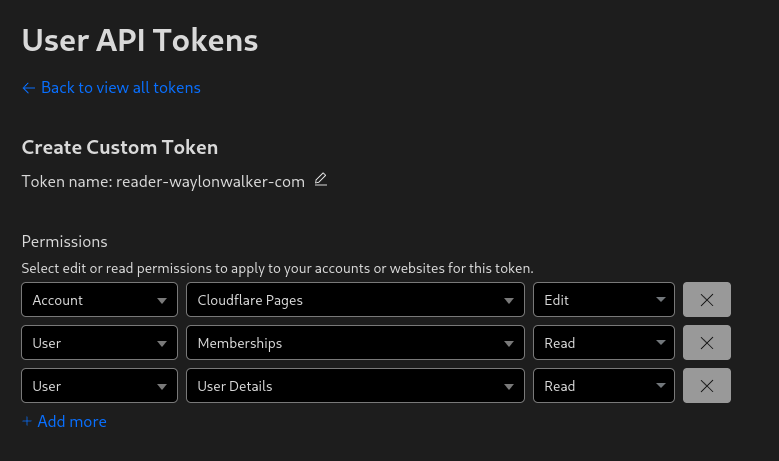
Here is what I got to work #

First I had to configure the Key ID and Secret Access Key generated in the minio ui.

❯ aws configure
AWS Access Key ID [****************VZnD]:
AWS Secret Access Key [****************xAm8]:
Default region name [us-east-1]:
Default output format [None]:

Then set the the s3 signature_version to s3v4.

aws configure set default.s3.signature_version s3v4

Now when I have minio running on https://my-minio-endpoint.com I can use the aws cli to access the bucket.

Note that https://my-minio-endpoint.com resolves to the bucket endpoint (default 9000) not the ui (default 9001).

aws --endpoint-url https://my-minio-endpoint.com s3 ls my_bucket

Now Configuring Litestream #

Litestream also accepts the endpoint argument via config. I could not get it to work just with the ui.

Note the aws configure step above is not required for litestream, only the aws cli.

dbs:
  - path: /path/to/database.db
    replicas:
      - url: s3://my_bucket/
        endpoint: https://my-minio-endpoint.com
        region: us-east-1
        access-key-id: ****************VZnD
        secret-access-key: ************************************xAm8

Now run a litestream replication.

litestream replicate -config litestream.yml
# or put the config in /etc/litestream.yml and just run replicate
litestream replicate

I’ve recently given tailwindcss a second chance and am really liking it. Here is how I set it up for my python based projects.

https://waylonwalker.com/a-case-for-tailwindcss

Installation #

npm is used to install the cli that you will need to configure and compile tailwindcss.

npm install -g tailwindcss-cli

Setup #

You will need to create a tailwind.config.js file, to get this you can use the cli.

npx tailwindcss init

Using tailwind with jinja templates #

To set up tailwind to work with jinja templates you will need to point the tailwind config content to your jinja templates directory.

module.exports = {
  content: ["templates/**/*.html"],
};

Setting up the base styles #

I like to use the @tailwind base;, to do this I set up an input.css file.

@tailwind base;
@tailwind components;
@tailwind utilities;

Compiling #

Now that it’s all setup you can run the tailwindcss command. You will get an output.css with base tailwind plus any of the classes that you used.

tailwindcss -i ./input.css -o ./output.css --watch

The next version of markata will be around a full second faster at building it’s docs, that’s a 30% bump in performance at the current state. This performance will come when virtual environments are stored in the same directory as the source code.

“One lone jedi stands in Glowing chains of interconnected network of technological cubes, in the middle of a futuristic cyberpunk dubai city, in the art style of dan mumford and marc simonetti, atmospheric lighting, intricate, volumetric lighting, beautiful, sharp focus, ultra detailed” -s50 -W800 -H350 -C7.5 -Ak_lms -S1657735302

What happened?? #

I was looking through my profiler for some unexpected performance hits, and noticed that the docs plugin was taking nearly a full second (sometimes more), just to run glob.

    |  |- 1.068 glob  markata/plugins/docs.py:40
    |  |  |- 0.838 <listcomp>  markata/plugins/docs.py:82
    |  |  |  `- 0.817 PathSpec.match_file  pathspec/pathspec.py:165
    |  |  |        [14 frames hidden]  pathspec, <built-in>, <string>

Python scandir ignores hidden directories #

I started looking for different solutions and what I found was that I was hitting pathspec with way more files than I needed to.

len(list(Path().glob("**/*.py")))
# 6444
len([Path(f) for f in glob.glob("**/*.py", recursive=True)])
# 110

After digging into the docs I found that glob.glob uses os.scandir which ignores ‘.’ and ‘..’ directories while Path.glob does not.

https://docs.python.org/3/library/os.html#os.scandir

results? #

Now glob.py from the docs plugin does not even show up in the profiler.

I opened up ipython and saw the following results. For some reason as I hit docs.glob it was only hitting 488 ms from ipython, but it was still a massive improvement over the original.

%timeit docs.glob(m)
# 488 ms ± 3.05 ms per loop (mean ± std. dev. of 7 runs, 1 loop each)

%timeit docs.glob(m)
# 9.37 ms ± 90.9 µs per loop (mean ± std. dev. of 7 runs, 100 loops each)

AUR.">paru is an aur helper that allows you to use a package manager to install packages from the aur.

What’s the Aur #

The Aur is a set of community managed packages that can be installed on arch based distros.

Why a helper? #

paru just makes it easy, no clone and run makepkg. You can do everything paru can do using the built in pacman installer.

Manual Install from the Aur #

You will need to manually instal pacman from the aur in order to get started.

sudo pacman -S --needed base-devel
git clone https://aur.archlinux.org/paru.git
cd paru
makepkg -si

Installing packages with paru #

Once setup you are ready to install packages from the AUR just like the core repos.

# you can update your system using paru
paru -Syu

# you can install packages from the AUR
paru -S tailscale
paru -S prismlauncher

# even core repo packages can be installed
paru -S docker

Paru in Docker #

Here is a snippet from my devtainer dockerfile. Where I use paru to install packages from the AUR inside of a dockerfile.

FROM archlinux

RUN echo '[multilib]' >> /etc/pacman.conf && \
    echo 'Include = /etc/pacman.d/mirrorlist' >> /etc/pacman.conf && \
    pacman --noconfirm -Syyu && \
    pacman --noconfirm -S base-devel git && \
    groupadd --gid 1000 devtainer && \
    useradd --uid 1000 --gid 1000 -m -r -s /bin/bash devtainer && \
    passwd -d devtainer && \
    echo 'devtainer ALL=(ALL) ALL' > /etc/sudoers.d/devtainer && \
    mkdir -p /home/devtainer/.gnupg && \
    echo 'standard-resolver' > /home/devtainer/.gnupg/dirmngr.conf && \
    chown -R devtainer:devtainer /home/devtainer && \
    mkdir /build && \
    chown -R devtainer:devtainer /build && \
    cd /build && \
    sudo -u devtainer git clone --depth 1 https://aur.archlinux.org/paru.git && \
    cd paru && \
    sudo -u devtainer makepkg --noconfirm -si && \
    sed -i 's/#RemoveMake/RemoveMake/g' /etc/paru.conf && \
    pacman -Qtdq | xargs -r pacman --noconfirm -Rcns && \
    rm -rf /home/devtainer/.cache && \
    rm -rf /build

USER devtainer
RUN sudo -u devtainer paru --noconfirm --skipreview --useask -S \
    bat \
    cargo \
    direnv \
    dua-cli \
    dust \
    fd

Final Thoughts #

There are other options out there, paru seemed to be the most supported at the time I started using arch and there has been no other reason for me to change it. It’s treated me well for nearly a year now.

Quickly and easily create new versions of your Python package with the gh release command. Get the version number, changelog, and

Releasing a new version of your Python package can be a daunting task. You need to make sure that all the necessary files are included, and that the version number is correct. But now, with the help of the gh release command, you can make the process much smoother.

The gh release command allows you to quickly and easily create a new version of your Python package. All you need to do is provide the version number, the changelog, and the distribution files. For example, if you wanted to create a new version of your package with the version number v1.2.3, you could use the following command:

gh release create v1.2.3 -F CHANGELOG.md dist/*.whl dist/*.tar.gz

This command will create a new version of your package with the specified version number, and include the changelog and the distribution files. It’s a great way to make sure that all the necessary files are included in the release, and that the version number is correct.

The gh release command is a great tool for quickly and easily creating new versions of your Python package. With just a few simple commands, you can make sure that all the necessary files are included, and that the version number is correct. So if you’re looking for an easy way to release a new version of your Python package, give the gh release command a try.

Fix Arch Linux randomly rejecting passwords with one command. Try ‘faillock –user $USER’ to reset login counter and regain access. Quick solution for a smooth computing"

an intertwined mess of wires

If you’re an Arch Linux user, you may have experienced a frustrating issue where your password is randomly not being accepted by the system. This can be a major inconvenience and can cause a lot of frustration, especially if it happens frequently.

The good news is that there is a simple fix for this issue. The following bash code can be used to fix the problem:

bash faillock --user $USER

This command is used to reset the failed login count for the current user. By running this command, you will be able to reset the system’s login counter and regain access to your account.

It’s important to note that this command should only be used as a temporary solution. If you find yourself frequently having to run this command, it’s likely that there is a deeper issue with your system that needs to be addressed.

In any case, if you’re experiencing problems with your Arch Linux system not accepting your password, give the above command a try and see if it resolves the issue for you.

Give github actions the -e flag in the shebang #! so they fail on any one command failure. Otherwise each line will set the exit status, but only the last one will be passed to ci.

#!/bin/bash -e

What is -e #

The -e flag to the bash command allows your script to exit immediately if any command within the script returns a non-zero exit status. This can be useful for ensuring that your script exits with an error if any of the commands it runs fail, which can help you identify and debug issues in your script. For example, if you have a script that runs several commands and one of those commands fails, the script will continue running without the -e flag, but will exit immediately if the -e flag is present. This can make it easier to troubleshoot your script and ensure that it runs correctly.

Solution for Windows #

In windows the solution is not quite as simple. You can define a function in a Windows batch script that wraps an if statement to check the exit status of a command and handle any errors that may have occurred. Here is an example of how you might define a function called “check_error” that does this:

:check_error
if errorlevel 1 (
  echo An error occurred!
  exit /b 1
)

To use this function in your script, you would simply call it after running a command, like this:

some_command
call :check_error

This would run the “some_command” and then call the “check_error” function to check the exit status and handle any errors that may have occurred. This approach allows you to reuse the error-checking logic in your script, which can make it easier to write and maintain.

I recently setup some vm’s on my main machine and got sick of signing in with passwords.

ssh-keygen
ssh-copy-id -i ~/.ssh/id_rsa.pub virt

Moving panes between tmux sessions is something that makes tmux a very flexible and powerful tool. I don’t need this feature very often, but it comes in clutch when you need it.

Pull a pane from any other session #

Using choose-window I was able to come up with a way to select any pane withing any other session and join it into my current session.

# Choose a pane to join in horizontally
bind f choose-window -Z 'join-pane -h -s "%%"'

Push/Pull from scratch #

I’ve long had this one in my tmux config, I always have a “scratch” session that I’m running, I often use for looking at things like k9s accross repos within a popup.

This use case puts a pane into the scratch session, then pulls it back out. I will use this to move a pane between sessions in the rare cases I need to do this.

# push the active pane into the scratch session horizonally
bind -n M-f join-pane -ht scratch
# pull the last active pane from the scratch session horizonally into this session
bind -n M-F join-pane -hs scratch

I just shared some ssh keys with myself and ran into this error telling me that I did not set the correct permissions on my key.

@@@@@@@@@@@@@@@@@@@@@@@@@@@@@@@@@@@@@@@@@@@@@@@@@@@@@@@@@@@
@         WARNING: UNPROTECTED PRIVATE KEY FILE!          @
@@@@@@@@@@@@@@@@@@@@@@@@@@@@@@@@@@@@@@@@@@@@@@@@@@@@@@@@@@@
Permissions 0750 for '/home/waylon/.ssh/id_*******' are too open.
It is required that your private key files are NOT accessible by others.
This private key will be ignored.
Load key "/home/waylon/.ssh/id_*******": bad Permissions
repo: Permission denied (publickey,gssapi-keyex,gssapi-with-mic).
fatal: Could not read from remote repository.

Please make sure you have the correct access rights
and the repository exists.

I changed them with the following commands.

chmod 644 ~/.ssh/id_*******.pub
chmod 600 ~/.ssh/id_*******

With the latest release of version of nvim 0.8.0 we get access to a new winbar feature. One thing I have long wanted somewhere in my nvim is navigation for pairing partners or anyone watching can keep track of where I am. As the driver it’s easy to keep track of the file/function you are in. But when you make big jumps in a few keystrokes it can be quite disorienting to anyone watching, and having this feedback to look at is very helpful.

“cybernetic soldier working on a rusting tape machine robot, cinematic lighting, detailed, cell shaded, 4 k, warm colours, concept art, by wlop, ilya kuvshinov, artgerm, krenz cushart, greg rutkowski, pixiv. cinematic dramatic atmosphere, sharp focus, volumetric lighting, cinematic lighting, studio quality” -s50 -W832 -H416 -C6.0 -Ak_lms -S2841371882

winbar #

nvim exposes the winbar api in lua, and you can send any text to the winbar as follows.

vim.o.winbar = "here"

You can try it for yourself right from the nvim command line.

:lua vim.o.winbar = "here"

Now you will notice one line above your file with the word here at the very beginning.

Clearing the winbar #

If you want to clear it out, you can just set it to an empty string or nil.

:lua vim.o.winbar = ""
:lua vim.o.winbar = nil

Setting up nvim-navic #

You will need to install nvim-navic if you want to use it. I added it to my plugins using Plug as follows.

call plug#begin('~/.local/share/nvim/plugged')
Plug 'SmiteshP/nvim-navic'
call plug#end()

Note! nvim-navic does require the use of the nvim lsp, so if you are not using it then maybe this won’t work for you.

I created an on_attach function long ago, cause that’s what Teej told me to do. Now I am glad I did, because it made this change super easy.

local function on_attach(client, bufnr)
    if client.server_capabilities.documentSymbolProvider then
        navic.attach(client, bufnr)
    end
end

Then you need to use that on_attach function on all of the lsp’s that you want navic to work on.

Then in a lua file you need to setup the winbar, for now I put this in my lsp-config settings file, but eventually I want to move my settings to lua and put it there.

vim.o.winbar = " %{%v:lua.vim.fn.expand('%F')%}  %{%v:lua.require'nvim-navic'.get_location()%}"

What my winbar looks like #

What I have right now is everything someone who is watching would need to know to navigate to the same place that I am in the project.

 waylonwalker/app.py   Link >  on_click
nvim-navic-example.webp

Diff #

Here are the changes that I made to to my plugins list and my lsp-config to get it.

 /home/u_walkews/.config/nvim/plugins.vim
call plug#begin('~/.local/share/nvim/plugged')
+Plug 'SmiteshP/nvim-navic'
#  /home/u_walkews/.config/nvim/lua/waylonwalker/lsp-config.lua
-local function on_attach() end
+local navic = require("nvim-navic")
+local function on_attach(client, bufnr)
+    if client.server_capabilities.documentSymbolProvider then
+        navic.attach(client, bufnr)
+    end
+end
+
+vim.o.winbar = " %{%v:lua.vim.fn.expand('%F')%}  %{%v:lua.require'nvim-navic'.get_location()%}"

GH commit #

If you want to see the change on GitHub, here is the diff

nvim-navic-setup-gh-diff.webp