Today I Learned

Short TIL posts

169 posts latest post 2026-06-04 simple view
Publishing rhythm
May 2026 | 4 posts

Using pbpaste for command substitution keeps sensitive or long URLs out of your shell history. Instead of typing git clone https://github.com/user/repo-with-long-name.git, copy the URL to clipboard and run git clone "$(pbpaste)". This prevents the URL from appearing in ~/.bash_history or ~/.zsh_history.

To get pbpaste working on both Xorg and Wayland, add this to your shell config:

if [[ $(command -v wl-copy) ]]; then
    alias pbcopy='wl-copy'
    pbpaste() { wl-paste; }
elif [[ $(command -v xclip) ]]; then
    alias pbcopy='xclip -selection clipboard'
    pbpaste() { xclip -selection clipboard -o; }
fi

The function approach (instead of alias) enables command substitution, while the quotes around $(pbpaste) handle spaces and special characters safely.

Now you can use it.

git clone "$(pbpaste)"

More importantly secrets can stay out of your history.

export GITHUB_TOKEN="$(pbpaste)"
export AWS_ACCESS_KEY_ID="$(pbpaste)"
export AWS_SECRET_ACCESS_KEY="$(pbpaste)"
export DATABASE_URL="$(pbpaste)"

I run tailwind for my personal blog, whenever I update it, pre-commit goes in and fixes end of file. I’m sick of these things fighting each other, since it is a generated app it is going to et ignored from pre-commit from now on.

exclude: ^static/app.*\.css$
repos:
  - repo: https://github.com/pre-commit/pre-commit-hooks
    rev: v2.4.0
    hooks:
      - id: trailing-whitespace
      - id: end-of-file-fixer
      - id: check-yaml
      - id: check-added-large-files

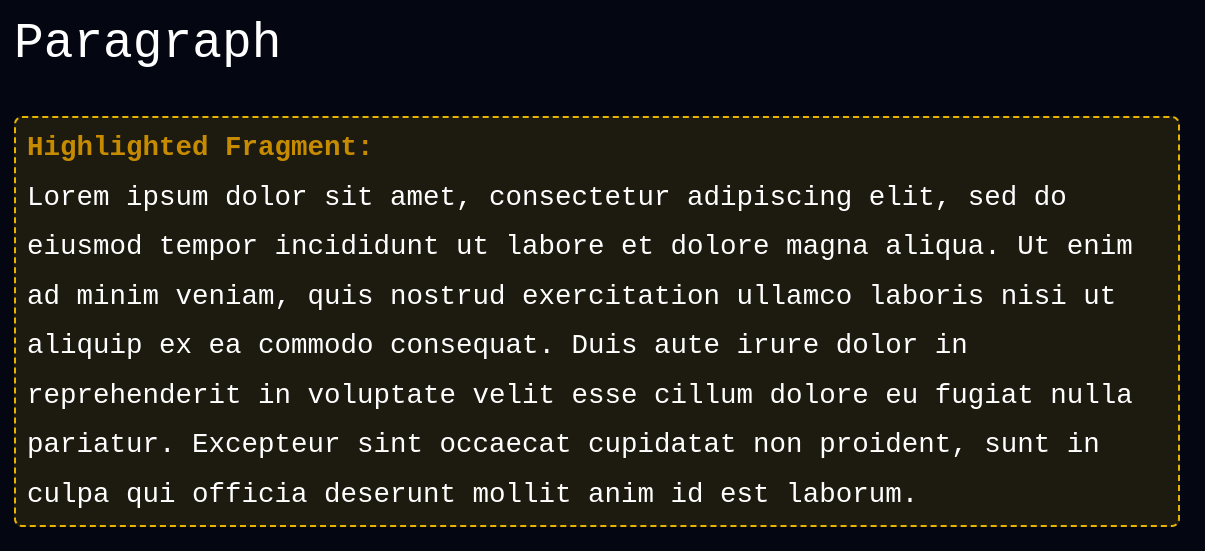
I’m building in a [[ fragmentions ]] implementation into my blog, I wanted to add some text before the fragment to indidate that it was the highlighted fragment that someone may have intended to share with you.

To get a newline in a :before I need to use \A and white-space: pre-line.

body :target::before,
body [fragmention]::before {
    content: "Highlighted Fragment:\A";
    white-space: pre-line;
    @apply font-bold text-yellow-600;
}

Here is what it looks like on my not yet live implementation of fragmentions.

screenshot-2025-02-15T15-43-06-372Z.png

Testing fresh nvim installs can be a pain, and hard to di without borking your known good install. I’ve been using NVIM_APPNAME to run a test nvim in a sandbox that wont bork my main install. This usually runs for me in under a minute, can be down under 15s if I remove some of the TreeSitter installs at the end. This beats a full docker build of my full devtainer to test out nvim packaging woes.

rm ~/.cache/wwtest -rf
rm ~/.local/share/wwtest -rf
rm ~/.config/wwtest -rf
cp -r nvim/.config/nvim/ ~/.config/wwtest
NVIM_APPNAME=wwtest nvim --headless "+Lazy sync" +qa
NVIM_APPNAME=wwtest nvim --headless "+TSUpdateSync" "+sleep 5000m" +qa
NVIM_APPNAME=wwtest nvim --headless "+MasonUpdate" +qa
NVIM_APPNAME=wwtest nvim --headless "+TSInstallSync! c cpp go lua python rust tsx javascript typescript vimdoc vim bash yaml toml vue just" +qa
NVIM_APPNAME=wwtest nvim --headless "+MasonInstall lua-language-server rustywind ruff ruff-lsp html-lsp typescript-language-server beautysh fixjson isort markdownlint stylua yamlfmt python-lsp-server" +qa
NVIM_APPNAME=wwtest nvim

I’ve started to use this as a just recipe to run before deploying a new version of my dotfiles. So far its pairing nicely with nvim-manager

When I want to put a date in a document like a blog post from vim I use !!date from insert mode. Note that entering !! from normal mode puts you in command mode with :.! filled out. This runs a shell command, i.e. date for this example.

It outputs the following

Fri Jan 31 08:46:11 PM CST 2025

You can also pass in a date such as tommorrow by pasdding in the -d date -d tomorrow.

It outputs the following

Sat Feb 1 08:53:20 PM CST 2025

codeium just taught me this one with autocomplete

:put =strftime('%Y-%m-%d')

This outputs the following

2025-01-31

What I like about the :put =strftime( method is that you can add a format, but that is a lot more for me to remember than !!date

A few weeks later #

I’m going through a bunch of blog posts and dont want my date formats to change to the Wed Feb format so I broke down and made these keybindings. I think I’m still going to be using .!date a lot, but these keybindings will be nice for editing blog post frontmatter.

set("n", "<leader>dd", "<cmd>put =strftime('%Y-%m-%d')<cr>", { noremap = true, silent = true })
set("n", "<leader>dt", "<cmd>put =strftime('%Y-%m-%d %H:%M:%S')<cr>", { noremap = true, silent = true })
  • dd 2025-02-12
  • dt 2025-02-12 12:53:47
  • :.!date Wed Feb 12 12:53:47 PM CST 2025

Today I ran into an interesting question, why am I being asked to configure tzdata while installing npm. Turns out that the aptitude cli has a why command that very handily nails down why you have something installed on a debian based system.

Install aptitude #

apt install aptitude

Why tzdata #

Now we can query why we need tzdata and see the full chain with the root package being npm.

root@47685221fb82:/# aptitude why tzdata
i   npm        Depends  node-gyp
i A node-gyp   Depends  gyp (>= 0.1+20200513gitcaa6002)
i A gyp        Depends  python3:any
i A python3    Provides python3:any
i A python3    Depends  python3.12 (>= 3.12.3-0~)
i A python3.12 Depends  tzdata

Today I ran into this interactive prompt on ubuntu while installing node and npm, and I do not want to manually configure this interactively every time I run an install, moreso in docker I do not have the interactive terminal to do so.

Configuring tzdata
------------------

Please select the geographic area in which you live. Subsequent configuration questions will narrow this down by presenting a list of cities, representing the time zones in which they are located.

  1. Africa  2. America  3. Antarctica  4. Arctic  5. Asia  6. Atlantic  7. Australia  8. Europe  9. Indian  10. Pacific  11. Etc  12. Legacy
Geographic area:

Why tzdata #

Checking aptitude why tzdata it shows that the chain goes back through npm.

root@47685221fb82:/# aptitude why tzdata
i   npm        Depends  node-gyp
i A node-gyp   Depends  gyp (>= 0.1+20200513gitcaa6002)
i A gyp        Depends  python3:any
i A python3    Provides python3:any
i A python3    Depends  python3.12 (>= 3.12.3-0~)
i A python3.12 Depends  tzdata

The solution, configure tzdata #

export TZ="America/Chicago"
export DEBIAN_FRONTEND=noninteractive
apt update
apt install tzdata -y
ln -fs /usr/share/zoneinfo/$TZ /etc/localtime
dpkg-reconfigure -f noninteractive tzdata

DEBIAN_FRONTEND=noninteractive

This is required, because apt installing tzdata will trigger the

interactive prompt. You will manually configure it in the next two steps.

https://www.youtube.com/watch?v=03KsS09YS4E&t=610s

Today I learned about the basic calculator, bc. At the very end of this video prime uses it to add numbers in vim.

REPL #

You can start a calculator repl at the command line, by running bc.

Vim #

Since bc supports standard unix pipes you can easily pipe data from vim into bc and back out using !!bc. All you need is a string of math on the line you want to calculate, go to normal mode and run !!bc to get the answer.

Traditionally I will open my system calculator or ipython to do something like this.

To keep the equation and the result in the same line you can send the equation to stderr and the result to stdout using tee.

:.!tee >(cat >&2) | bc

I’ve been back to putting some images on my blog lately and thinking about making them a bit thinner through the use of aspect ratio for simplicity. I’m leaning pretty heavy on tailwindcss these days due to some weird quirks of markdown-it-attrs I cannot have slashes in classes from markdown so I made a .cinematic class to achieve this.

.cinematic {
  @apply aspect-[2.39/1];
}

Example

screenshot-2025-01-31T14-50-00-094Z.png

Attrs does not like ‘/’ characters in its classes, so to use some tailwind classes with custom values we must make new classes in our tailwind input css.

.cinematic {
  @apply aspect-[2.39/1];
}

Given the following markdown with attrs added to the image and to the paragraph block.

![screenshot-2025-01-31T14-50-00-094Z.png](https://dropper.waylonwalker.com/api/file/50cfa8dc-9d46-4f02-877b-688fa5510a83.png){.aspect-[2.39/1]}

![screenshot-2025-01-31T14-50-00-094Z.png](https://dropper.waylonwalker.com/api/file/50cfa8dc-9d46-4f02-877b-688fa5510a83.png){.cinematic}

{.cinematic}
![screenshot-2025-01-31T14-50-00-094Z.png](https://dropper.waylonwalker.com/api/file/50cfa8dc-9d46-4f02-877b-688fa5510a83.png)

We get the following output with only the middle one working correctly.

screenshot-2025-01-31T14-50-00-094Z.png{.aspect-[2.39/1]}

screenshot-2025-01-31T14-50-00-094Z.png

screenshot-2025-01-31T14-50-00-094Z.png

Note

The inline version of `.cinematic` works, but `.aspect-[2.39/1]` does not,

it turns into text after the image. The block version with the class before the image applies to the paragraph, not the image.

I built out a tool for myself to manage my nvim configuration, and I wanted to quickly see which one I am running in my starship prompt. Here’s the config I ended up with. It warns if the NVIM_APPNAME environment variable is not set, and it shows which nvim I am using if it is set.

[custom.nvim-manager-system]
when = '[[ ! -n "${NVIM_APPNAME}" ]]'
style = "bold yellow"
symbol = '[ ](fg:#15AABF)'
format = '$symbol[USING SYSTEM NVIM]($style)'

[env_var.NVIM_APPNAME]
style = "green"
symbol = '[ ](fg:#15AABF)'
format = '[$symbol${env_value}]($style)'
variable = "NVIM_APPNAME"

I recently noticed that my og images were missing emoji. They were taken using headless chrome in a container. I fixed it by adding an emoji font in the containerfile / dockerfile.

RUN apt-get update && apt-get install -y \
    # Add fonts with emoji support
    fonts-noto-color-emoji \
    && rm -rf /var/lib/apt/lists/*

Before #

Here’s what they were looking like with broken emoji fonts.

image

After #

And now with the fixed emoji font.

image

I put thought bubbles on my thoughts posts and stars on my github stars posts

Today I learned that the docs in postiz are a bit behind, (fantastic docs btw, they are to the point, and cover almost all of what you need). The docs state that you need to include an R2 bucket to handle uploads.

This issue shows that more work has been done, one of which is local storage. The compose file they use in the quick start has the required env variables to set this up.

      STORAGE_PROVIDER: "local"
      UPLOAD_DIRECTORY: "/uploads"
      NEXT_PUBLIC_UPLOAD_DIRECTORY: "/uploads"

looking into my running instance I can see my images there.

[devtainer] ❯ podman exec postiz ls /uploads/2025/01/09
811747b3f703f5d9a7f10aff5103412ff0.jpeg
a221db10a76f0c414171ab417379b09ec.jpeg

Today i got hit by this accessibility issue on my site. Low contrast links are not distiniquishable. I had not seen this error title before it was new to me, maybe I have bad memory or maybe it’s new to me.

screenshot-2024-12-18T02-25-53-014Z.png

I ended up dropping the background color of the site down a notch as I didn’t really care for the semi-dark brown anyways. I’m liking the near black bg-zinc-950 much better now.

screenshot-2024-12-18T02-45-53-807Z.png

Now I got that 100 A11y score in lighthouse.

screenshot-2024-12-18T03-02-18-934Z.png

Today I discovered the Urllink function in bash from the ujust tool from ublue.it. Seems like a cool trick, but might not work everywhere.

########
### Special text formating
########
## Function to generate a clickable link, you can call this using
# url=$(Urllink "https://ublue.it" "Visit the ublue website")
# echo "${url}"
function Urllink (){
    URL=$1
    TEXT=$2

    # Generate a clickable hyperlink
    printf "\e]8;;%s\e\\%s\e]8;;\e\\" "$URL" "$TEXT${n}"
}
```j

I’ve been debugging a cloudflared tunnel issue in my homelab all day today, and getting really frustrated. My issue ended up being that it was running twice, once without the correct config file and another with it. I believe that cacheing may have compounded the issue.

In yesterday’s post I setup a cloudflared tunnel on my ubuntu server to expose applications running on the server to the internet. I’m setting up a new server and running cloudflared in its own vm.

setup cloudflared tunnel on ubuntu

Check that dns is pointing to the correct tunnel #

dig subdomain.example.com
traceroute subdomain.example.com

Check that the tunnel is running #

export CLOUDFLARED_TUNNEL_ID = "my-tunnel-id"

cloudflared tunnel list
cloudflared tunnel info $CLOUDFLARED_TUNNEL_ID

I run a cloudflared tunnel on my ubuntu server to expose applications running on the server to the internet. I’m setting up a new server and running cloudflared in its own vm.

Get the cloudflared binary #

sudo wget https://github.com/cloudflare/cloudflared/releases/latest/download/cloudflared-linux-amd64 -O /usr/local/bin/cloudflared

sudo chmod +x /usr/local/bin/cloudflared

#

Now setup the config directory. For the systemd service to work, the config file needs to be in /etc/cloudflared. I like to give my user rights to edit the config file without being sudo, we will do that here by creating a group cloudflared, add ourselves to the group, give ownership of /etc/cloudflared to the group, give group write access to the directory, and refresh groups.

sudo mkdir -p /etc/cloudflared
sudo groupadd cloudflared
sudo usermod -aG cloudflared $USER
sudo chown -R root:cloudflared /etc/cloudflared
sudo chmod g+w /etc/cloudflared
newgrp cloudflared

login #

Now we can log into the domain zone with cloudflared.

cloudflared tunnel login

This will give a url, follow it in a browser to log in.

cloudflared tunnel create <NAME>
mv ~/.cloudflared/cert.pem /etc/cloudflared/cert.pem
mv ~/.cloudflared/<tunnel-id>.json /etc/cloudflared/<tunnel-id>.json

config #

Now setup config. For the systemd service to work, the config file needs to be in /etc/cloudflared. The config that I have provided below will expose localhost:8000 to tester.example.com

export CLOUDFLARED_TUNNEL_ID=$(ls /etc/cloudflared/*.json | xargs -n 1 basename | sed 's/\.json$//')
mv ~/.cloudflared/${CLOUDFLARED_TUNNEL_ID}.json /etc/cloudflared/${CLOUDFLARED_TUNNEL_ID}.json
mv ~/.cloudflared/cert.pem /etc/cloudflared/cert.pem
echo "
tunnel: $(CLOUDFLARED_TUNNEL_ID)
credentials-file: /etc/cloudflared/$(CLOUDFLARED_TUNNEL_ID).json
ingress:
  - hostname: tester.example.com
    service: http://localhost:8000
  - service: 'http_status:404'
" >> /etc/cloudflared/config.yaml

dns #

Now to get a dns record for tester.example.com to point to the cloudflared tunnel.

cloudflared tunnel route dns $(CLOUDFLARED_TUNNEL_ID) tester.example.com

systemd #

Now install the systemd service.

sudo cloudflared service install
sudo systemctl status cloudflared.service
# if its not running
sudo systemctl start cloudflared.service

I’ve been playing with 3d printing some items through the slant3d api. I’ve been pricing out different prints by running a slice request through their api.

make a project #

I’ve been using uv for project management. It’s been working well for quick projects like this while making it reproducible, I’m still all in on hatch for libraries.

mkdir slantproject
cd slantproject
uv init
uv venv
. ./.venv/bin/activate
uv add httpx rich python-dotenv

Get an api key #

You will need an api key from the slant api, which currently requires a google account and a credit card to create.

# .env
#  replace with your api key from https://api-fe-two.vercel.app/
SLANT_API_KEY=sl-**

slicing an stl with teh slant api #

Then you can run the python script to price out your print. I’m not exactly sure how this compares to an order, especially when you add in different materials.

from dotenv import load_dotenv
import httpx
import os

load_dotenv()

stl_url = ''
api_key = os.environ["SLANT_API_KEY"]

api = httpx.Client(base_url="https://www.slant3dapi.com/api/slicer")

res = httpx.post(
    "https://www.slant3dapi.com/api/slicer",
    json={"fileURL": stl_url},
    headers={"api-key": api_key, "Content-Type": "application/json"},
    timeout=60,
)


print(res.json())

After first setting up a new k3s instance your kubeconfig file will be located in /etc/rancher/k3s/k3s.yaml.

You cans use it from here by setting $KUBECONFIG to that file.

export KUBECONFIG=/etc/rancher/k3s/k3s.yaml

Or you can copy it to ~/.kube/config

cp /etc/rancher/k3s/k3s.yaml ~/.kube/config

If you have installed k3s on a remote server and need the config on your local machine then you will need to modify the server address to reflect the remote server.

scp user@<server-ip>:/etc/rancher/k3s/k3s.yaml ~/.kube/config

Warning

only do this if you don’t already have a ~/.kube/config file, otherwise copy it to a new file and set your $KUBECONFIG env variable to use it.

Now you will need to open that file and change the server address, making sure to keep the port number.

apiVersion: v1
clusters:
  - cluster:
      certificate-authority-data: ****
      server: https://<server-ip>:6443
    name: default