Today I Learned

Short TIL posts

169 posts latest post 2026-06-04 simple view
Publishing rhythm
May 2026 | 4 posts

I really like having global cli command installed with pipx. Since textual 0.2.x (the css release) is out I want to be able to pop into textual devtools easily from anywhere.

“rusting tape machine robot, cinematic lighting, detailed, cell shaded, 4 k, warm colours, concept art, by wlop, ilya kuvshinov, artgerm, krenz cushart, greg rutkowski, pixiv. cinematic dramatic atmosphere, sharp focus, volumetric lighting, cinematic lighting, studio quality” -s50 -W832 -H416 -C12.0 -Ak_lms -S2404332231

Pipx Install #

You can pipx install textual.

pipx install textual

But if you try to run any textual cli commands you will run into a ModuleNotFoundError, because you need to install the optional dev dependencies.

Traceback (most recent call last):
  File "/home/u_walkews/.local/bin/textual", line 5, in <module>
    from textual.cli.cli import run
  File "/home/u_walkews/.local/pipx/venvs/textual/lib/python3.10/site-packages/textual/cli/cli.py", line 4, in <module>
    import click
ModuleNotFoundError: No module named 'click'

Pipx Inject #

In order to install optional dependencies with pipx you need to first install the library, then inject in the optional dependencies using the square bracket syntax.

pipx install textual
pipx inject textual 'textual[dev]'

I am working through the textual tutorial, and I want to put it in a proper cli that I can pip install and run the command without textual run --dev app.py. This is a fine pattern, but I also want this to work when I don’t have a file to run.

“An astronaut working in a lab, hacking on a computer terminal, htop is running, shallow depth of field beakers, test tubes, volumetric lighting, pink lighting, by victo ngai, killian eng vibrant colours, dynamic lighting, digital art” -s50 -W768 -H448 -C7.5 -Ak_lms -S3617210203

pyproject.toml entrypoints #

I set up a new project running hatch new, and added the following entrypoint, giving me a tutorial cli command to run.

...

[project.scripts]
tutorial = 'textual_tutorial.tui:tui'

https://waylonwalker.com/hatch-new-cli/

setup.py entrypoints #

If you are using setup.py, you can set up entrypoints in the setup command.

from setuptools import setup

setup(
    ...
    entry_points={
        "console_scripts": ["tutorial = textual_tutorial.tui:tui"],
    },
    ...
)

https://waylonwalker.com/minimal-python-package/

tui.py #

adding features

Now to get devtools through a cli without running through textual run --dev. I pulled open the textual cli source code, and this is what it does at the time of writing.

Note: I used sys.argv as a way to implement a --dev quickly tutorial. For a real project, I’d setup argparse, click, or typer. typer is my go to these days, unless I am really trying to limit dependencies, then the standard library argparse might be what I go with.

def tui():

    from textual.features import parse_features
    import os
    import sys

    dev = "--dev" in sys.argv # this works, but putting it behind argparse, click, or typer would be much better

    features = set(parse_features(os.environ.get("TEXTUAL", "")))
    if dev:
        features.add("debug")
        features.add("devtools")

    os.environ["TEXTUAL"] = ",".join(sorted(features))
    app = StopwatchApp()
    app.run()


if __name__ == "__main__":
    tui()

Other Flags??? #

If you look at the source, there is one other flag for headless mode.

FEATURES: Final = {"devtools", "debug", "headless"}

Run it #

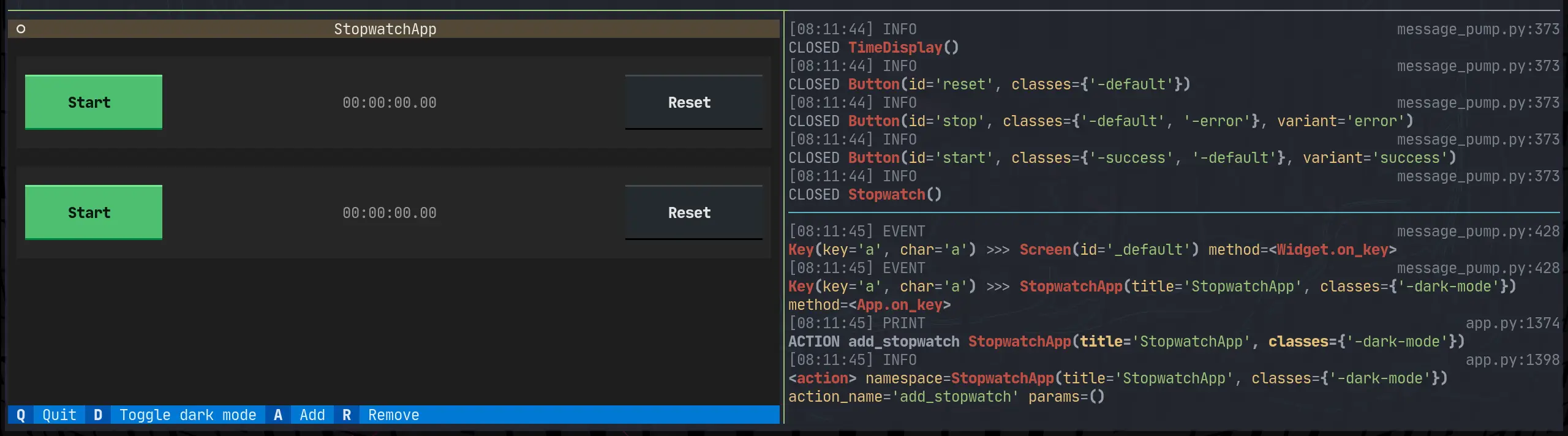
Here it is running with tutorial --dev on the left, and textual console on the right.

textual-tutorial-devtools.webp

For far too long I have had to fidget with v4l2oloopback after reboot. I’ve had this happen on ubuntu 18.04, 22.04, and arch.

After a reboot the start virtual camera button won’t work, It appears and is clickable, but never turns on. Until I run this command.

sudo modprobe v4l2loopback video_nr=10 card_label="OBS Video Source" exclusive_caps=1
“cell shaded, long, full body, shot of a cybernetic blue soldier with glowing pink eyes looking into a selfie camera with ring light, llustration, post grunge, 4 k, warm colors, cinematic dramatic atmosphere, sharp focus, pink glowing volumetric lighting, concept art by josan gonzales and wlop, by james jean, Victo ngai, David Rubín, Mike Mignola, Laurie Greasley, highly detailed, sharp focus,alien,Trending on Artstation, HQ, deviantart, art by artgem” -s50 -W832 -H416 -C12.0 -Ak_lms -S373882614

Today I learned that you can turn on kernel modules through some files in /etc/modules...

This is what I did to my arch system to get it to work right after boot.

echo "v4l2loopback" | sudo tee /etc/modules-load.d/v4l2loopback.conf
echo "options v4l2loopback video_nr=10 card_label=\"OBS Video Source\" exclusive_caps=1" | sudo tee /etc/modprobe.d/v4l2loopback.conf

I ran into an issue where I was unable to ask localstack for its status. I would run the command and it would tell me that it didn’t have permission to read files from my own home directory. Let’s fix it

The issue #

I would run this to ask for the status.

localstack status

And get this error

PermissionError: [Errno 13] Permission denied: '/home/waylon/.cache/localstack/image_metadata'

What happened #

It dawned on me that the first time I ran localstack was straight docker, not the python cli. When docker runs it typically runs as root unless the Dockerfile sets up a user and group for it.

“cell shaded, long, full body, shot of a cybernetic blue soldier with glowing pink eyes, llustration, post grunge, cinebatic dramatic atmosphere, sharp focus, pink glowing volumetric lighting, concept art by josan gonzales and wlop, by james jean, Victo ngai, David Rubín, Mike Mignola, Laurie Greasley, highly detailed, sharp focus,alien,Trending on Artstation, HQ, deviantart, art by artgem” -s50 -W832 -H416 -C12.0 -Ak_lms -S3517264680

How to fix it #

If you have sudo access to the machine you are on you can recursively change ownership to your user and group. I chose to just give myself ownership of my whole ~/.cache directory you could choose a deeper directory if you want. I feel pretty safe giving myself ownership to my own cache directory on my own machine.

whoami
# waylon

chown -R waylon:waylon ~/.cache

Now it’s working #

Running localstack status now gives me a nice status message rather than an error.

❯ localstack status
┌─────────────────┬───────────────────────────────────────────────────────┐
│ Runtime version │ 1.2.1.dev                                             │
│ Docker image    │ tag: latest, id: dbbfe0ce0008, 📆 2022-10-15T00:51:03 │
│ Runtime status  │ ✖ stopped                                             │
└─────────────────┴───────────────────────────────────────────────────────┘

Markata now allows you to create jinja extensions that will be loaded right in with nothing more than a pip install.

From the Changelog #

The entry for 0.5.0.dev2 from markata’s changelog

  • Created entrypoint hook allowing for users to extend marka with jinja exensions #60 0.5.0.dev2

“cybernetic soldier working on a rusting tape machine robot, cinematic lighting, detailed, cell shaded, 4 k, warm colours, concept art, by wlop, ilya kuvshinov, artgerm, krenz cushart, greg rutkowski, pixiv. cinematic dramatic atmosphere, sharp focus, volumetric lighting, cinematic lighting, studio quality” -s50 -W832 -H416 -C12.0 -Ak_lms -S1808537114

markata-gh #

The first example that you can use right now is markata-gh. It will render repos by GitHub topic and user using the gh cli, which is available in github actions!

Get it with a pip install

pip install markata-gh

Use it with some jinja in your markdown.

## Markata plugins

It uses the logged in uer by default.

{% gh_repo_list_topic "markata" %}

You can more explicitly grab your username, and a topic.
{% gh_repo_list_topic "waylonwalker", "personal-website" %}

How is this achieved #

The jinja extension details are for another post, but this is how markata-gh exposes itslef as a jinja extension.

class GhRepoListTopic(Extension):
    tags = {"gh_repo_list_topic"}

    def __init__(self, environment):
        super().__init__(environment)

    def parse(self, parser):
        line_number = next(parser.stream).lineno
        try:
            args = parser.parse_tuple().items
        except AttributeError:
            raise AttributeError(
                "Invalid Syntax gh_repo_list_topic expects <username>, or <username>,<topic> both must have the comma"
            )

        return nodes.CallBlock(self.call_method("run", args), [], [], "").set_lineno(
            line_number
        )

    def run(self, username=None, topic=None, caller=None):
        "get's markdown to inject into post"
        return repo_md(username=username, topic=topic)
“cybernetic soldier working on a rusting tape machine robot, cinematic lighting, detailed, cell shaded, 4 k, warm colours, concept art, by wlop, ilya kuvshinov, artgerm, krenz cushart, greg rutkowski, pixiv. cinematic dramatic atmosphere, sharp focus, volumetric lighting, cinematic lighting, studio quality” -s50 -W832 -H416 -C12.0 -Ak_lms -S2487720618

Entrypoints #

Then markata-gh exposes itself as an extension through entrypoints.

Creating entrypoints in pyproject.toml #

If your project is using pyproject.toml for packaging you can setup an entrypoint as follows.

[project.entry-points."markata.jinja_md"]
markta_gh = "markata_gh.repo_list:GhRepoListTopic"

Creating entrypoints in setup.py #

If your project is using setup.py for packaging you can setup an entrypoint as follows.

setup(
    ...
    entry_points={
        "markata.jinja_md": ["markta_gh" = "markata_gh.repo_list:GhRepoListTopic"]
    },
    ...
)
“cybernetic soldier working on a rusting tape machine robot, cinematic lighting, detailed, cell shaded, 4 k, warm colours, concept art, by wlop, ilya kuvshinov, artgerm, krenz cushart, greg rutkowski, pixiv. cinematic dramatic atmosphere, sharp focus, volumetric lighting, cinematic lighting, studio quality” -s50 -W832 -H416 -C12.0 -Ak_lms -S655826089

In my adventure to learn django, I want to be able to setup REST api’s to feed into dynamic front end sites. Potentially sites running react under the hood.

cell shaded full body shot of a cybernetic blue soldier with glowing eyes working ina lab, llustration, post grunge, pink glowing volumetric lighting, engulfed in smoke and fog, concept art by josan gonzales and wlop, by james jean, Victo ngai, David Rubín, Mike Mignola, Laurie Greasley, highly detailed, sharp focus,alien,Trending on Artstation, HQ, deviantart, art by artgem" -s50 -W832 -H416 -C18.0 -Ak_lms -S4270306418

Install #

To get started lets open up a todo app that I created with django-admin startproject todo.

pip install djangorestframework

Install APP #

Now we need to declare rest_framwork as an INSTALLED_APP.

INSTALLED_APPS = [
    ...
    "rest_framework",
    ...
]

create the api app #

Next I will create all the files that I need to get the api running.

mkdir api
touch api/__init__.py api/serializers.py api/urls.py api/views.py
cell shaded full body shot of a cybernetic blue soldier with glowing eyes working ina lab, llustration, post grunge, pink glowing volumetric lighting, concept art by josan gonzales and wlop, by james jean, Victo ngai, David Rubín, Mike Mignola, Laurie Greasley, highly detailed, sharp focus,alien,Trending on Artstation, HQ, deviantart, art by artgem" -s50 -W832 -H416 -C7.5 -Ak_lms -S3862698977

base/models.py #

I already have the following model from last time I was playing with django. It will suffice as it is not the focus of what I am learning for now.

Note the name of the model class is singular, this is becuase django will automatically pluralize it in places like the admin panel, and you would end up with Itemss.

from django.db import models

# Create your models here.

class Item(models.Model):
    name = models.CharField(max_length=200)
    created = models.DateTimeField(auto_now_add=True)

    def __str__(self):
        return f"{self.priority} {self.name}"

Next I will make some dummy data to be able to return. I popped open ipython and made a few records.

from base.models import Item

Item.objects.create(name='first')
Item.objects.create(name='second')
Item.objects.create(name='third')

api/serializers.py #

Next we need to set up a serializer to seriaze and de-serialize data between our model and json. You can specify each field individually or all of them by passing in __all__.

from rest_framework import serializers

from base.models import Item


class ItemSerializer(serializers.ModelSerializer):
    class Meta:
        model = Item
        fields = '__all__'

api/views.py #

“cell shaded full body shot of a shiny golden cybernetic soldier with glowing eyes looking through binoculars, llustration, post grunge, pink glowing volumetric lighting, engulfed in smoke and fog, concept art by josan gonzales and wlop, by james jean, Victo ngai, David Rubín, Mike Mignola, Laurie Greasley, highly detailed, sharp focus,alien,Trending on Artstation, HQ, deviantart, art by artgem” -s50 -W832 -H416 -C18.0 -Ak_lms -S2111691103 cell shaded full body shot of a shiny golden cybernetic soldier with glowing eyes looking through binoculars, llustration, post grunge, pink glowing volumetric lighting, engulfed in smoke and fog, concept art by josan gonzales and wlop, by james jean, Victo ngai, David Rubín, Mike Mignola, Laurie Greasley, highly detailed, sharp focus,alien,Trending on Artstation, HQ, deviantart, art by artgem command

Now we need a view leveraging the djangorestframework. The serializer we just created will be used to serialize all of the rows into a list of objects that Response can handle.

Note: to return a collection of model objects we need to set many to True

from rest_framework.decorators import api_view
from rest_framework.response import Response

from base.models import Item

from .serializers import ItemSerializer


@api_view(["GET"])
def get_data(request):
    items = Item.objects.all()
    serializer = ItemSerializer(items, many=True)
    return Response(serializer.data)

@api_view(['POST'])
def add_item(request):
    serializer = ItemSerializer(data = request.data)
    if serializer.is_valid():
        serializer.save()
    return Response()

api/urls.py #

“cell shaded full body shot of a shiny golden cybernetic soldier with glowing eyes looking at a map, llustration, post grunge, pink glowing volumetric lighting, engulfed in smoke and fog, concept art by josan gonzales and wlop, by james jean, Victo ngai, David Rubín, Mike Mignola, Laurie Greasley, highly detailed, sharp focus,alien,Trending on Artstation, HQ, deviantart, art by artgem” -s50 -W832 -H416 -C18.0 -Ak_lms -S192089936

Now we need to setup routing to access the views through an url.

from django.urls import path

from . import views

urlpatterns = [
        path('', views.get_data),
        path('add/', views.add_item),
        ]

todo/urls.py #

Then we need to include these urls from our api in the urls specified by settings.ROOT_URLCONf

from django.urls import path

urlpatterns = [
    ...
    path("api/", include("api.urls")),
]

Run it #

python manage.py runserver

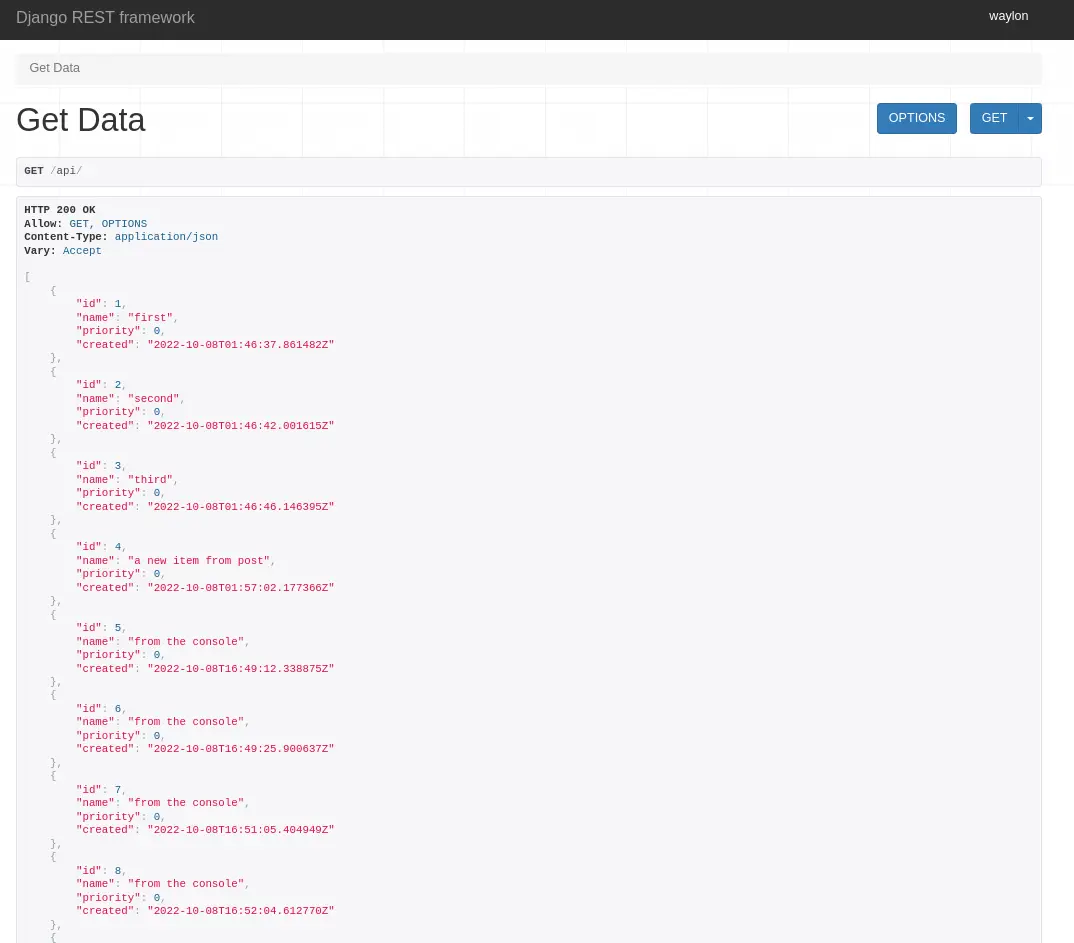
Running the developement server and going to localhost:8000/api we can see the full list of items in th api.

djangorestframework-get-items.webp

Markata now uses hatch as its build backend, and version bumping tool. setup.py, and setup.cfg are completely gone.

“An astronaut working in a lab, there is a series of eggs ready to hatch baby snakes on the table, experiments running, beakers, test tubes, cyberpunk trending on artstation, neon lighting, volumetric lighting, pink lighting” -s50 -W800 -H450 -C7.5 -Ak_lms -S4048189038

0.5.0 is big #

Markata 0.5.0 is now out, and it’s huge. Even though it’s the backend of this blog I don’t actually have that many posts directly about it. I’ve used it a bit for blog fuel in generic ways, like talking about pluggy and diskcache, but very little have I even mentioned it.

Over the last month I made a big push to get 0.5.0 out, which adds a whole bunch of new configurability to markata.

Here’s the changelog entry.

  • Moved to PEP 517 build #59 0.5.0.dev1

My Personal Simple CI/CD #

Before cutting all of my personal projects over to hatch. The first thing I did was to setup a solid github action, hatch-actionthat I can resue.

It automatically bumps versions, using pre-releases on all branches other than main, with special branches for bumping major, minor, patch, dev, alha, beta, and dev.

hatch new –init #

To convert the project over to hatch, and get rid of setup.py/setup.cfg, I ran hatch new --init. This automatically grabs all the metadata for the project and makes a pyproject.toml that has most of what I need.

hatch new --init

I then manually moved over my isort config, put flake8 config into .flake8, and dropped setup.cfg.

lint-test #

Part of my hatch-action is to run a before-command, for markata, this runs all of my linting and testing in one hatch script called lint-test. If this fails CI will fail and I can read the report in the logs, make a fix and re-publish.

[tool.hatch.envs.default.scripts]
cov = "pytest --cov-report=term-missing --cov-config=pyproject.toml --cov=markata --cov=tests"
no-cov = "cov --no-cov"
lint = "flake8 markata"
format = "black --check markata"
sort-imports = "isort markata"
build-docs = "markata build"
lint-test = [
 "lint",
 "format",
 "seed-isort-config",
 "sort-imports",
 "cov",
]
test-lint = "lint-test"

Typical branching workflow #

with automatic versioning

My typical workflow is to work on features in their own branch where they do not automatically version or publish, they keep the same version they were branched off of. Then I do a pr to develop, which will do a minor,dev bump and publish a pre-relese to pypi.

# starting with version 0.0.0
Feature1 -- │
Feature2 -- ├── dev 0.1.0.dev1,2,3 ── main 0.1.0
Feature3 -- │

I will let several features collect in develop before cutting a full relese over to main. This gives me time to make sure the solution is what makes the most sense, I try to use it in a few projects, and generally its edges show, and another pr is warranted to make the feature useful for more use cases. After running and using these new releases in a few projects, I am confident that its ready and release to main.

managing prs #

Doing PR’s with gh, probably deserves its own post but here are some helpful commands.

gh pr create --base develop --fill
gh pr edit
gh pr diff | dunk
gh pr merge -ds

Building and publishing #

“An astronaut working in a lab, hacking on a computer terminal, htop is running, shallow depth of field beakers, test tubes, volumetric lighting, pink lighting, by victo ngai, killian eng vibrant colours, dynamic lighting, digital art” -s50 -W768 -H448 -C7.5 -Ak_lms -S3512493435

hatch makes building and publishing pretty straightforward. It’s one command inside my hatch-action to build and one to publish. On each project that uses my hatch-action I only need to give it a token that I get from PyPi.

env:
  HATCH_INDEX_USER: __token__
  HATCH_INDEX_AUTH: ${{ secrets.pypi_password }}

Full set of changes #

If you want to see all of the details on how markata moved over to hatch, you can check out this diff.

https://github.com/WaylonWalker/markata/compare/v0.4.0..v0.5.0.dev0

“An astronaut working in a lab, hacking on a computer terminal, htop is running, shallow depth of field beakers, test tubes, volumetric lighting, pink lighting, by victo ngai, killian eng vibrant colours, dynamic lighting, digital art” -s50 -W768 -H448 -C7.5 -Ak_lms -U 4.0 0.6 -S2409791448

My next step into django made me realize that I do not have access to the admin panel, turns out that I need to create a cuper user first.

“cybernetic soldier working on a rusting tape machine robot, cinematic lighting, detailed, cell shaded, 4 k, warm colours, concept art, by wlop, ilya kuvshinov, artgerm, krenz cushart, greg rutkowski, pixiv. cinematic dramatic atmosphere, sharp focus, volumetric lighting, cinematic lighting, studio quality” -s50 -W832 -H416 -C12.0 -Ak_lms -S3309980874

Run Migrations #

Right away when trying to setup the superuser I ran into this issue

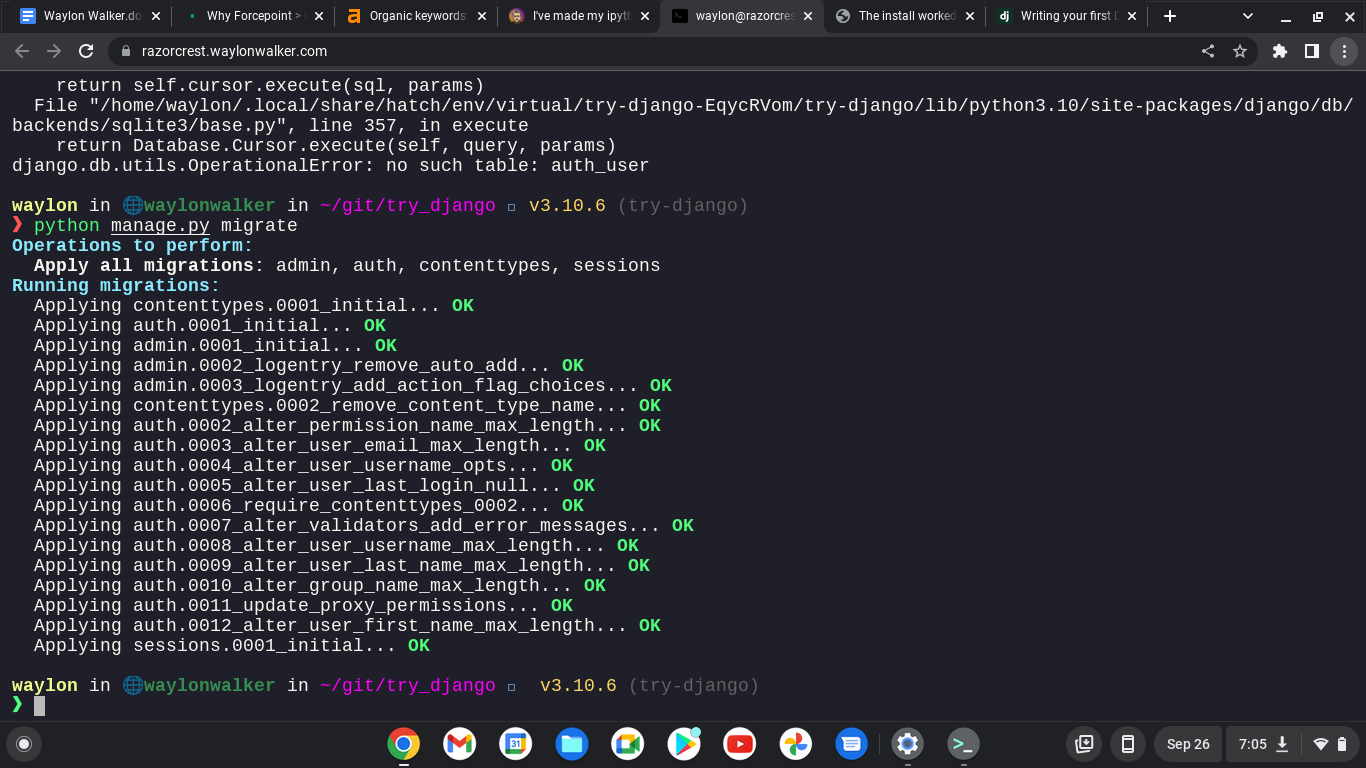
django.db.utils.OperationalError: no such table: auth_user

Back to the tutorial tells me that I need to run migrations to setup some tables for the INSTALLED_APPS, django.contrib.admin being one of them.

python manage.py migrate
trydjango-migration.png

yes I am still running remote on from my chromebook.

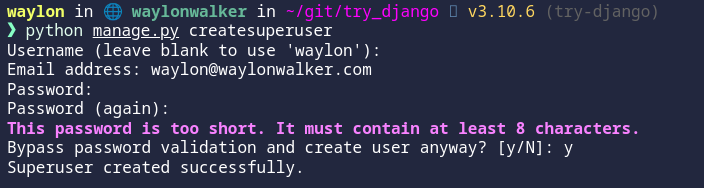
python manage.py createsuperuser
trydjango-create-superuser.png

The super user has been created.

“cybernetic soldier working on a rusting tape machine robot, cinematic lighting, detailed, cell shaded, 4 k, warm colours, concept art, by wlop, ilya kuvshinov, artgerm, krenz cushart, greg rutkowski, pixiv. cinematic dramatic atmosphere, sharp focus, volumetric lighting, cinematic lighting, studio quality” -s50 -W832 -H416 -C12.0 -Ak_lms -S2018296614

CSRF FAILURE #

My next issue trying to run off of a separate domain was a cross site request forgery error.

Since this is a valid domain that we are hosting the app from we need to tell Django that this is safe. We can do this again in the settings.py, but this time the variable we need is not there out of the box and we need to add it.

CSRF_TRUSTED_ORIGINS = ['https://localhost.waylonwalker.com']

I made it!! #

And we are in, and welcomed for the first time with this django admin panel.

trydjango-hello.webp

Remote Hosting #

You might find these settings helpful as well if you are trying to run your site on a remote host like aws, digital ocean, linode, or any sort of cloud providor. I had it running in my home lab while I was out of the house and ssh’d in over with a chromebook.

“cybernetic soldier working on a rusting tape machine robot, cinematic lighting, detailed, cell shaded, 4 k, warm colours, concept art, by wlop, ilya kuvshinov, artgerm, krenz cushart, greg rutkowski, pixiv. cinematic dramatic atmosphere, sharp focus, volumetric lighting, cinematic lighting, studio quality” -s50 -W832 -H416 -C12.0 -Ak_lms -S1092166059

I am continuing my journey into django, but today I am not at my workstation. I am ssh’d in remotely from a chromebook. I am fully outside of my network, so I can’t access it by localhost, or it’s ip. I do have cloudflared tunnel installed and dns setup to a localhost.waylonwalker.com.

Settings #

I found this in settings.py and yolo, it worked first try. I am in from my remote location, and even have auth taken care of thanks to cloudflare. I am really hoping to learn how to setup my own auth with django as this is one of the things that I could really use in my toolbelt.

ALLOWED_HOSTS = ['localhost.waylonwalker.com']
“cell shaded long shot of a cybernetic blue bald soldier with glowing blue eyes as Borderlands 3 concept art, llustration, post grunge, concept art by josan gonzales and wlop, by james jean, Victo ngai, David Rubín, Mike Mignola, Laurie Greasley, highly detailed, sharp focus,alien,Trending on Artstation, HQ, deviantart, art by artgem” -s50 -W832 -H416 -C7.5 -Ak_lms -S3422093952

I have no experience in django, and in my exploration to become a better python developer I am dipping my toe into one of the most polished and widely used web frameworks Django to so that I can better understand it and become a better python developer.

If you found this at all helpful make sure you check out the django tutorial

“An atronaut working in a lab, there is a long snake working along side, shallow depth of field beakers, test tubes, volumetric lighting, pink lighting, by victo ngai, killian eng vibrant colours, dynamic lighting, digital art” -s50 -W768 -H448 -C7.5 -Ak_lms -S2250540408

install django #

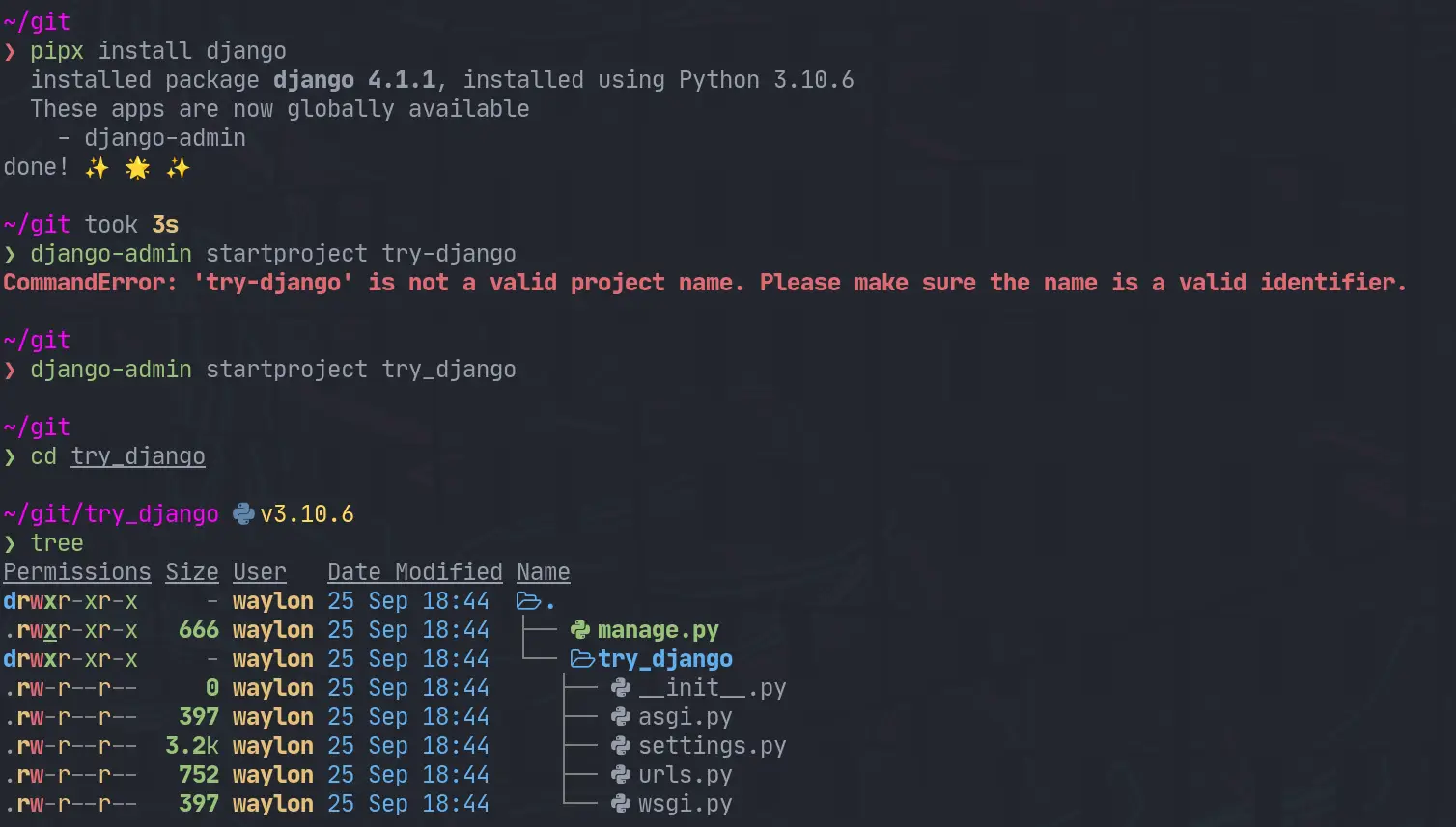
The first thing I need to do is render out a template to start the project. For this I need the django-admin cli. To get this I am going the route of pipx it will be installed globally on my system in it’s own virtual environment that I don’t have to manage. This will be useful only for using startproject as far as I know.

pipx install django
django-admin startproject try_django
cd try_django
django-startproject.webp

Make a venv #

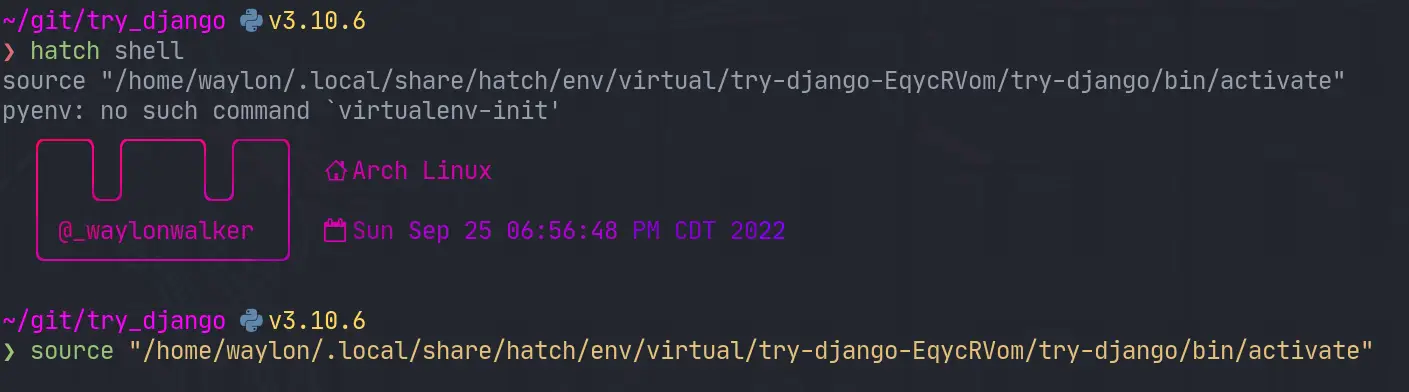
Once I have the project I need a venv for all of django and all of my dependencies I might need for the project. I have really been diggin hatch lately, and it has a one line “make a virtual environment and manage it for me” command.

hatch shell
trydjango-venv.webp

If hatch is a bit bleeding edge for you, or it has died out by the time you read this. The ol trusty venv will likely stand the test of time, this is what I would use for that.

python -m .venv --prmpt `basename $PWD`
. ./.venv/bin/activate

Start the webserver #

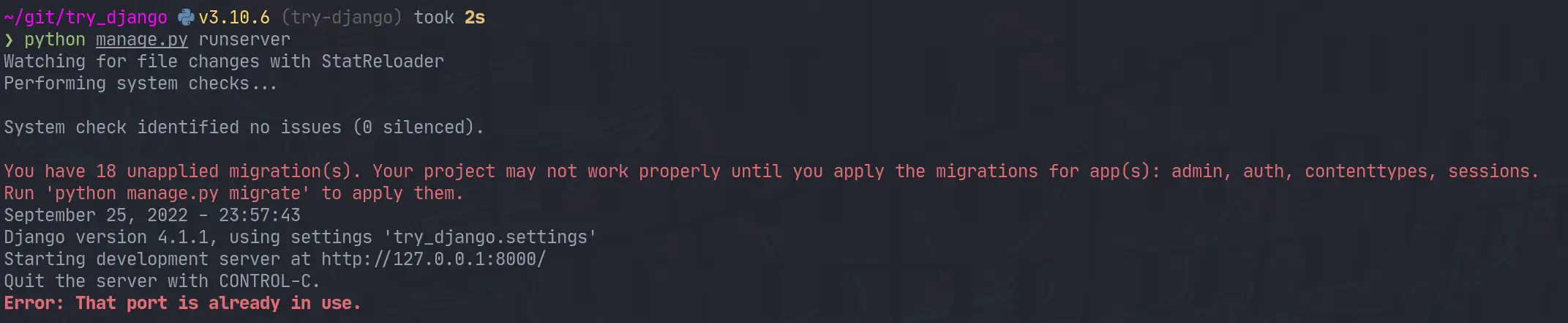
Next up we need to start the webserver to start seeing that development content. The first thing I did was run it as stated in the tutorial and find it clashed with a currently running web server port.

python manage.py runserver
django-runserver-oops.webp

I jumped over to that tmux session, killed the process and I was up and running.

trydjango-runserver.webp

What’s running #

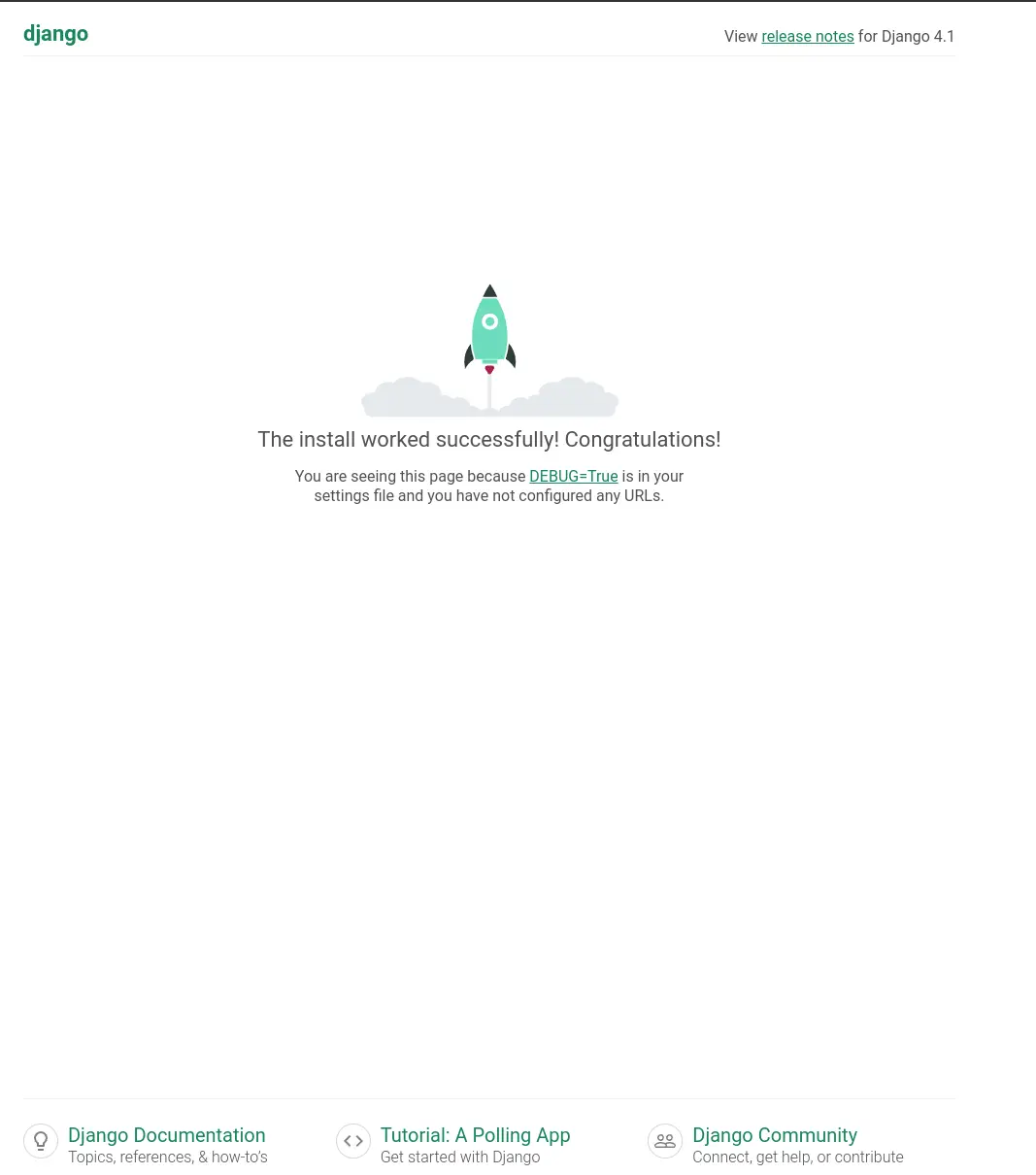
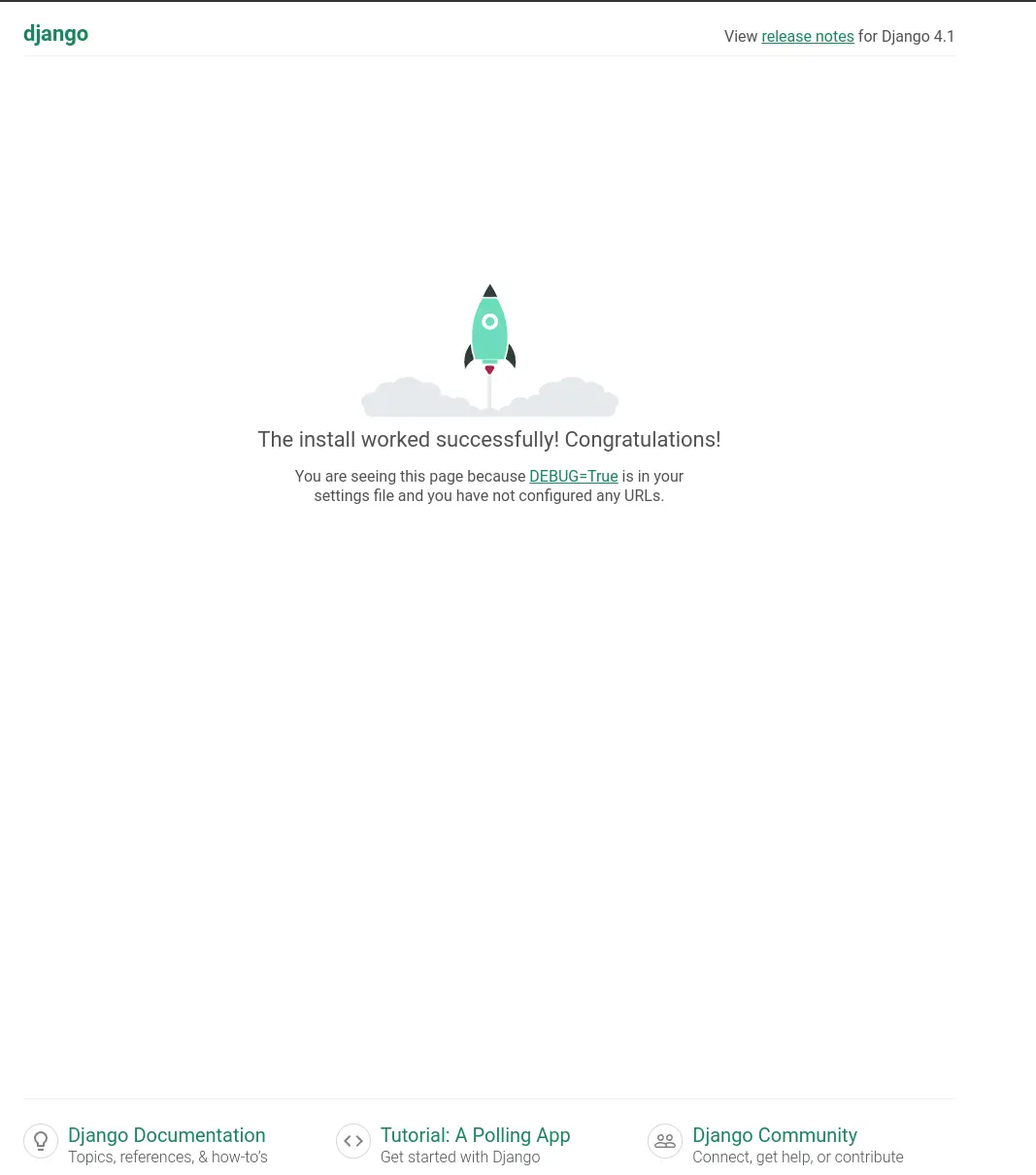
The default django hello world looks well designed. You are first presented with this page.

trydjango-hello.webp

Next #

I opened up the urls.py to discover that the only configured url was at /admin. I tried to log in as admin, but was unable to as I have not yet created a superuser. Next time I play with django that is what I will explore.

An astronaut working in a dimly lit labratory, it is almost black, heavy dark blacks, black space, heavy vingette, hacking on a computer terminal, htop is running, shallow depth of field beakers, test tubes, by Alphonse Mucha, dynamic lighting, digital art

While updating my site to use Markata’s new configurable head I ran into some escaping issues. Things like single quotes would cause jinja to fail as it was closing quotes that it shouldnt have.

Nuclear core being help up by glowing neon wires, cyberpunk synthwave, intricate abstract. delicate artwork. by tooth wu, wlop, beeple, dan mumford. pink volumetric lighting, octane render, trending on artstation, greg rutkowski very coherent symmetrical artwork. cinematic, hyper realism, high detail, octane render, 8k, depth of field, bokeh. chrome accents.

Jinja Escaping Strings #

Jinja comes with a handy utility for escaping strings. I definitly tried to over-complicate this before realizing. You can just pipe your variables into e to escape them. This has worked pretty flawless at solving some jinja issues for me.

<p>
{{ title|e }}
</p>

Creating meta tags in Markata #

The issue I ran into was when trying to setup meta tags with the new configurable head, some of my titles have single quotes in them. This is what I put in my markata.toml to create some meta tags.

[[markata.head.meta]]
name = "og:title"
content = "{{ title }}"

Using my article titles like this ended up causing this syntax error when not escaped.

SyntaxError: invalid syntax. Perhaps you forgot a comma?
Exception ignored in: <function Forward.__del__ at 0x7fa9807192d0>
Traceback (most recent call last):
    ...
TypeError: 'NoneType' object is not callable

jinja2 escape #

After making a complicated system of using html.escape I realized that jinja included escaping out of the box so I updated my markata.toml to include the escaping, and it all just worked!.

[[markata.head.meta]]
name = "og:title"
content = "{{ title|e }}"
Nuclear core being help up by wires, intricate abstract. delicate artwork. by tooth wu, wlop, beeple, dan mumford. pink volumetric lighting, octane render, trending on artstation, greg rutkowski very coherent symmetrical artwork. cinematic, hyper realism, high detail, octane render, 8k, depth of field, bokeh. chrome accents.

When I am developing python code I often have a repl open alongside of it running snippets ofcode as I go. Ipython is my repl of choice, and I hace tricked it out the best I can and I really like it. The problem I recently discovered is that I have way overcomplicated it.

What Have I done?? #

So in the past the way I have setup a few extensions for myself is to add something like this to my ~/.ipython/profile_default/startup directory. It sets up some things like rich highlighting or in this example automatic imports. I even went as far as installing some of these in the case I didn’t have them installed.

import subprocess

from IPython import get_ipython
from IPython.core.error import UsageError

ipython = get_ipython()

try:
    ipython.run_line_magic("load_ext pyflyby", "inline")
except UsageError:
    print("installing pyflyby")
    subprocess.Popen(
        ["pip", "install", "pyflyby"],
        stdout=subprocess.DEVNULL,
        stderr=subprocess.DEVNULL,
    ).wait()
    ipython.run_line_magic("load_ext pyflyby", "inline")
    print("installing isort")
    subprocess.Popen(
        ["pip", "install", "isort"],
        stdout=subprocess.DEVNULL,
        stderr=subprocess.DEVNULL,
    )
A man looking over to a glowing nuclear core with hundreds of wires running from it

What I missed? #

I missed the fact that some of these tools like pyflyby and rich already have an ipython extension maintained by the library that just works. It’s less complicated and more robust to future changes in the library. If anything ever changes with these I will not have to worry about which version is installed, the extension will just take care of itself.

How to activate these. #

The reccomended way is to add them to your ~/.ipython/profile_default/ipython_config.py

c.InteractiveShellApp.extensions.append('rich')
c.InteractiveShellApp.extensions.append('markata')
c.InteractiveShellApp.extensions.append('pyflyby')

The issue that I found with this is that you can end up with a sea of errors flooding your terminal. Personally I will know immediately if ipython is working right or not and typically have scriped venv installs so I have everything I need, so If I don’t have everything it’s probably for a reason and I don’t need an error message lighting up.

My way around this was to test if the module was importable and if it had a load_ipython_extension attribute before appending it as an extension.

def activate_extension(extension):
    try:
        mod = importlib.import_module(extension)
        getattr(mod, "load_ipython_extension")
        c.InteractiveShellApp.extensions.append(extension)
    except ModuleNotFoundError:
        "extension is not installed"
    except AttributeError:
        "extension does not have a 'load_ipython_extension' function"


extensions = ["rich", "markata", "pyflyby"]
for extension in extensions:
    activate_extension(extension)

My Change #

If you want to see what I did to my config see this commit.

Astronauts stunting some stylish color explosion

A long needed feature of markata has been the ability to really configure out templates with configuration rather. It’s been long that you needed that if you really want to change the style, meta tags, or anything in the head you needed to write a plugin or eject out of the template and use your own.

Adding some Head #

Now you can add some extra style to your site with the existing built-in template.

[[markata.head]]
text = """
<style>
img {
  width: 100%;
  height: auto;
}
ul {
  display: flex;
  flex-wrap: wrap;
}
</style>
"""

You can have more than one Head #

Each text entry in markata.head just gets appended raw into the head.

[[markata.head]]
text = """
<style>
img {
  width: 100%;
  height: auto;
}
ul {
  display: flex;
  flex-wrap: wrap;
}
</style>
"""

[[markata.head]]
text = """
<script>
console.log('hey there')
</script
"""

Still need more? #

If this does not take you far enough yet, you can still eject out and use your own template pretty easy. If you are going for a full custom site it’s likely that this will be the workflow for awhile. Markata should only get better and make this required less often as it matures.

[markata]
post_template = "pages/templates/post_template.html"

Once you have this in your markata.toml you can put whatever you want in your own template.

“An astronaut working in a lab, colorful explosion, powder, particles, smoke, 35mm, bokeh, fog, f1.2, shallow depth of field, experiments running, beakers, test tubes, cyberpunk, octane render, trending on artstation, neon lighting, volumetric lighting, pink lighting” -s50 -W800 -H450 -C7.5 -Ak_lms -S2678273305

I’m really getting into using hatch as my go to build system, and I am really liking it so far. I am slowly finding new things that just work really well. hatch new is one of those things that I didn’t realize I needed until I had it.

Hatch new cover image

creating new versions created by myself with stable diffusion

hatch-new-cli.webp
❯ pipx run hatch new --help
Usage: hatch new [OPTIONS] [NAME] [LOCATION]

  Create or initialize a project.

Options:
  -i, --interactive  Interactively choose details about the project
  --cli              Give the project a command line interface
  --init             Initialize an existing project
  -h, --help         Show this message and exit.

Note! I am running all of these commands with pipx. I like to use pipx for all of my system level cli applications. To emphasis this point in the article I am going to use pipx run hatch, but you can pipx install hatch then just run hatch from there.

Interacively create a new project #

Running hatch new -i will ask let you interactivly choose details about the project, such as the project’s name.

pipx run hatch new -i

After running and naming the project Hatch New we end up with the following filetree.

❯ tree .
.
├── hatch_new
│   ├── __about__.py
│   └── __init__.py
├── LICENSE.txt
├── pyproject.toml
├── README.md
└── tests
    └── __init__.py

Non-Interative #

You can also fill in the project name ahead of time, and it will run without any questions.

hatch-new-another-project.webp
❯ pipx run hatch new "Another Project"
another-project
├── another_project
│   ├── __about__.py
│   └── __init__.py
├── tests
│   └── __init__.py
├── LICENSE.txt
├── README.md
└── pyproject.toml

Note! all of these examples will create a project directory within your current working directory.

“An astronaut working in a lab, there is a series of eggs ready to hatch baby snakes on the table, experiments running, beakers, test tubes, cyberpunk, octane render, trending on artstation, neon lighting, volumetric lighting, pink lighting” -s50 -W800 -H450 -C10.0 -Ak_lms -S324995023

–init #

existing project

hatch new has an --init flag in order to initialize a new hatch pyproject.toml in an existing project. This feels like it would be useful if you are converting a project to hatch, or if like me you sometimes start making something before you realize it’s something that you want to package. Honestly this doesn’t happen too much anymore I package most things, and I hope hatch new completely breaks this habbit of mine.

Let’s say I have the following existing project.

❯ tree
.
└── hatch_init
    └── __init__.py

1 directory, 1 file

I can setup packaging with hatch by running.

pipx run hatch new --init
hatch-init-existing.webp

The pyproject.toml that comes out is pretty similar to the one that comes out of the normal hatch new, but without any other files.

Note that you will need to setup a __about__.py yourself for the dynamic versioning that it has setup for you.

[build-system]
requires = ["hatchling"]
build-backend = "hatchling.build"

[project]
name = "hatch-init"
description = 'initialize an existing project using hatch'
readme = "README.md"
requires-python = ">=3.7"
license = "MIT"
keywords = []
authors = [
  { name = "Waylon S. Walker", email = "[email protected]" },
]
classifiers = [
  "Development Status :: 4 - Beta",
  "Programming Language :: Python",
  "Programming Language :: Python :: 3.7",
  "Programming Language :: Python :: 3.8",
  "Programming Language :: Python :: 3.9",
  "Programming Language :: Python :: 3.10",
  "Programming Language :: Python :: 3.11",
  "Programming Language :: Python :: Implementation :: CPython",
  "Programming Language :: Python :: Implementation :: PyPy",
]
dependencies = []
dynamic = ["version"]

[project.urls]
Documentation = "https://github.com/unknown/hatch-init#readme"
Issues = "https://github.com/unknown/hatch-init/issues"
Source = "https://github.com/unknown/hatch-init"

[tool.hatch.version]
path = "hatch_init/__about__.py"

[tool.hatch.envs.default]
dependencies = [
  "pytest",
  "pytest-cov",
]
[tool.hatch.envs.default.scripts]
cov = "pytest --cov-report=term-missing --cov-config=pyproject.toml --cov=hatch_init --cov=tests"
no-cov = "cov --no-cov"

[[tool.hatch.envs.test.matrix]]
python = ["37", "38", "39", "310", "311"]

[tool.coverage.run]
branch = true
parallel = true
omit = [
  "hatch_init/__about__.py",
]

[tool.coverage.report]
exclude_lines = [
  "no cov",
  "if __name__ == .__main__.:",
  "if TYPE_CHECKING:",
]

cli #

hatch new does not stop there, it also has a --cli flag to give you a cli out of the box as well.

❯ pipx run hatch new "new cli" --cli
new-cli
├── new_cli
│   ├── cli
│   │   └── __init__.py
│   ├── __about__.py
│   ├── __init__.py
│   └── __main__.py
├── tests
│   └── __init__.py
├── LICENSE.txt
├── README.md
└── pyproject.toml

When you use the --cli flag you also get click as a dependency and project.scripts setup automatically.

[project]
name = "new-cli"

# ...

dependencies = [
  "click",
]

# ...

[project.scripts]
new-cli = "new_cli.cli:new_cli"

“An astronaut working in a lab, there is a series of eggs ready to hatch baby snakes on the table, experiments running, beakers, test tubes, cyberpunk trending on artstation” -s50 -W800 -H450 -C7.5 -Ak_lms -S98801549

what’s in the cli #

It’s a hello-world click application.

# SPDX-FileCopyrightText: 2022-present Waylon S. Walker <[email protected]>
#
# SPDX-License-Identifier: MIT
import click

from ..__about__ import __version__


@click.group(context_settings={'help_option_names': ['-h', '--help']}, invoke_without_command=True)
@click.version_option(version=__version__, prog_name='new cli')
@click.pass_context
def new_cli(ctx: click.Context):
    click.echo('Hello world!')

sneak peek #

I’ll dive more into environments and the run command later, but we can run the cli pretty damn quick with two commands. In under 5s I was able to run this cli that it created. This is a pretty incredible startup time.

pipx-run-hatch-hello-world.webp
“An astronaut working in a lab, there is a series of eggs ready to hatch baby snakes on the table, experiments running, beakers, test tubes, cyberpunk trending on artstation, neon lighting, volumetric lighting, pink lighting” -s50 -W800 -H450 -C7.5 -Ak_lms -S2274808816

Hatch has an amazing versioning cli for python packages that just works. It takes very little config to get going and you can start bumping versions without worry.

Hatch version cover image

creating new versions created by myself with stable diffusion

project layout #

For trying out the hatch version cli let’s make a simple project with the terrible name pkg.

❯ tree .
.
├── pkg
│   ├── __about__.py
│   └── __init__.py
├── pyproject.toml
└── README.md

1 directory, 4 files

pyproject.toml #

The main hero of this post is the pyproject.toml. This is what defines all of our PEP 517 style project setup.

[project]
name = "pkg"
description = "Show how to version packages with hatch"
readme = "README.md"
dynamic = [
 "version",
]

[build-system]
requires = [
 "hatchling>=1.4.1",
]
build-backend = "hatchling.build"

[tool.hatch.version]
path = "pkg/__about__.py"

statically versioning #

project.version

It is possible to set the version number inside the pyproject.toml statically. This is fine if you just want to version your package manually, and not through the hatch cli.

[project]
name = "pkg"
version = "0.0.0"
# ...

Statically versioning in pyproject.toml will not work with hatch version

hatch-static-version-error.webp
Cannot set version when it is statically defined by the `project.version` field

dynamically Versioning #

project.dynamic

Setting the project verion dynamically can be done by changing up the following to your pyproject.toml. Hatch only accepts a path to store your version. If you need to reference it elsewhere in your project you can grab it from the package metadata for that file. I would not put anything else that could possibly clash with the version, as you might accidently change both things.

If you really need to set it in more places use a package like bump2version.

[project]
name = "pkg"
dynamic = [
  "version"
]
# ...
[tool.hatch.version]
path = "pkg/__about__.py"

Note: you can configure hatch to use a different pattern https://hatch.pypa.io/1.2/version/#configuration, but I have not found it to be something that I need.

about.py #

The hatch project itself uses a about.py to store it’s version. It’s sole content is a single __version__ variable. I don’t have any personal issues with this so I am going to be following this in my projects that use hatch.

__version__ = "0.0.0"

versioning #

hatch version docs

Hatch has a pretty intuitive versioning api. hatch version gives you the version. If you pass in a version like hatch version "0.0.1" it will set it to that version as long as it is in the future, otherwise it will error.

# print the current version
hatch version

# set the version to 0.0.1
hatch version "0.0.1"

bumping #

You can bump parts of the semver version.

# minor bump
hatch version minor

# beta pre-release bump
# If published to pypi this can be installed with the --pre flag to pip
hatch version b

# bump minor and beta
hatch version minor,b

# release all of the --pre-release flags such as alpha beta rc
hatch release

Example #

Here is a screenshot of bumping a projet along.

hatch-version-cli.webp

GitOps #

In my github actions flow I will be utilizing this to automate my versions. In my side projects I use the develop branch to release –pre releases. I have all of my own dependent projets running on these –pre releases, this allows me to cut myself in my own projects before anyone else. Then on main I automatically release this beta version.

GitHub Actions #

Here is what the ci/cd for markata looks like. There might be a better workflow strategy, but I use a single github actions workflow and cut branches to release –pre releases and full release. These steps will bump, tag, commit, and deploy for me.

      - name: automatically pre-release develop branch
        if: github.ref == 'refs/heads/develop'
        run: |
          git config --global user.name 'autobump'
          git config --global user.email '[email protected]'
          VERSION=`hatch version`
          # if current version is not already beta then bump minor and beta
          [ -z "${b##*`hatch version`*}" ] && hatch version b || hatch version minor,b
          NEW_VERSION=`hatch version`
          git add markta/__about__.py
          git commit -m "Bump version: $VERSION → $NEW_VERSION"
          git tag $VERSION
          git push
          git push --tags

      - name: automatically release main branch
        if: github.ref == 'refs/heads/main'
        run: |
          git config --global user.name 'autobump'
          git config --global user.email '[email protected]'
          VERSION=`hatch version`
          hatch version release
          NEW_VERSION=`hatch version`
          git add markta/__about__.py
          git commit -m "Bump version: $VERSION → $NEW_VERSION"
          git tag $VERSION
          git push
          git push --tags

      - name: build
        run: |
          python -m build

      - name: pypi-publish
        if: github.ref == 'refs/heads/develop' || github.ref == 'refs/heads/main'
        uses: pypa/[email protected]
        with:
          password: ${{ secrets.pypi_password }}

Hatch Version Action #

I am setting up a github custom action waylonwalker/hatch-version-action that will lint, test, bump, and publish for me in one step. More on that in the future.

Markata is a great python framework that allows you to go from markdown to a full website very quickly. You can get up and running with nothing more than Markdown. It is also built on a full plugin architecture, so if there is extra functionality that you want to add, you can create a plugin to make it behave like you want.

Full transparancy… I built markata.

The talk #

The talk is live on YouTube. Make sure you check out the other videos from the conference. There were quite a few quality talks that deserve a watch as well.

https://youtu.be/Wq9YBamSgs0

“An astronaut working in a lab, hacking on a computer terminal, htop is running, shallow depth of field beakers, test tubes, volumetric lighting, pink lighting, by victo ngai, killian eng vibrant colours, dynamic lighting, digital art” -s50 -W768 -H448 -C7.5 -Ak_lms -S3617210203

I spoke at python webconf in March 2022 about how I deploy this blog on a continuous basis.

Building this blog has brought me a lot of benefits. I have a set of custom curated notes to help describe a problem and how to solve it to me. At theis point it’s not uncommon to google an Issue I am having and finding my own blog with exactly the solution I need at the top.

I also bump into people from time to time that recognize me from the blog, its a nice conversation starter, and street cred.

The Talk #

The talk recently released on Youtube, you can watch it without having a ticket to the conference for free. There were a bunch of other talks that you should check out too!

https://youtu.be/JDZVjDCTKHE

I got all the pypi packages that I own behind 2 factor authentication. 💪

Recently this really made it’s rounds in the python news since pypi was requiring critical package maintainers to have 2FA on and even offering them hardware tokens to help them turn this on.

I feel like this caused a bit of confusion as turning on 2FA does not mean that you need to do anything different to deploy a package, and it DOES NOT require a hardware token. You can continue using your favorite 2FA app.

You might wonder what this means for my projects. It means that to edit any sensitive content such as pull a new api token, add/remove maintainers, or deleting a release I need to use a TOPT (time based one time password) application such as Google Authenticator, Microsoft Authenticator, Authy, or FreeOTP.

This has very little change to my overall workflow as my CI system still automatically deploys for me with the same api token as before.

This is one small thing that maintainers can do to prevent supply chain attacks on their projects that they put so much work into.

Login #

When I log in I now get this extra screen asking for an auth token.

pypi-2fa-code.webp

My packages #

Once I turned on 2FA for my account I could then turn on 2FA requirement for each project. I am not sure how much safety there is in pypi, it might require all maintainers to have it turned on before it allows packages to have it turned on.

my-pypi-packages-aug-2022.webp

Once turned on it requires anyone who maintains the project to have 2FA on to be able to edit any sensitive content.

I just love how some features of vim are so discoverable and memorable once you really start to grasp it. Sorting and uniqing your files or ranges is one of those examples for me.

" sort the file
:sort
" sort the file only keeping unique lines
:sort u


" sort a range
:'<,'> sort
" sort a range only keeping unique lines
:'<,'> sort u

I recently used this to dedupe my autogenerated links section for rich-syntax-range-style. More often I am using it to sort and uniqify objects like arrays and lists.

Here is what the markdown looks like.

* [py-tree-sitter](https://github.com/tree-sitter/py-tree-sitter)
* [rich](https://github.com/Textualize/rich)
* [@textualizeio](https://twitter.com/textualizeio)
* [rich](https://github.com/Textualize/rich)
* [another post](https://waylonwalker.com/designing-kedro-router)
* [print-register-pipelines](https://screenshots.waylonwalker.com/print-register-pipelines.webp)
* [rich](https://github.com/Textualize/rich)
* [console-print-register-pipelines](https://screenshots.waylonwalker.com/console-print-register-pipelines.webp)
* [rich](https://github.com/Textualize/rich)
* [syntax-print-register-pipelines](https://screenshots.waylonwalker.com/syntax-print-register-pipelines.webp)
* [rich](https://github.com/Textualize/rich)
* [syntax-print-register-pipelines-highlight-line](https://screenshots.waylonwalker.com/syntax-print-register-pipelines-highlight-line.webp)
* [py-tree-sitter](https://github.com/tree-sitter/py-tree-sitter)

Then typing vap:sort u yields a uniqly sorted list of links.

* [@textualizeio](https://twitter.com/textualizeio)
* [another post](https://waylonwalker.com/designing-kedro-router)
* [console-print-register-pipelines](https://screenshots.waylonwalker.com/console-print-register-pipelines.webp)
* [print-register-pipelines](https://screenshots.waylonwalker.com/print-register-pipelines.webp)
* [py-tree-sitter](https://github.com/tree-sitter/py-tree-sitter)
* [rich](https://github.com/Textualize/rich)
* [syntax-print-register-pipelines-highlight-line](https://screenshots.waylonwalker.com/syntax-print-register-pipelines-highlight-line.webp)
* [syntax-print-register-pipelines](https://screenshots.waylonwalker.com/syntax-print-register-pipelines.webp)

Today I’ve been playing with py-tree-sitter a bit and I wanted to highlight match ranges, but was unable to figure out how to do it with rich, so I reached out to @textualizeio for help.

https://twitter.com/_WaylonWalker/status/1562469770766589952

While waiting for that reply let’s show how we got this far.

imports #

Lets import all the classes that we need from rich and setup a console to print to.

from rich.console import Console
from rich.syntax import Syntax
from rich.style import Style

console = Console()

some code #

Now we need some code to highlight. I am going to rip my register_pipeline from another post.

code = '''
from find_kedro import find_kedro

def register_pipelines(self) -> Dict[str, Pipeline]:
    """Register the project's pipeline.
    Returns:
        A mapping from a pipeline name to a ``Pipeline`` object.
    """
    return find_kedro()
'''

print #

We could simply print out the code we have as a variable, but thats a bit hard to read.

print-register-pipelines.webp

console.print #

printing with rich’s console makes it a little better, but not much by default.

console-print-register-pipelines.webp

Syntax #

We can pull from rich’s syntax module to really pretty this up.

syntax = Syntax(code, 'python', line_numbers=True)
console.print(syntax)
syntax-print-register-pipelines.webp

Now we are getting some really impressive print outs right in the terminal!

note that I have ipython set to use rich, you will need to console.print() in scripts

highlight lines #

Now we can start highlighting lines right when we initialize our Syntax instance. It looks ok. It’s not super visible, but more importantly its not granular enough. I want to highlight specific ranges like the word register_pipelines.

syntax = Syntax(code, 'python', line_numbers=True, highlight_lines=[4])
console.print(syntax)
syntax-print-register-pipelines-highlight-line.webp

This hows the line, but still is not very accurate.

highlight text #

[@textualizeio] got back to me, let’s see if What we can do with stylize_range!

https://twitter.com/textualizeio/status/1562487302274043904

syntax = Syntax(code, 'python', line_numbers=True)
style = Style(bgcolor='deep_pink4')
syntax.stylize_range(style, (4, 4), (4, 22))
console.print(syntax)

This gives us the final result we are looking for, we can easily see what is being targeted here. In this case the function name register_pipelines.

syntax-highlight-range-register-pipelines.webp

This turns out to be exacly what I am looking for. Now I have an easy way to print out highlighted code wtih my py-tree-sitter query results.