Today I discovered vim-speeddating [1]
by tpope. I’m sure I’ve seen years ago but it did not click for my workflow
until today. I often go through pictures from my phone for the past few days
and make Posts tagged: shots [2] posts, but I want to date them to about when the image was
taken most of the time. This allows me to quickly bump days up and down using
c-a and c-x even around the new year.
Your browser does not support the video tag. [3]
Sound on, listen to those new switches.
References:
[1]: https://github.com/tpope/vim-speeddating
[2]: /tags/shots/
[3]: https://dropper.waylonwalker.com/file/18c876c3-02ea-4c77-9f62-cdbb1bb759a1.mp4
Posts tagged: vim
All posts with the tag "vim"
29 posts
latest post 2026-01-04
Publishing rhythm
Vim :noa is a command that runs what you call without autocommands on. This
is typically used when you have some BufWritePre commands for formatting,
most auto formatters are implemented this way in vim. It can be super useful
if you have something like a yaml/json file that you have crafted perfectly how
you want it, maybe it has some source code for a small script or sql embeded
and your formatter wants to turn it into one line. You could get a better
formatter, but for these one off cases that aren’t a big bother to me I run
:noa w.
:noa w
fixed long standing nvim startup error
Here’s the diff, this is it.
local M = {}
M.setup = require("waylonwalker.setup")
M.settings = require("waylonwalker.settings")
+ M.lazy = require("waylonwalker.lazy")
M.options = require("waylonwalker.options")
M.globals = require("waylonwalker.globals")
M.keymap = require("waylonwalker.keymap")
- M.lazy = require("waylonwalker.lazy")
M.autocmds = require("waylonwalker.autocmds")
M.util = require("waylonwalker.util")
M.plugins = require("waylonwalker.plugins")
M.snippets = require("waylonwalker.snippets")
return M
The error # [1]
On first install of my dotfiles I’m presenting with this flashbang of an error
filling the screen with red background. Its kinda hard to read, I’m not deep
into lua and reading their tracebacks. It pops up in this pager that if I
scroll too far it quits and the error is gone before I know what it is or how
it got there.
[2]
For the longest time it just felt like it randomly showed up without much warning.
I sent ai at the issue # [3]
I...
When I want to put a date in a document like a blog post from vim I use !!date
from insert mode. Note that entering !! from normal mode puts you in command
mode with :.! filled out. This runs a shell command, i.e. date for this
example.
It outputs the following
Fri Jan 31 08:46:11 PM CST 2025
You can also pass in a date such as tommorrow by pasdding in the -d date -d tomorrow.
It outputs the following
Sat Feb 1 08:53:20 PM CST 2025
codeium just taught me this one with autocomplete
:put =strftime('%Y-%m-%d')
This outputs the following
2025-01-31
What I like about the :put =strftime( method is that you can add a format,
but that is a lot more for me to remember than !!date
A few weeks later # [1]
I’m going through a bunch of blog posts and dont want my date formats to change
to the Wed Feb format so I broke down and made these keybindings. I think I’m
still going to be using .!date a lot, but these keybindings will be nice for
editing blog post frontmatter.
set("n", "<leader>dd", "<cmd>put =strftime('%Y-%m-%d')<cr>", { noremap = true, silent = true })
set("n", "<leader>dt", "<cmd>put =strftime('%Y-%m-%d %H:%M:%S')<cr>", { noremap = true, silent = true })
- dd 2025-02-...
nvim-manager
I recently built a cli application as a nearly-one-shot-app called
nvim-manager [1]. It manages your
nvim dotfiles install.
[2]
Why # [3]
How is nvim manager any better # [4]
nvim-manager allows you to install pinned versions of your dotfiles, your
friends dotfiles, and distros in ~/.config. This allows you to have stable
versions that will not break installed while you change things.
I’m sure most of us have experienced the pain of installing one plugin, only to
update all of your plugins and break something.
Or, you have small changes on every machine you use, because they are all just
a bit different and now you have big merge conflicts to deal with.
All of this aside you can install a distro to get you by, or a known working
version of your own dotfiles.
So all these versions in ~/.config # [5]
ya, thats the magic of NVIM_APPNAME, I can boot up any of these intalled
working versions in an instant with NVIM_APPNAME=nvim-waylonwalker-v0.0.1 nvim. I can still cowboy up an...
Support regex substitution command · Issue #2232 · helix-editor/helix
Support regex substitution, comparable to vim :s or VSCode search & replace. I propose supporting regex replacements for selection s, files/, and the workspace scopes + /. This could be acc...
GitHub · github.com [1]
Here is a really good vim substitute with regex capture groups, saving this one for a rainy day.
* Reading 1: This is a title to a link
* Reading 2: This is another title
:%s/\v(: )(.+)$/\1\[\2\]\(
* Reading 1: [This is a title to a link](
* Reading 2: [This is another title](
Note
This post is a thought [2]. It’s a short note that I make
about someone else’s content online #thoughts
References:
[1]: https://github.com/helix-editor/helix/issues/2232#issuecomment-1228632218
[2]: /thoughts/
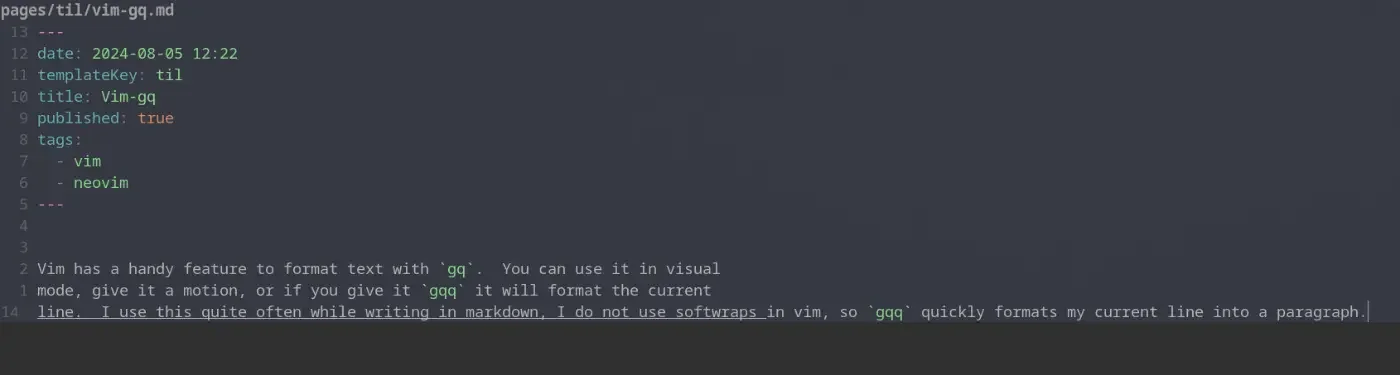
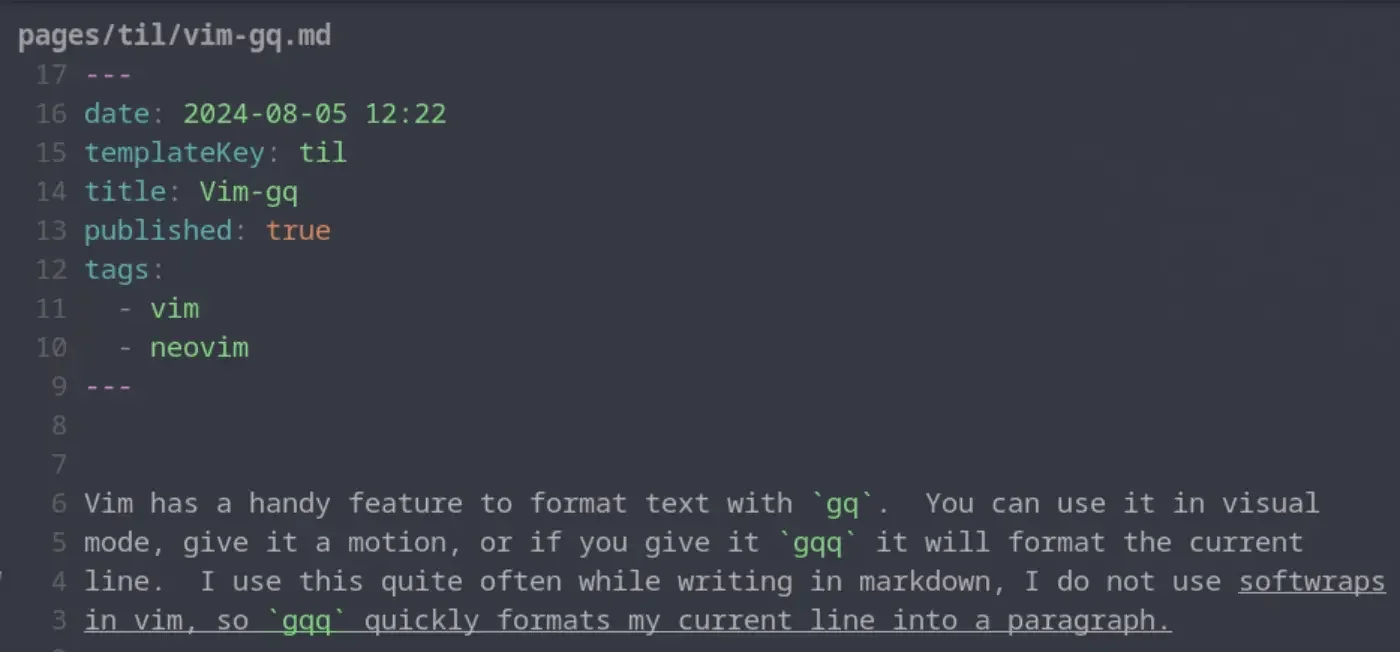
Vim has a handy feature to format text with gq. You can use it in visual
mode, give it a motion, or if you give it gqq it will format the current line.
I use this quite often while writing in markdown, I do not use softwraps in vim,
so gqq quickly formats my current line into a paragraph. Once I have done
this for a single line one time I typically switch to the motion for around
paragraph gqap to format the whole paragraph and not just the current line.
before formatting # [1]
[2]
after formattting # [3]
[4]
References:
[1]: #before-formatting
[2]: https://dropper.waylonwalker.com/api/file/01c19159-c0b5-4920-b73c-774284b09940.webp
[3]: #after-formattting
[4]: https://dropper.waylonwalker.com/api/file/e068e445-43e0-4e27-ac30-ac11e9cb9088.webp
-
another great use and demo of the one eyed fighting kirby
Note
This post is a thought [1]. It’s a short note that I make
about someone else’s content online #thoughts
References:
[1]: /thoughts/
Refactoring one line links into wikilinks
Previously I had setup a feature of my website to expand one line links into a
card. This was not a standard, even to the point that some formatters wrap the
links with , thus breaking my custom plugin. Moving to the
wikilink standard will allow my markdown posts to work accross more site
builders without custom integrations.
Expand One Line Links [1]
What is a wikilink # [2]
Wikilinks are standard to a lot of wikis written in markdown.
markdown-it-wikilinks [3]
The wikilink syntax is a slug wrapped in double square brackets.
[[ slug ]]
Marksman lsp will even autocomplete these for you, its pretty sweet.
Note
I recently implemented hover for wikilinks and and am pretty stoked about the
result. Check this one out sick wikilink hover [4].
Vim Quickfix # [5]
You could use vimgrep to fill your quickfix list will all of the one line links
but I am less familiar with vimgrep and kept missing posts for some reason, I
think it was something in my file glob missing some directori...
![[None]]
Install it
{
"ThePrimeagen/harpoon",
branch = "harpoon2",
dependencies = { "nvim-lua/plenary.nvim" },
config = function()
require("waylonwalker.plugins.harpoon").setup()
end,
},
harpoon config
local harpoon = require("harpoon")
M = {}
M.setup = function()
-- REQUIRED
harpoon:setup()
-- REQUIRED
vim.keymap.set("n", "<F10>", function() harpoon:list():append() end)
vim.keymap.set("n", "<F9>", function() harpoon.ui:toggle_quick_menu(harpoon:list()) end)
vim.keymap.set("n", "<F1>", function() harpoon:list():select(1) end)
vim.keymap.set("n", "<F2>", function() harpoon:list():select(2) end)
vim.keymap.set("n", "<F3>", function() harpoon:list():select(3) end)
-- these are cnext/cprev
-- vim.keymap.set("n", "<F4>", function() harpoon:list():select(4) end)
-- vim.keymap.set("n", "<F5>", function() harpoon:list():select(5) end)
vim.keymap.set("n", "<F6>", function() harpoon:list():select(6) end)
-- Toggle previous & next buffers stored within Harpoon list
vim.keymap.set("n", "<F7>", function() harpoon:list():prev() end)
vim.keymap.set("n", "<F8>", function() harpoon:list():next() end)
-- basic telescope configuration
local conf = require("telescope.config").valu...
-
I found this statement quite intriguing.
multi-cursors are just macros.
This is quite a philisophical video and mostly prime talking about the things that make vim vim, and what prime needs in and editor vs what he can live without.
Note
This post is a thought [1]. It’s a short note that I make
about someone else’s content online #thoughts
References:
[1]: /thoughts/
-
I’ve heard prime say just give it the one eyed fighting kirby so many times, and execute it few times, and there is no way to find it online, so this will be the link that I will come to, when I need to remember what @theprimeagen means when he says Give it the one eyed fighting kirby.
:s/\(.*\);/console.log(\1)
So what is this? # [1]
This is a vim substitute comand to replace text in the buffer. the one eyed fighting kirby is a regex capture group to capture everything between matches, and assign it a value to place back in after the match.
substitute in a nutshell, :s/<what you want to replace>/<what you want to replace with>
More examples # [2]
Here is a contrived example of text.
here there
from here go there
here = some_fuction(there)
Now for some reason I want to switch all of the words here and there. I can do that with three capture groups, \1 is here, \2 is everything between, \3 is there.
:%s/\(here\)\(.*\)\(there\)/\3\2\1
Just give it the one eyed fighting kirby
~Prime
still struggling # [3]
I thought this explaination from phind was good and more verbose than mine.
---
describe this vim substitute regex
:%s/(here)(.)(there)/\3\2\1
ANSWER | PHIND V9 M...
So after months of fighting with gf not going to template files, I finally
decided to put in some effort to make it work.
This was the dumbest keybind in my config, that I copied from someone else
without understanding it.
What I am trying to do # [1]
I have jinja templates in a directory called templates. I want to bind gf to
open a template file, but it is trying to open a new file ./base.html
{% extends "base.html" %}
{% if request.state.user %}
{% block title %}Fokais - {{ request.state.user.full_name }} {% endblock %}
{% else %}
{% block title %}Fokais {% endblock %}
{% endif %}
{% block content %}
{% if request.state.user %}
<h1 id="title"
class="inline-block mx-auto text-5xl font-black leading-loose
text-transparent bg-clip-text bg-gradient-to-r from-red-600
via-pink-500 to-yellow-400 ring-red-500 text-shadow-xl
text-shadow-zinc-950 ring-5">
{{ request.state.user.full_name }}
</h1>
{% endif %}
{% include "me_partial.html" %}
{% endblock %}
What did not work # [2]
I tried all sorts of changes to my path, but it still didn’t work.
vim.api.nvim_command("set path+=templates/**")
What I found # [3]
after digging into my keymap I found that I had remaped gf ...
https://neovim.io/doc/user/diagnostic/
neovim.io [1]
Clear out lsp diagnostics in nvim.
lua vim.diagnostic.reset()
Note
This post is a thought [2]. It’s a short note that I make
about someone else’s content online #thoughts
References:
[1]: https://neovim.io/doc/user/diagnostic.html#vim.diagnostic.reset()
[2]: /thoughts/
External Link
X (formerly Twitter) · twitter.com [1]
I need to learn regex capture groups better. This is so dang powerful. I really like the \v that bob uses here, it really does cut down on the terseness of all the special characters.
I wanted to replace all occurrences of:
name,[email protected],0,171,,2023-09-21
With:
name,[email protected]
Easy to do with Python, but what about a bit of > regex in Vim?
:%s/\v([^,]+,[^,]+),.*/\1/
Note
This post is a thought [2]. It’s a short note that I make
about someone else’s content online #thoughts
References:
[1]: https://twitter.com/bbelderbos/status/1709525676154368055
[2]: /thoughts/
Formatting on save
Use Neovim as a language server to inject LSP diagnostics, code actions, and more via Lua. - jose-elias-alvarez/null-ls.nvim
GitHub · github.com [1]
neovim stopped formatting on save for me awhile ago and I have just been dealing with it. looks like there may have been an api change, idk.
I had to make this update.4
- vim.lsp.buf.format()
+ vim.lsp.buf.format({async=false})
Note
This post is a thought [2]. It’s a short note that I make
about someone else’s content online #thoughts
References:
[1]: https://github.com/jose-elias-alvarez/null-ls.nvim/wiki/Formatting-on-save#code
[2]: /thoughts/
🛠️ Installation | LazyVim
You can find a starter template for LazyVim here
lazyvim.org [1]
Lately in 2023 I have been leaning on lazyvim for my new setups where I am not necessarily ready to drop my full config. It’s been pretty solid, and comes with a very nice setup out of the box, the docs are pretty fantastic as well.
Note
This post is a thought [2]. It’s a short note that I make
about someone else’s content online #thoughts
References:
[1]: https://www.lazyvim.org/installation
[2]: /thoughts/
extending vim with shell commands
Vimconf 2022
The pitch # [1]
Extending vim does not need to be complicated and can be done using cli tools
that you might already be comfortable with. Examples, setting up
codeformatters with autocmds, using lf/ranger as a tui file manager, generating
new files using a template framework like cookiecutter/copier/yeoman, using ag
to populate your quickfix.
run a command # [2]
vimconf!!<esc>!!figlet
formatters # [3]
local settings = require'waylonwalker.settings'
M.waylonwalker_augroup = augroup('waylonwalker', { clear = true })
M.format_python = function()
if settings.auto_format.python then
vim.cmd('silent execute "%!tidy-imports --black --quiet --replace-star-imports --replace --add-missing --remove-unused " . bufname("%")')
vim.cmd('silent execute "%!isort " . bufname("%")')
vim.cmd('silent execute "%!black " . bufname("%")')
end
end
autocmd({ "BufWritePost" }, {
group=M.waylonwalker_augroup,
pattern = { "*.py" },
callback = M.format_python,
})
File Navigation # [4...
With the latest release of version of nvim 0.8.0 we get access to a new winbar
feature. One thing I have long wanted somewhere in my nvim is navigation for
pairing partners or anyone watching can keep track of where I am. As the
driver it’s easy to keep track of the file/function you are in. But when you
make big jumps in a few keystrokes it can be quite disorienting to anyone
watching, and having this feedback to look at is very helpful.
[1]
winbar # [2]
nvim exposes the winbar api in lua, and you can send any text to the winbar as follows.
vim.o.winbar = "here"
You can try it for yourself right from the nvim command line.
:lua vim.o.winbar = "here"
Now you will notice one line above your file with the word here at the very
beginning.
Clearing the winbar # [3]
If you want to clear it out, you can just set it to an empty string or nil.
:lua vim.o.winbar = ""
:lua vim.o.winbar = nil
Setting up nvim-navic # [4]
You will need to install nvim-navic if you want to use it. I added it to my
plugins using Plug as follows.
call plug#begin('~/.local/share/nvim/plugged')
Plug 'SmiteshP/nvim-navic'
call plug#end()
Note! nvim-navic does require the use of the nvim lsp, so if you ...
How to vimgrep over hidden files.
I needed to delete all build pipeline steps that were named upload docs. I
currently have about 60 projects running from the same template all running
very similar builds. In the past I’ve scripted out migrations for large
changes like this, they involved writing a python script that would load the
yaml file into a dictionary, find the corresponding steps make the change and
write it back out.
Today’s job was much simplar, just delete the step, were all steps are
surrounded by newlines. My first thought was to just open all files in vim and
run dap. I just needed to get these files:positions into my quickfix. My
issue is that all the builds reside within hidden directories by convention.
The issue # [1]
variability
After searching through all the projects it was clear that all the steps were
in their own paragraph, though I was not 100% confident enough to completely
automate it, and the word upload docs was in the paragraph.
some were a two liner
- name: upload docs
script: aws s3 ...
Some had a variation in the name
- name: upload docs to s3
script: aws s3 ...
some were more than 2 lines.
- name: upload docs
script: |
aws s3 ...
s...