A few of my friends and I all just borked our neovim configs during a plug
update, and because none of us were using :PlugSnapshot it was painful to
recover from.
https://twitter.com/pypeaday/status/1524882893914398732
Lucky for me I did it on a home machine that I only occasionally edit from,
so I could still take the snapshot from a working machine before taking the
plunge into fixing everying.
Why snapshot # [1]
Snapshotting ensures that you install the same git [2] sha on every single plugin.
This way when you have multiple machines running your same vim config, they are
all on the same sha of each plugin, and you dont end up with weird things
happening on one machine. And then you get to decide when you are ready to
update, rather than when it breaks.
- same config everywhere
- you control the update
- in case of a borked update you have a good working place to rever to
Let’s snapshot # [3]
Running :PlugSnapshot will generate the following content in a buffer that
you can save. I chose to save mine in ~/.config/nvim/snapshot.vim.
" Generated by vim-plug
" Fri 13 May 2022 08:01:39 PM CDT
" :source this file in vim to restore the snapshot
" or execute: vim -S snapsh...
Posts tagged: vim
All posts with the tag "vim"
29 posts
latest post 2026-01-04
Publishing rhythm
Let’s make a vim command to automatically collect all the links in these
posts at the end of each article. Regex confuses the heck out of me…
I don’t have my regex liscense, but
regex can be so darn powerful especially in an editor.
Step one # [1]
Before you run someone’s regex from the internet that you don’t fully
understand, check your git status and make sure you are all clear with
git [2] before you wreck something
Inspiration # [3]
Something that I have always appreciated form
Nick Janetakis [4] is his links section. I
often try to gather up the links at the end of my posts, but often end
up not doing it or forgetting.
Making a Links section # [5]
Searchng through the internet I was able to find an article from
Vitaly Parnas called
vim ref links [6] that did
almost exactly what I needed, except it was more complicated and made
them into ref liks.
Here is my interpretation of the code I took from Vitaly’s post. It
makes a Links section like the one at the bottom of this post.
function! MdLinks()
$norm o## Links
$norm o
g/\[[^\]]\+\]([^)]\+)/t$
silent! '^,$s/\v[^\[]*(\[[^\]]+\])\(([^)]+)\)[^\[]*/* \1(\2)/g
nohl
endfunction
command! MdLinks call MdLinks()
So far ...
I recently found a really great plugin [1] by
mhinz [2] to open files in neovim from a
different tmux split, without touching neovim at all.
Installation # [3]
neovim-remote [1] is not a neovim
plugin at all, it’s a python cli that you can install with pip. Unlike
the repo suggests, I use pipx to install nvr.
pipx install neovim-remote
How I use it # [4]
I have this added to my .envrc that is in every one of my projects.
This will tie a neovim session to that directory, and all directories
under it.
export NVIM_LISTEN_ADDRESS=/tmp/nvim-$(basename $PWD)
In my workflow I open a tmux session for each project, so this
essentially ties a neovim session to a tmux session.
Open neovim # [5]
First open neovim, but with the nvr command. This will open neovim,
and look pretty much the same as always.
nvr
If you try to run nvr again in another shell nothing will happen as
its already runnin under that address, but if you give it a filename it
will open the file in the first instance of neovim that you opened.
nvr readme.md
Links # [6]
- GitHub [1]
References:
[1]: https://github.com/mhinz/neovim-remote
[2]: https://github.com/mhinz
[3]: #installation
[4]: #how-i-use-it
[5]: #op...
Anyone just starting out their vim customization journey is bound to run into this error.
E5520: <Cmd> mapping must end with <CR>
I did not get it # [1]
I’ll admit, in hindsight it’s very clear what this is trying to tell me, but
for whatever reason I still did not understand it and I just used a :
everywhere.
From the docs # [2]
If you run :h <cmd> you will see a lot of reasons why you should do it, from
performance, to hygene, to ergonomics. You will also see another clear
statement about how to use <cmd>.
E5520
<Cmd> commands must terminate, that is, they must be followed by <CR> in the
{rhs} of the mapping definition. Command-line mode is never entered.
When to map with a : # [3]
You still need to map your remaps with a : if you do not close it with a
<cr>. This might be something like prefilling a command with a search term.
nnoremap <leader><leader>f :s/search/
Otherwise use # [4]
If you can close the <cmd> with a <cr> the command do so. Your map will
automatically be silent, more ergonomic, performant, and all that good stuff.
nnoremap <leader><leader>f <cmd>s/search/Search/g<cr>
References:
[1]: #i-did-not-get-it
[2]: #from-the-docs
[3]: #when-to-map-with-a-...
Creating a minimal config specifically for git [1] commits has made running
git commit much more pleasant. It starts up Much faster, and has all
of the parts of my config that I use while making a git commit. The one
thing that I often use is autocomplete, for things coming from elsewhere
in the tmux session. For this cmpe-tmux specifically is super
helpful.
The other thing that is engrained into my muscle memory is jj
for escape. For that I went agead and added my settings and keymap
with no noticable performance hit.
Here is the config that has taken
~/.config/nvim/init-git.vim
source ~/.config/nvim/settings.vim
source ~/.config/nvim/keymap.vim
source ~/.config/nvim/git-plugins.vim
lua require'waylonwalker.cmp'
~/.config/nvim/git-plugins.vim
call plug#begin('~/.local/share/nvim/plugged')
" cmp
Plug 'hrsh7th/nvim-cmp'
Plug 'hrsh7th/cmp-nvim-lsp'
Plug 'hrsh7th/cmp-buffer'
Plug 'hrsh7th/cmp-path'
Plug 'hrsh7th/cmp-calc'
Plug 'andersevenrud/compe-tmux', { 'branch': 'cmp' }
call plug#end()
~/.gitconfig
[core]
editor = nvim -u ~/.config/nvim/init-git.vim
References:
[1]: /glossary/git/
One of the first things I noticed broken in my terminal based workflow moving
from Windows wsl to ubuntu was that my clipboard was all messed up and not
working with my terminal apps. Luckily setting tmux and neovim to work with
the system clipboard was much easier than it was on windows.
First off you need to get xclip if you don’t already have it provided by your
distro. I found it in the apt repositories. I have used it between Ubuntu
18.04 and 21.10 and they all work flawlessly for me.
I have tmux setup to automatically copy any selection I make to the clipboard
by setting the following in my ~/.tmux.conf. While I have neovim open I need
to be in insert mode for this to pick up.
# ~/tmux.conf
bind -T copy-mode-vi Enter send-keys -X copy-pipe-and-cancel "xclip -i -f -selection primary | xclip -i -selection clipboard"
bind-key -T copy-mode-vi MouseDragEnd1Pane send-keys -X copy-pipe-and-cancel "xclip -selection clipboard -i"
To get my yanks to go to the system clipboard in neovim, I just added
unnamedplus to my existing clipboard variable.
# ~/.config/nvim/init.vim
set clipboard+=unnamedplus
If you need to copy something right from the terminal you can use xclip
directly. ...
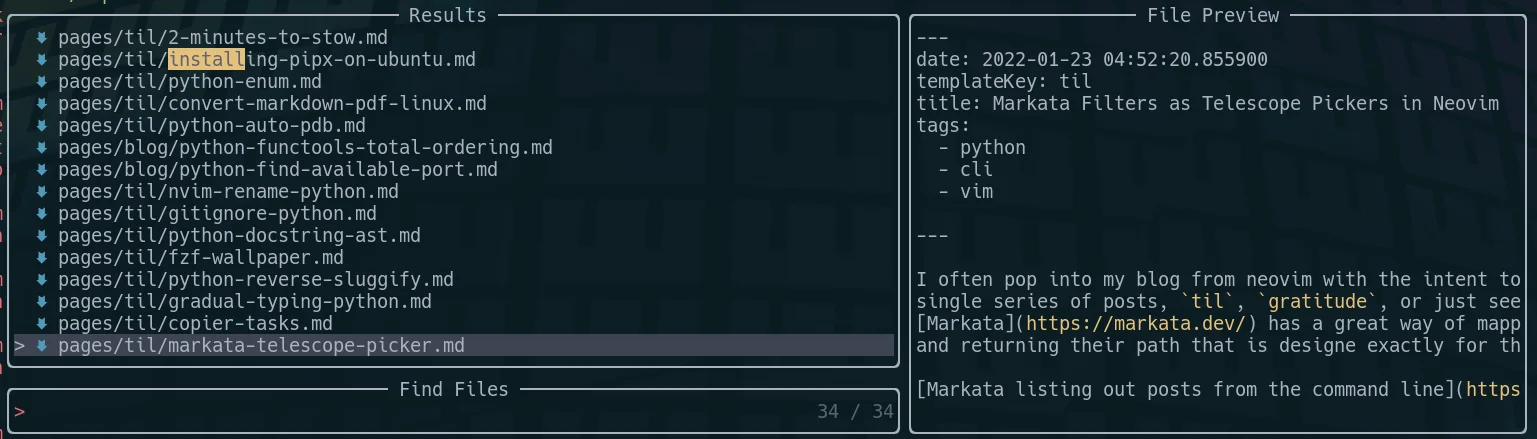
I often pop into my blog from neovim with the intent to look at just a
single series of posts, til, gratitude, or just see todays posts.
Markata [1] has a great way of mapping over posts
and returning their path that is designe exactly for this use case.
[2]
To tie these into a Telescope picker you add the command as the
find_command, and comma separate the words of the command, with no
spaces. I did also --sort,date,--reverse in there so that the newest
posts are closest to the cursor.
nnoremap geit <cmd>Telescope find_files find_command=markata,list,--map,path,--filter,date==today<cr>
nnoremap geil <cmd>Telescope find_files find_command=markata,list,--map,path,--filter,templateKey=='til',--sort,date,--reverse<cr>
nnoremap geig <cmd>Telescope find_files find_command=markata,list,--map,path,--filter,templateKey=='gratitude',--sort,date,--reverse<cr>
NOTE telescope treates each word as a string, do not wrap an extra
layer of quotes around your words, it gets messy.
[3]
References:
[1]: https://markata.dev/
[2]: https://images.waylonwalker.com/markta-list-todays-posts.png
[3]: https://images.waylonwalker.com/markata-list-telescope-picker.png
I don’t use refactoring tools as much as I probably should. mostly
because I work with small functions with unique names, but I recently
had a case where a variable name m was everywhere and I wanted it
named better. This was not possible with find and replace, because
there were other m’s in this region.
I first tried the nvim lsp rename, and it failed, Then I pip installed
rope, a refactoring tool for python, and it just worked!
pip install rope
Once you have rope installed you can call rename on the variable.
:lua vim.lsp.buf.rename()
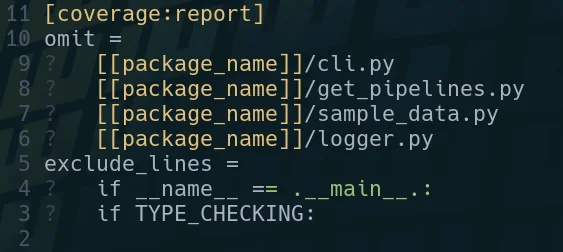
I’ve been stuck many times looking at a vim buffer with little question
marks at the beginning of each line and trying to get rid of them. for
so long I didn’t know what they were so trying to get rid of them was
impossible.
[1]
It turns out they are tabs, and you can get rid of the little leading
question marks with this substitution command.
:%s/\t/ /g
References:
[1]: https://images.waylonwalker.com/vim-tab-characters.png
One of the most useful skills you can acquire to make you faster at
almost any job that uses a computer is getting good at finding text in
your current working diretory and identifying the files that its in. I
often use the silver searcher ag or ripgrep rg to find files in
large directories quickly. Both have a sane set of defaults that ignore
hidden and gitignored files, but getting them to list only the filenames
and not the matched was not trivial to me.
I’ve searched throught he help/man pages many times looking for these
flags and they always seem to evade me.
ag # [1]
Passing the flag -l to ag will get it to list only the filepath, and
not the match. Here I gave it a --md as well to only return markdown
filetypes. ag supports a number of filetypes in a very similar way.
ag nvim --md -l
rg # [2]
Giving rg the --files-with-matches flag will yield you a similar set
of results, giving only the filepaths themselves and not the match
statement. Also passing in the -g "*.md" will similarly yield only
results from markdown files.
rg --files-with-matches you -g "*.md"
References:
[1]: #ag
[2]: #rg
When I first moved to vim from and ide like vscode or sublime text one of my
very first issues was trying to preview my website at localhost:8000. There
had always just been a button there to do it in all of my other editors, not
vim. There are not many buttons for anything in vim. While there is probably a
plugin that can run a webserver for me in vim, it’s not necessary, we just need
the command line we are already in.
running a separate process # [1]
You will need a way to run another process alongside vim, here are a couple
ideas to get you going that are not the focus here.style
- use background jobs
- c-z to send a job to the background
- fg to bring it back
- use a second terminal
- use a second tab
- use tmux and run it in a separate split/window
- use an embeded nvim terminal
running a development webserver from the command line # [2]
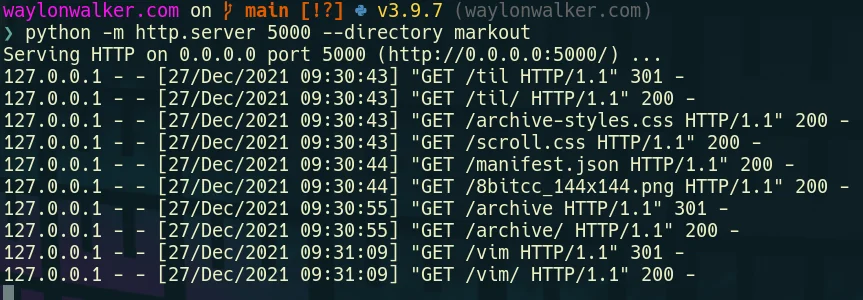
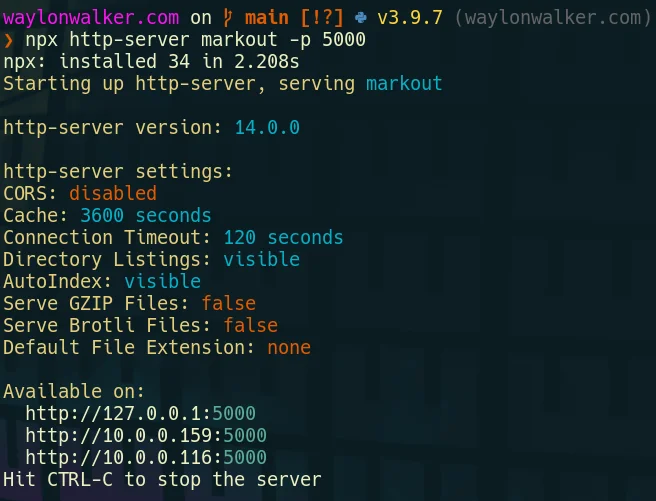
Python already exists on most linux systems by default, and most are now on
python3. If you are on windows typing python will take you directly to the
windows store to install it, or you can also use wsl.
# python3
python -m http.server
# running on port 5000
python -m http.server --directory markout 5000
# for the low chance ...
Many command line tools can output a list of files, this is quite powerful.
I often want to search for something, then open it from a fuzzy picker. This
can be done with fzf in the terminal, but often I am already in vim and I want
to open it inside my current session.
Telescope # [1]
how to pass a custom command to telescope
Telescope is the fuzzy file finder I use every day inside of neovim. Its pretty
fantastic and easy to extent like this. This first example I am only passing in
files from the current working directory by using ls.
:Telescope find_files find_command=ls
This brings up a normal Telescope picker with results from the ls command.
More arguments # [2]
how to pass a muli-argument command to telescope
Adding more arguments can be done by comma separating them as shown in the
example below. This command will run the silver-searcher, search for all
occurences of nvim inside of a markdown file, and return only the filepaths so
Telescope can pick from them.
:Telescope find_files find_command=ag,nvim,--md,-l
References:
[1]: #telescope
[2]: #more-arguments
Finding hidden files using Telescope as you fuzzy file finder is not too
hard, its a single flag passed in. Then it will use whichever file
finder it can find [‘fd’, ‘fdfind’, ‘rg –files’, ‘find’, or ‘where’] in
that order. These tools each have their own way of handling hidden
files, but telescope takes care of that so all you need to do is pass in
hidden=true.
I have this keymap set to help me list out all files including hidden
files using the pnumonic go edit hidden. I use ge for quite a few
different things to take me directly to a specific file or picker.
nnoremap geh <cmd>Telescope find_files hidden=true<cr>
see the
implementation [1]
telescope finds your files.
References:
[1]: https://github.com/nvim-telescope/telescope.nvim/blob/82e3cc322ad87b262aef092cb7475e769740e83a/lua/telescope/builtin/files.lua#L167-L184
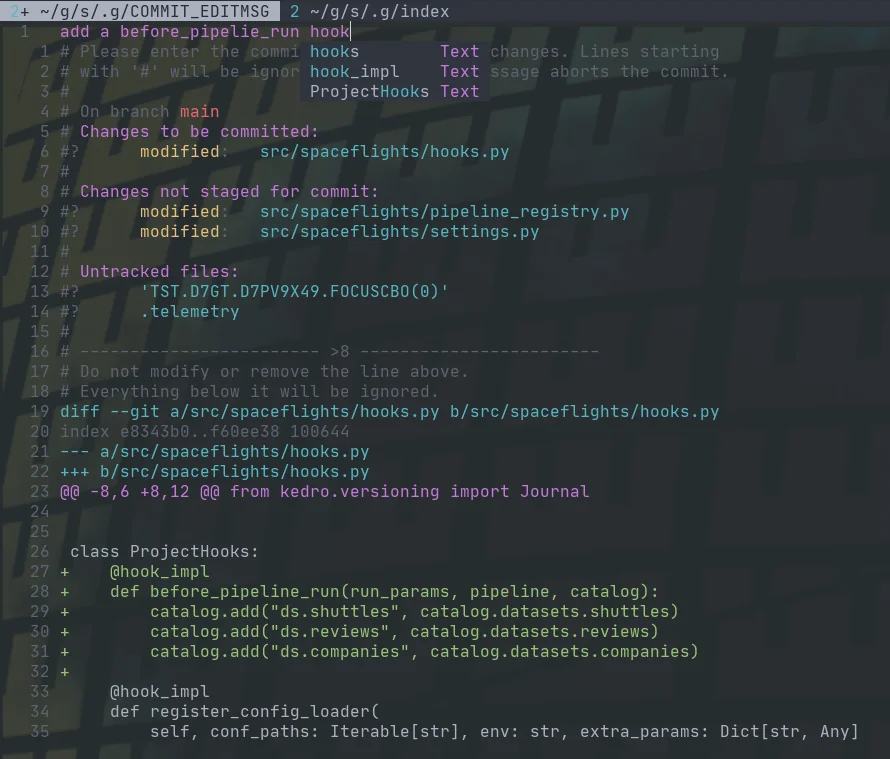
Fugitive comes with a pretty sick way to commit files and see the diff at the
same time with verbose commit. Opening the fugitive menu with :G brings up
your git [1] status, you can stage files with s, unstage them with u, toggle
them with -, and toggle their diff with >. Once you have staged your files
for commit, you can commit with cc, but today I found that you can commit
verbose with cvc. This brings up not only a commit widow with your git
status shown, but the diff that you are about to commit.
[2]
example of a verbose commit in fugitive
References:
[1]: /glossary/git/
[2]: https://images.waylonwalker.com/fugitive-verbose-commit.png
You must use augroup with autocmd in vim | Here's how
If you are running vim autocmd’s without a group, you’re killing your
performance. Granted your probably not sourcing your vimscript files with
autocmd’s too often, but every time you source that vimscript you are adding
another command that needs to run redundantly.
https://youtu.be/2ITTn4Dl0lc
This is what I had # [1]
Not silky smooth
For WAAY too long I have had something like this in my vimrc or init.vim.
It formats my python for me on every save, works great except if I source my
dotfiles more than once I start adding how many times black runs.
autocmd bufwritepre *.py execute 'Black'
Why is a bare autocmd bad # [2]
let me demonstrate
Lets create a new file called format.vim and give it the :so %. Works
great, it starts telling me that its formatting.
autocmd bufwritepre *.py :echo("formatting with black")
[3]
BUT as every time I give it the :so % it formats an extra time on every
single save.
Setting up an augroup # [4]
I’ve been told I need an augroup to prevent ...
Setup a yaml schema | yamlls for a silky smooth setup
I’ve gone far too long without a good setup for editing yaml
files, I am missing out on autocomplete and proper diagnostics.
This ends today as I setup yaml-language-server in neovim.
https://youtu.be/xo4HrFoKF4c
The video for this one is part of a
challenge-playlist [1]
I put out for myself to constantly improve my dotfiles for all of December.
init.vim # [2]
I have my init.vim setup to only source other modules, if you want everything
in a single config, feel free to do as you wish. I broke mine up earlier this
year as I doubled into nvim and am not going back.
source ~/.config/nvim/plugins.vim
lua require'waylonwalker.cmp'
lua require'waylonwalker.lsp-config'
Plugin setup # [3]
You will need the following plugins. I use plug, if you don’t you will have to
convert the syntax over to the plugin manager you use.
neovim/nvim-lspconfig [4] is for
configuring the lsp. It comes with a bunch of sane defaults for most servers,
so you pretty much just have to call setup on that serv...
How linux users install a text editor
In honor of the neovim 0.6.0 release, I decided to do a funny skit installing
neovim, and fix up my install script in the process as part of my challenge to
fix up my dotfiles. I ran into one snag where I was not updating the repo that
I cloned. I moved it to the directory I now keep third-party git [1] repos and set
it to update with ansible.
https://youtu.be/64oKLphhBuo
The thing that took me the longest to realize was…. I had a path issue
pointing me to an old install of the appimage over the fresh build, fixed that
up and now we are on 0.7.0 nightly.
Related Links # [2]
https://neovim.io/
https://github.com/neovim/neovim
https://github.com/neovim/neovim/releases/tag/v0.6.0
References:
[1]: /glossary/git/
[2]: #related-links
I made a neovim plugin
I’ve slowly adding more and more lua functions into my neovim configuration,
and recently I noticed a pattern for a class of functions that reach out to run
shell commands that can be abstracted away.
https://youtu.be/8m5ipBuopPU
Telegraph.nvim # [1]
Check out the project readme [2]
for the most up to date details on the plugin itself.
Motivation # [3]
I want a simple way to make remaps into shell commands that can open new tmux
windows, popups, or just run a command with context from the editor.
For example I want to make remaps to do things like open the current file in lookatme.
# vim :terminal
nnoremap <leader>s <cmd>Telegraph pipx run lookatme {filepath} --live-reload --style gruvbox-dark<cmd>
# tmux session
nnoremap <leader><leader>s <cmd>lua require'telegraph'.telegraph({cmd='pipx run lookatme {filepath} --live-reload --style gruvbox-dark', how='tmux'})<CR>
# tmux popup
nnoremap <leader><leader>S <cmd>lua require'telegraph'.telegraph({cmd='pipx run lookatme {filepath...
Notes for second vim-fundamentals course meetup
newline
another
Mahesh Subrajmanium Venkatachalam - Plugins | Installing a Theme
Hunter Phillips - Quickfix | Offline Ordering with getqflist
Andrea Wackerle - Search & Replace | Macros
Matthew Fletcher - Registers | Advanced Motions Jump, Delete, & Select | Advanced Motions: Paste & Move
Nicholas Payne - My First Vim Plugin | What Makes a Good Plugin
Zev Averbach - Harpoon | Wrap up
Plugin-manager # [1]
- get a plugin manager
- unless you are going full lua, most people use vim-plug by the great junegunn
https://github.com/junegunn/vim-plug
Install pluggged # [2]
curl -fLo ~/.vim/autoload/plug.vim --create-dirs \
https://raw.githubusercontent.com/junegunn/vim-plug/master/plug.vim
call plug#begin('~/.vim/plugged')
Plug 'junegunn/fzf', { 'do': { -> fzf#install() } }
Plug 'junegunn/fzf.vim'
call plug#end()
Install Plugins # [3]
:PlugInstall
:PlugClean
:PlugUpdate
Installing a Theme # [4]
install using plug
Plug 'ayu-theme/ayu-vim'
set the theme
set termguicolors
let ayu...
Modal jumping
nnoremap <leader>e :execute getline(".")<cr>j
nnoremap <c-j> g,
nnoremap <c-k> g;
nnoremap <c-j> <c-]>
nnoremap <c-k> g;
nnoremap <c-j> :cnext<cr>
nnoremap <c-k> :cprev<cr>
nnoremap <c-j> :lnext<cr>
nnoremap <c-k> :lprev<cr>
nnoremap <c-j> :tnext<cr>
nnoremap <c-k> :tprevious<cr>
nnoremap <c-j> :trewind<cr>
nnoremap <c-k> :tprevious<cr>