Posts tagged: tmux

All posts with the tag "tmux"

24 posts latest post 2022-12-04
Publishing rhythm
Dec 2022 | 1 posts

Moving panes between tmux sessions is something that makes tmux a very flexible and powerful tool. I don’t need this feature very often, but it comes in clutch when you need it.

Using choose-window I was able to come up with a way to select any pane withing any other session and join it into my current session.

# Choose a pane to join in horizontally bind f choose-window -Z 'join-pane -h -s "%%"'

Push/Pull from scratch #

I’ve long had this one in my tmux config, I always have a “scratch” session that I’m running, I often use for looking at things like k9s accross repos within a popup.

This use case puts a pane into the scratch session, then pulls it back out. I will use this to move a pane between sessions in the rare cases I need to do this.

I love the freedom of writing in markdown. It allows me to write content from the comfort of my editor with very little focus on page style. It turns out that markdown is also a fantastic tool for creating slides.

I will most often just present right from the terminal using lookatme. Presenting from the terminal lets me see the results quick right from where I am editing. It also allows me to pop into other terminal applications quickly.

I sometimes also use reveal.js, but that’s for another post. It is handy that it lives in the browser and is easier to share.

I leverage auto slides when I write my slides in markdown. The largest heading, usually an h2 for me, becomes the new slide marker. Otherwise my process is not much different, It just becomes a shorter writing style.

...

I recently found a really great plugin by mhinz to open files in neovim from a different tmux split, without touching neovim at all.

neovim-remote is not a neovim plugin at all, it’s a python cli that you can install with pip. Unlike the repo suggests, I use pipx to install nvr.

pipx install neovim-remote

How I use it #

I have this added to my .envrc that is in every one of my projects....

...

As I am toying around with textual, I am wanting some popup user input to take over. Textual is still pretty new and likely to change quite significantly, so I don’t want to overdo the work I put into it, So for now on my personal tuis I am going to shell out to tmux.

The main issue is that when you are in a textual app, it kinda owns the input. So if you try to run another python function that calls for input it just cant get there. There is a textual-inputs library that covers this, and it might work really well for some use cases, but many of my use cases have been for things that are pre-built like copier, and I am trying to throw something together quick.

textual is still very beta

Part of this comes down to the fact that textual is still very beta and likely to change a lot, so all of the work I have done with it is for quick and dirty, or fun side projects.

...

The default keybinding for copy-mode <prefix>-[ is one that is just so awkward for me to hit that I end up not using it at all. I was on a call with my buddy Nic this week and saw him just fluidly jump into copy-mode in an effortless fashion, so I had to ask him for his keybinding and it just made sense. Enter, that’s it. So I have addedt his to my ~/.tmux.conf along with one for alt-enter and have found myself using it way more so far.

To do this I just popped open my ~/.tmux.conf and added the following. Now I can get to copy-mode with <prefix>-Enter which is control-b Enter, or alt-enter.

bind Enter copy-mode bind -n M-Enter copy-mode

More on copy-mode #

I have a full video on copy-mode you can find here.

tmux copy-mode

One of the first things I noticed broken in my terminal based workflow moving from Windows wsl to ubuntu was that my clipboard was all messed up and not working with my terminal apps. Luckily setting tmux and neovim to work with the system clipboard was much easier than it was on windows.

First off you need to get xclip if you don’t already have it provided by your distro. I found it in the apt repositories. I have used it between Ubuntu 18.04 and 21.10 and they all work flawlessly for me.

I have tmux setup to automatically copy any selection I make to the clipboard by setting the following in my ~/.tmux.conf. While I have neovim open I need to be in insert mode for this to pick up.

# ~/tmux.conf bind -T copy-mode-vi Enter send-keys -X copy-pipe-and-cancel "xclip -i -f -selection primary | xclip -i -selection clipboard" bind-key -T copy-mode-vi MouseDragEnd1Pane send-keys -X copy-pipe-and-cancel "xclip -selection clipboard -i"

To get my yanks to go to the system clipboard in neovim, I just added unnamedplus to my existing clipboard variable.

...

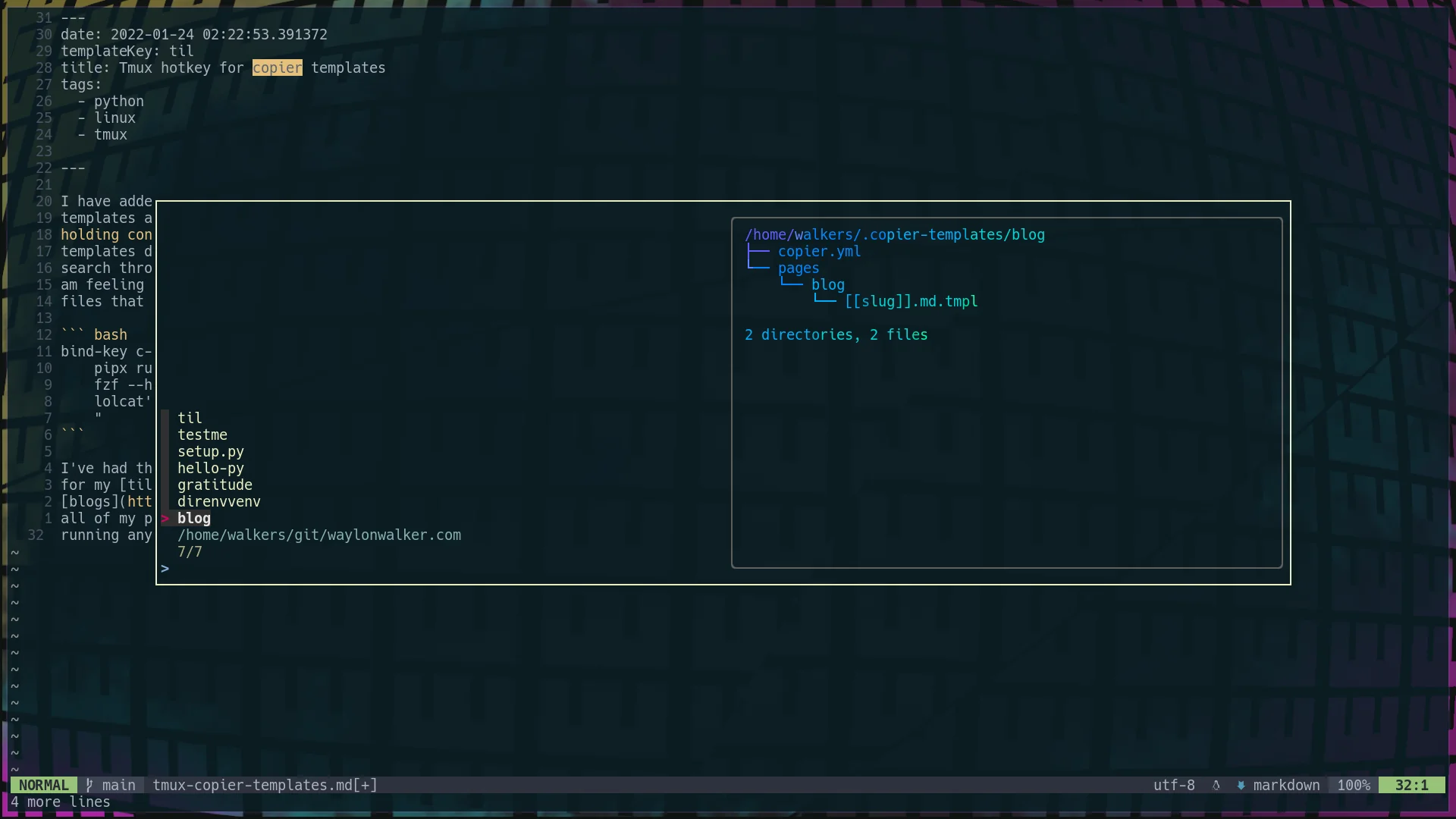
I have added a hotkey to my copier template setup to quickly access all my templates at any time from tmux. At any point I can hit <c-b><c-b>, thats holding control and hitting bb, and I will get a popup list of all of my templates directory names. Its an fzf list, which means that I can fuzzy search through it for the template I want, or arrow key to the one I want if I am feeling insane. I even setup it up so that the preview is a list of the files that come with the template in tree view.

bind-key c-b popup -E -w 80% -d '#{pane_current_path}' "\ pipx run copier copy ~/.copier-templates/`ls ~/.copier-templates |\ fzf --header $(pwd) --preview='tree ~/.copier-templates/{} |\ lolcat'` . \ "

I’ve had this on my systems for a few weeks now and I am constantly using it for my tils, blogs, and my .envrc file that goes into all of my projects to make sure that I have a

tmux popups can be sized how you like based on the % width of the terminal on creation by using the flags (h, w, x, y) for height, width, and position.

# normal popup tmux popup figlet "Hello" # fullscreen popup tmux popup -h 100% -w 100% figlet "Hello" # 75% centered popup tmux popup -h 100% -w 75% figlet "Hello" # 75% popup on left side tmux popup -h 100% -w 75% -x 0% figlet "Hello"

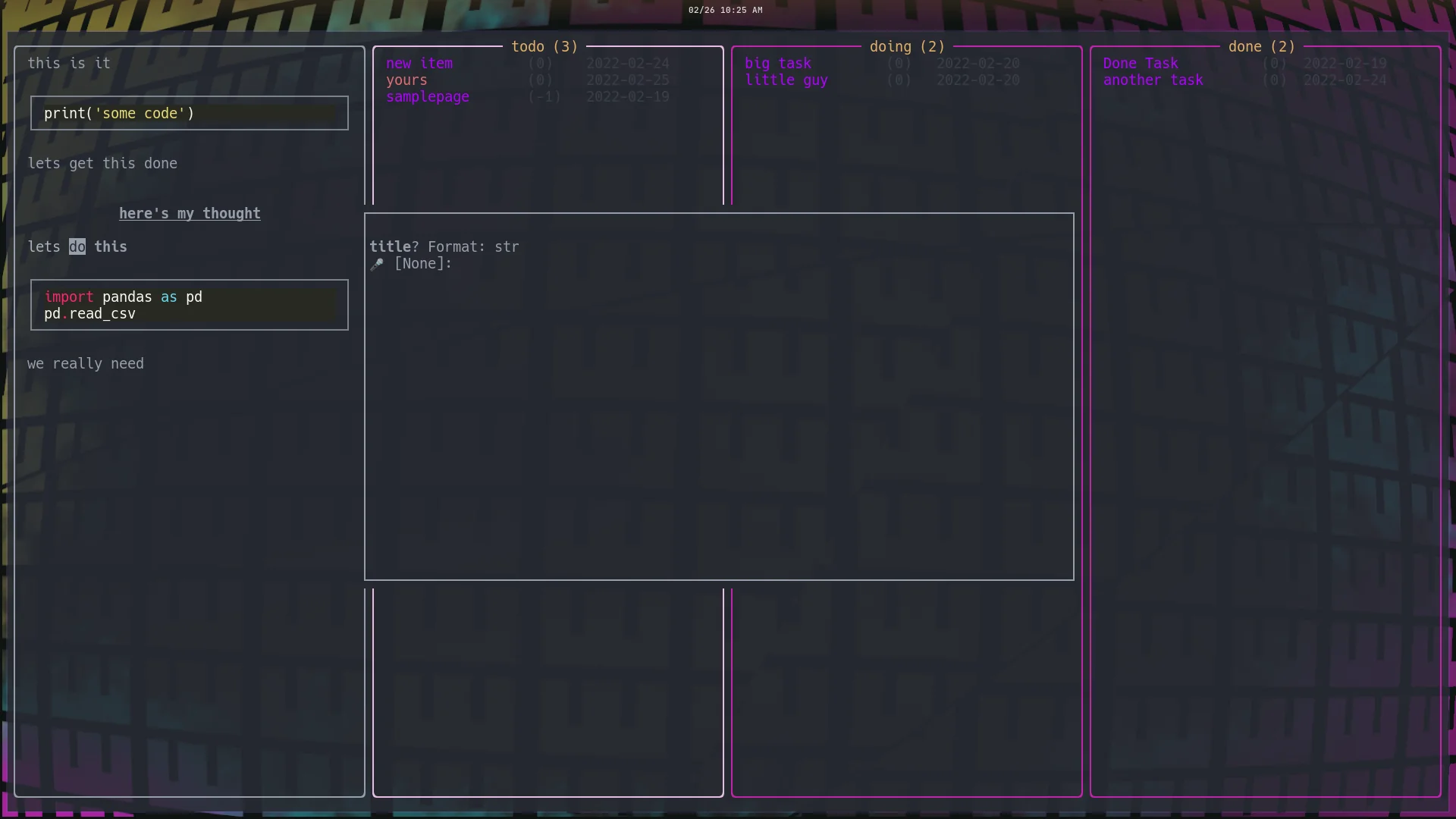
example running these commands

Uses

This is a listing of all the things that I use on a daily basis to build data pipelines, lead my team, and build this website.

[[ uses-2021 ]]

Everything installed on my machines is done through ansible-playbooks. It’s been a long transformation to get here, but its so satisfying to boot a brand new system, run a single command a have every single thing cofigured exactly to my liking.

...

tmux targeted session

https://youtu.be/5KE7Il7SOEk

This is something that I made up but use every single day, this is what keeps much of what is on my blog or my teams private work wiki going. I have a few very important directories that I have assigned directly to a hotkey for fast session switching.

bind -n M-i new-session -A -s waylonwalker_com "cd ~/git/waylonwalker.com/ && nvim" bind i popup -E -h 95% -w 95% -x 100% "tmux new-session -A -s waylonwalker_com 'cd ~/git/waylonwalker.com/ && nvim'" bind -n M-I popup -E "tmux new-session -A -s waylonwalker_com 'cd ~/git/waylonwalker.com/ && nvim'"

...

tmux detach

https://youtu.be/A1qx3tNKDdA

tmux detach is a handy tmux command that will quit your current session while keeping it running. The full name of the comamnd is detach-client, detach is a shorthand.

default keybinding

...

tmux attach

https://youtu.be/JQ0yDCVu44E

attach is one of the most useful features of tmux. If you have no interest in tmux for pane and window management, you should use tmux for this. It can be a life saver if you ever get disconnected from the host machine or accidently close your terminal you can connect right back into the session you were just in using attach.

tmux attach

this command will simply attach back to tmux if you are ever disconnected

...

tmux command line

https://youtu.be/SNu-4IrkjAs

So far we have covered a lot of tmux commands and how they map to keybindings but these same commands can be executed at the command line.

Let’s make a popup that displays our git status for 5s or until we close it manually. We can run the following command at the command line, in a split.

...

tmux copy-mode

https://youtu.be/-ypY_-VmBKk

tmux copy-mode is a tmux mode that lets you scroll, search, copy, and jump your way through a pane. There are a ton of keybindings for copy-mode, the main ones you will need to know are / for searching down ? for searching up, n for next item, space for starting a selection, and enter to copy the selection. Arrow keys will be used for navigation unless you have specified vi mode, then it will be hjkl.

Default keybinding to get into copy mode is prefix+[.

...

tmux join-pane

https://youtu.be/Vm5rRtcVXLw

Join-pane allows you to join panes that you have broken away from your window, or created in a different window to the window you want it in. As far as I know there is not a default keybinding for it.

Before you can join a pane you must first have a pane marked to join. Once you mark a pane, go back to the window you want to join it to and join-pane.

...

tmux break-pane

https://youtu.be/ICL609F2xnc

Break-pane is a handy tmux command when your layout gets too cramped and you want to just move a split into its own window. Calling break-pane does exactly that, it creates a new-window for you and moves your currently selected split into that window

Default key binding for break-pane

...

tmux zoom

https://youtu.be/Rn6mOarCQ-Y

Zooming into the current split in tmux is a valuable tool to give yourself some screen real estate. These days I am almost always presenting, streaming, or pairing up with a co-worker over a video call. Since I am always sharing my screen I am generally zoomed in to a level that is just a bit uncomfortable, so anytime I make a split it is really uncomfortable, being able to zoom into the split I am focused on is a big help, and also help anyone watching follow where I am currently working.

Default key bindings for zooming the current split

...

tmux new-window

https://youtu.be/YRPZBv-iYyE

New window as it sounds makes new windows in tmux. Windows are kind of like tabs. They are another screen within your sessions that you can name and make new panes in.

Default key bindings for creating and navigating windows in tmux.

...