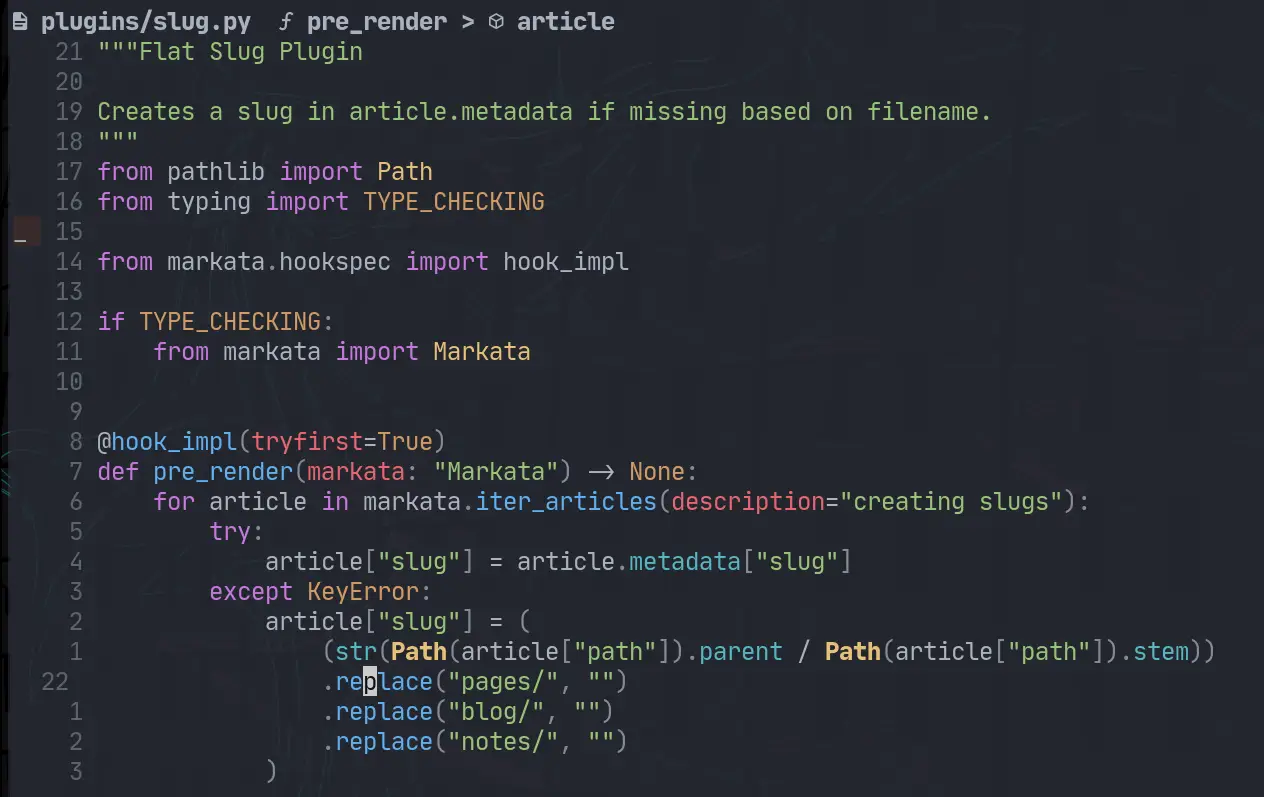
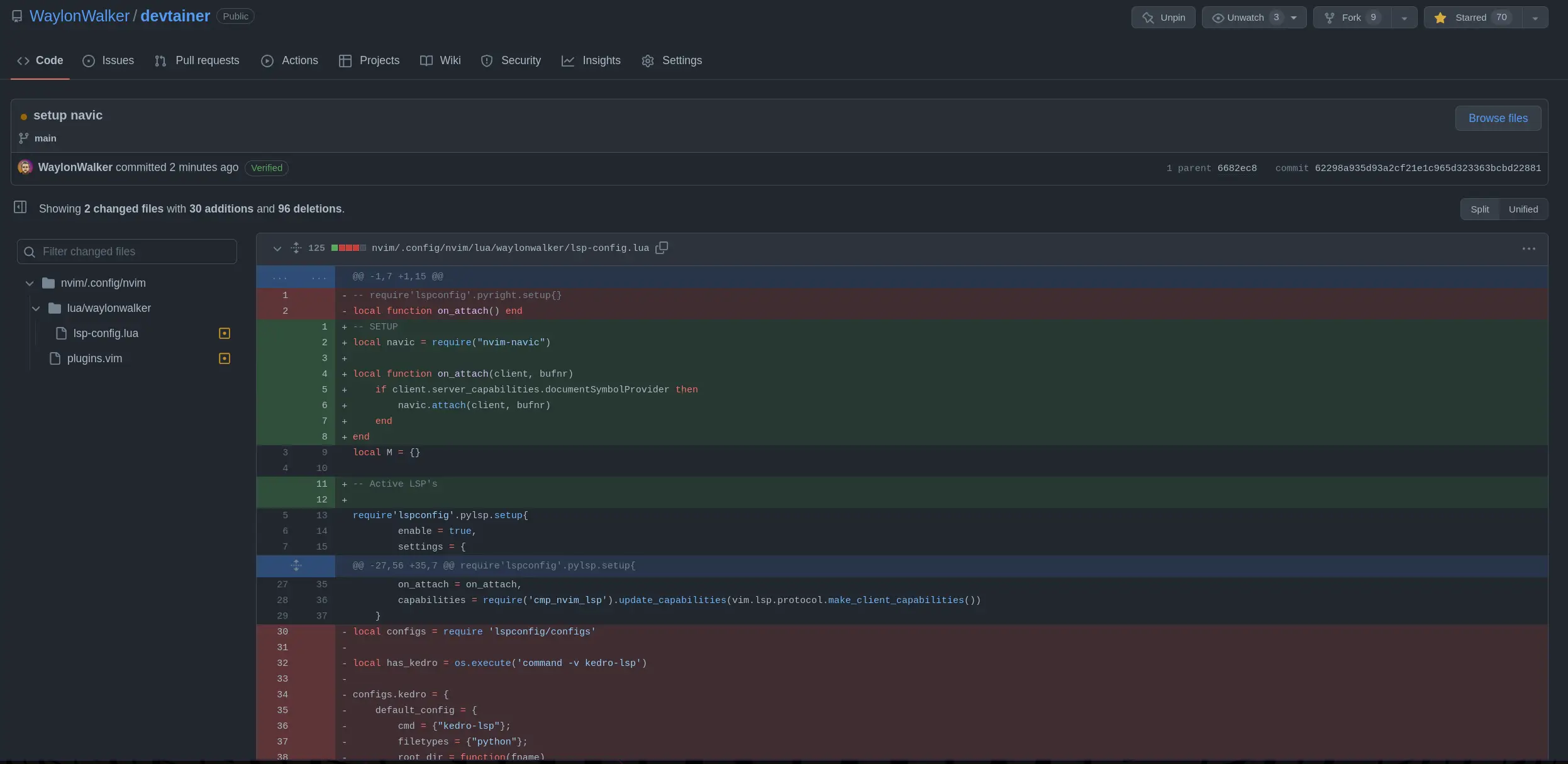
A long needed feature of markata has been the ability to really configure out templates with configuration rather. It’s been long that you needed that if you really want to change the style, meta tags, or anything in the head you needed to write a plugin or eject out of the template and use your own.
Adding some Head #
Now you can add some extra style to your site with the existing built-in template.
[[markata.head]]
text = """
<style>
img {
width: 100%;
height: auto;
}
ul {
display: flex;
flex-wrap: wrap;
}
</style>
"""
You can have more than one Head #
Each text entry in markata.head just gets appended raw into the head.
[[markata.head]]
text = """
<style>
img {
width: 100%;
height: auto;
}
ul {
display: flex;
flex-wrap: wrap;
}
</style>
"""
[[markata.head]]
text = """
<script>
console.log('hey there')
</script
"""
Still need more? #
If this does not take you far enough yet, you can still eject out and use your own template pretty easy. If you are going for a full custom site it’s likely that this will be the workflow for awhile. Markata should only get better and make this required less often as it matures.
[markata]
post_template = "pages/templates/post_template.html"
Once you have this in your markata.toml you can put whatever you want in your
own template.
I’m really getting into using hatch as my go to build system, and I am really
liking it so far. I am slowly finding new things that just work really well.
hatch new is one of those things that I didn’t realize I needed until I had
it.
creating new versions created by myself with stable diffusion
❯ pipx run hatch new --help
Usage: hatch new [OPTIONS] [NAME] [LOCATION]
Create or initialize a project.
Options:
-i, --interactive Interactively choose details about the project
--cli Give the project a command line interface
--init Initialize an existing project
-h, --help Show this message and exit.
Note! I am running all of these commands with pipx. I like to use pipx for all of my system level cli applications. To emphasis this point in the article I am going to use
pipx run hatch, but you canpipx install hatchthen just runhatchfrom there.
Interacively create a new project #
Running hatch new -i will ask let you interactivly choose details about the
project, such as the project’s name.
pipx run hatch new -i
After running and naming the project Hatch New we end up with the following filetree.
❯ tree .
.
├── hatch_new
│ ├── __about__.py
│ └── __init__.py
├── LICENSE.txt
├── pyproject.toml
├── README.md
└── tests
└── __init__.py
Non-Interative #
You can also fill in the project name ahead of time, and it will run without any questions.
❯ pipx run hatch new "Another Project"
another-project
├── another_project
│ ├── __about__.py
│ └── __init__.py
├── tests
│ └── __init__.py
├── LICENSE.txt
├── README.md
└── pyproject.toml
Note! all of these examples will create a project directory within your current working directory.
–init #
existing project
hatch new has an --init flag in order to initialize a new hatch
pyproject.toml in an existing project. This feels like it would be useful if
you are converting a project to hatch, or if like me you sometimes start making
something before you realize it’s something that you want to package. Honestly
this doesn’t happen too much anymore I package most things, and I hope hatch new completely breaks this habbit of mine.
Let’s say I have the following existing project.
❯ tree
.
└── hatch_init
└── __init__.py
1 directory, 1 file
I can setup packaging with hatch by running.
pipx run hatch new --init
The pyproject.toml that comes out is pretty similar to the one that comes out
of the normal hatch new, but without any other files.
Note that you will need to setup a
__about__.pyyourself for the dynamic versioning that it has setup for you.
[build-system]
requires = ["hatchling"]
build-backend = "hatchling.build"
[project]
name = "hatch-init"
description = 'initialize an existing project using hatch'
readme = "README.md"
requires-python = ">=3.7"
license = "MIT"
keywords = []
authors = [
{ name = "Waylon S. Walker", email = "[email protected]" },
]
classifiers = [
"Development Status :: 4 - Beta",
"Programming Language :: Python",
"Programming Language :: Python :: 3.7",
"Programming Language :: Python :: 3.8",
"Programming Language :: Python :: 3.9",
"Programming Language :: Python :: 3.10",
"Programming Language :: Python :: 3.11",
"Programming Language :: Python :: Implementation :: CPython",
"Programming Language :: Python :: Implementation :: PyPy",
]
dependencies = []
dynamic = ["version"]
[project.urls]
Documentation = "https://github.com/unknown/hatch-init#readme"
Issues = "https://github.com/unknown/hatch-init/issues"
Source = "https://github.com/unknown/hatch-init"
[tool.hatch.version]
path = "hatch_init/__about__.py"
[tool.hatch.envs.default]
dependencies = [
"pytest",
"pytest-cov",
]
[tool.hatch.envs.default.scripts]
cov = "pytest --cov-report=term-missing --cov-config=pyproject.toml --cov=hatch_init --cov=tests"
no-cov = "cov --no-cov"
[[tool.hatch.envs.test.matrix]]
python = ["37", "38", "39", "310", "311"]
[tool.coverage.run]
branch = true
parallel = true
omit = [
"hatch_init/__about__.py",
]
[tool.coverage.report]
exclude_lines = [
"no cov",
"if __name__ == .__main__.:",
"if TYPE_CHECKING:",
]
cli #
hatch new does not stop there, it also has a --cli flag to give you a cli
out of the box as well.
❯ pipx run hatch new "new cli" --cli
new-cli
├── new_cli
│ ├── cli
│ │ └── __init__.py
│ ├── __about__.py
│ ├── __init__.py
│ └── __main__.py
├── tests
│ └── __init__.py
├── LICENSE.txt
├── README.md
└── pyproject.toml
When you use the --cli flag you also get click as a dependency and
project.scripts setup automatically.
[project]
name = "new-cli"
# ...
dependencies = [
"click",
]
# ...
[project.scripts]
new-cli = "new_cli.cli:new_cli"
what’s in the cli #
It’s a hello-world click application.
# SPDX-FileCopyrightText: 2022-present Waylon S. Walker <[email protected]>
#
# SPDX-License-Identifier: MIT
import click
from ..__about__ import __version__
@click.group(context_settings={'help_option_names': ['-h', '--help']}, invoke_without_command=True)
@click.version_option(version=__version__, prog_name='new cli')
@click.pass_context
def new_cli(ctx: click.Context):
click.echo('Hello world!')
sneak peek #
I’ll dive more into environments and the run command later, but we can run the cli pretty damn quick with two commands. In under 5s I was able to run this cli that it created. This is a pretty incredible startup time.
Hatch has an amazing versioning cli for python packages that just works. It takes very little config to get going and you can start bumping versions without worry.
creating new versions created by myself with stable diffusion
project layout #
For trying out the hatch version cli let’s make a simple project with the
terrible name pkg.
❯ tree .
.
├── pkg
│ ├── __about__.py
│ └── __init__.py
├── pyproject.toml
└── README.md
1 directory, 4 files
pyproject.toml #
The main hero of this post is the pyproject.toml. This is what defines all
of our PEP 517 style project setup.
[project]
name = "pkg"
description = "Show how to version packages with hatch"
readme = "README.md"
dynamic = [
"version",
]
[build-system]
requires = [
"hatchling>=1.4.1",
]
build-backend = "hatchling.build"
[tool.hatch.version]
path = "pkg/__about__.py"
statically versioning #
project.version
It is possible to set the version number inside the pyproject.toml
statically. This is fine if you just want to version your package manually,
and not through the hatch cli.
[project]
name = "pkg"
version = "0.0.0"
# ...
Statically versioning in pyproject.toml will not work with
hatch version
Cannot set version when it is statically defined by the `project.version` field
dynamically Versioning #
project.dynamic
Setting the project verion dynamically can be done by changing up the following
to your pyproject.toml. Hatch only accepts a path to store your version. If
you need to reference it elsewhere in your project you can grab it from the
package metadata for that file. I would not put anything else that could
possibly clash with the version, as you might accidently change both things.
If you really need to set it in more places use a package like bump2version.
[project]
name = "pkg"
dynamic = [
"version"
]
# ...
[tool.hatch.version]
path = "pkg/__about__.py"
Note: you can configure hatch to use a different pattern https://hatch.pypa.io/1.2/version/#configuration, but I have not found it to be something that I need.
about.py #
The hatch project itself uses a
about.py
to store it’s version. It’s sole content is a single __version__ variable. I
don’t have any personal issues with this so I am going to be following this in
my projects that use hatch.
__version__ = "0.0.0"
versioning #
Hatch has a pretty intuitive versioning api. hatch version gives you the
version. If you pass in a version like hatch version "0.0.1" it will set it
to that version as long as it is in the future, otherwise it will error.
# print the current version
hatch version
# set the version to 0.0.1
hatch version "0.0.1"
bumping #
You can bump parts of the semver version.
# minor bump
hatch version minor
# beta pre-release bump
# If published to pypi this can be installed with the --pre flag to pip
hatch version b
# bump minor and beta
hatch version minor,b
# release all of the --pre-release flags such as alpha beta rc
hatch release
Example #
Here is a screenshot of bumping a projet along.
GitOps #
In my github actions flow I will be utilizing this to automate my versions. In
my side projects I use the develop branch to release –pre releases. I have
all of my own dependent projets running on these –pre releases, this allows me
to cut myself in my own projects before anyone else. Then on main I
automatically release this beta version.
GitHub Actions #
Here is what the ci/cd for markata looks like. There might be a better
workflow strategy, but I use a single github actions workflow and cut branches
to release –pre releases and full release. These steps will bump, tag,
commit, and deploy for me.
- name: automatically pre-release develop branch
if: github.ref == 'refs/heads/develop'
run: |
git config --global user.name 'autobump'
git config --global user.email '[email protected]'
VERSION=`hatch version`
# if current version is not already beta then bump minor and beta
[ -z "${b##*`hatch version`*}" ] && hatch version b || hatch version minor,b
NEW_VERSION=`hatch version`
git add markta/__about__.py
git commit -m "Bump version: $VERSION → $NEW_VERSION"
git tag $VERSION
git push
git push --tags
- name: automatically release main branch
if: github.ref == 'refs/heads/main'
run: |
git config --global user.name 'autobump'
git config --global user.email '[email protected]'
VERSION=`hatch version`
hatch version release
NEW_VERSION=`hatch version`
git add markta/__about__.py
git commit -m "Bump version: $VERSION → $NEW_VERSION"
git tag $VERSION
git push
git push --tags
- name: build
run: |
python -m build
- name: pypi-publish
if: github.ref == 'refs/heads/develop' || github.ref == 'refs/heads/main'
uses: pypa/[email protected]
with:
password: ${{ secrets.pypi_password }}
Hatch Version Action #
I am setting up a github custom action waylonwalker/hatch-version-action that will lint, test, bump, and publish for me in one step. More on that in the future.
Markata is a great python framework that allows you to go from markdown to a full website very quickly. You can get up and running with nothing more than Markdown. It is also built on a full plugin architecture, so if there is extra functionality that you want to add, you can create a plugin to make it behave like you want.
Full transparancy… I built markata.
The talk #
The talk is live on YouTube. Make sure you check out the other videos from the conference. There were quite a few quality talks that deserve a watch as well.
Packages I Maintain
I spoke at python webconf in March 2022 about how I deploy this blog on a continuous basis.
Building this blog has brought me a lot of benefits. I have a set of custom curated notes to help describe a problem and how to solve it to me. At theis point it’s not uncommon to google an Issue I am having and finding my own blog with exactly the solution I need at the top.
I also bump into people from time to time that recognize me from the blog, its a nice conversation starter, and street cred.
The Talk #
The talk recently released on Youtube, you can watch it without having a ticket to the conference for free. There were a bunch of other talks that you should check out too!
I got all the pypi packages that I own behind 2 factor authentication. 💪
Recently this really made it’s rounds in the python news since pypi was requiring critical package maintainers to have 2FA on and even offering them hardware tokens to help them turn this on.
I feel like this caused a bit of confusion as turning on 2FA does not mean that you need to do anything different to deploy a package, and it DOES NOT require a hardware token. You can continue using your favorite 2FA app.
You might wonder what this means for my projects. It means that to edit any sensitive content such as pull a new api token, add/remove maintainers, or deleting a release I need to use a TOPT (time based one time password) application such as Google Authenticator, Microsoft Authenticator, Authy, or FreeOTP.
This has very little change to my overall workflow as my CI system still automatically deploys for me with the same api token as before.
This is one small thing that maintainers can do to prevent supply chain attacks on their projects that they put so much work into.
Login #
When I log in I now get this extra screen asking for an auth token.
My packages #
Once I turned on 2FA for my account I could then turn on 2FA requirement for each project. I am not sure how much safety there is in pypi, it might require all maintainers to have it turned on before it allows packages to have it turned on.
Once turned on it requires anyone who maintains the project to have 2FA on to be able to edit any sensitive content.
I was on Talk Python
I just love how some features of vim are so discoverable and memorable once you really start to grasp it. Sorting and uniqing your files or ranges is one of those examples for me.
" sort the file
:sort
" sort the file only keeping unique lines
:sort u
" sort a range
:'<,'> sort
" sort a range only keeping unique lines
:'<,'> sort u
I recently used this to dedupe my autogenerated links section for rich-syntax-range-style. More often I am using it to sort and uniqify objects like arrays and lists.
Here is what the markdown looks like.
* [py-tree-sitter](https://github.com/tree-sitter/py-tree-sitter)
* [rich](https://github.com/Textualize/rich)
* [@textualizeio](https://twitter.com/textualizeio)
* [rich](https://github.com/Textualize/rich)
* [another post](https://waylonwalker.com/designing-kedro-router)
* [print-register-pipelines](https://screenshots.waylonwalker.com/print-register-pipelines.webp)
* [rich](https://github.com/Textualize/rich)
* [console-print-register-pipelines](https://screenshots.waylonwalker.com/console-print-register-pipelines.webp)
* [rich](https://github.com/Textualize/rich)
* [syntax-print-register-pipelines](https://screenshots.waylonwalker.com/syntax-print-register-pipelines.webp)
* [rich](https://github.com/Textualize/rich)
* [syntax-print-register-pipelines-highlight-line](https://screenshots.waylonwalker.com/syntax-print-register-pipelines-highlight-line.webp)
* [py-tree-sitter](https://github.com/tree-sitter/py-tree-sitter)
Then typing vap:sort u yields a uniqly sorted list of links.
* [@textualizeio](https://twitter.com/textualizeio)
* [another post](https://waylonwalker.com/designing-kedro-router)
* [console-print-register-pipelines](https://screenshots.waylonwalker.com/console-print-register-pipelines.webp)
* [print-register-pipelines](https://screenshots.waylonwalker.com/print-register-pipelines.webp)
* [py-tree-sitter](https://github.com/tree-sitter/py-tree-sitter)
* [rich](https://github.com/Textualize/rich)
* [syntax-print-register-pipelines-highlight-line](https://screenshots.waylonwalker.com/syntax-print-register-pipelines-highlight-line.webp)
* [syntax-print-register-pipelines](https://screenshots.waylonwalker.com/syntax-print-register-pipelines.webp)
Today I’ve been playing with py-tree-sitter a bit and I wanted to highlight match ranges, but was unable to figure out how to do it with rich, so I reached out to @textualizeio for help.
https://twitter.com/_WaylonWalker/status/1562469770766589952
While waiting for that reply let’s show how we got this far.
imports #
Lets import all the classes that we need from rich and setup a console to print to.
from rich.console import Console
from rich.syntax import Syntax
from rich.style import Style
console = Console()
some code #
Now we need some code to highlight. I am going to rip my register_pipeline
from another post.
code = '''
from find_kedro import find_kedro
def register_pipelines(self) -> Dict[str, Pipeline]:
"""Register the project's pipeline.
Returns:
A mapping from a pipeline name to a ``Pipeline`` object.
"""
return find_kedro()
'''
print #
We could simply print out the code we have as a variable, but thats a bit hard to read.
console.print #
printing with rich’s console makes it a little better, but not much by default.
Syntax #
We can pull from rich’s syntax module to really pretty this up.
syntax = Syntax(code, 'python', line_numbers=True)
console.print(syntax)
Now we are getting some really impressive print outs right in the terminal!
note that I have ipython set to use rich, you will need to console.print() in scripts
highlight lines #
Now we can start highlighting lines right when we initialize our Syntax
instance. It looks ok. It’s not super visible, but more importantly its not
granular enough. I want to highlight specific ranges like the word
register_pipelines.
syntax = Syntax(code, 'python', line_numbers=True, highlight_lines=[4])
console.print(syntax)
This hows the line, but still is not very accurate.
highlight text #
[@textualizeio] got back to me, let’s see if What we can do with stylize_range!
https://twitter.com/textualizeio/status/1562487302274043904
syntax = Syntax(code, 'python', line_numbers=True)
style = Style(bgcolor='deep_pink4')
syntax.stylize_range(style, (4, 4), (4, 22))
console.print(syntax)
This gives us the final result we are looking for, we can easily see what is
being targeted here. In this case the function name register_pipelines.
This turns out to be exacly what I am looking for. Now I have an easy way to print out highlighted code wtih my py-tree-sitter query results.
Links #
How to vimgrep over hidden files.
I needed to delete all build pipeline steps that were named upload docs. I
currently have about 60 projects running from the same template all running
very similar builds. In the past I’ve scripted out migrations for large
changes like this, they involved writing a python script that would load the
yaml file into a dictionary, find the corresponding steps make the change and
write it back out.
Today’s job was much simplar, just delete the step, were all steps are
surrounded by newlines. My first thought was to just open all files in vim and
run dap. I just needed to get these files:positions into my quickfix. My
issue is that all the builds reside within hidden directories by convention.
The issue #
variability
After searching through all the projects it was clear that all the steps were
in their own paragraph, though I was not 100% confident enough to completely
automate it, and the word upload docs was in the paragraph.
some were a two liner
- name: upload docs
script: aws s3 ...
Some had a variation in the name
- name: upload docs to s3
script: aws s3 ...
some were more than 2 lines.
- name: upload docs
script: |
aws s3 ...
some used a different command.
- name: upload docs
script: |
python ...
Templates are great #
but they change
Templates are amazing, and tools like cookiecutter and copier are essential in my workflow, but those templates change over time. Some things are a constant, and others like this one are an ever evolving beast until they are tamed into something the team is happy with.
vimgrep over hidden files #
I know all the files that I care to search for are called build.yml, and they are in a hidden directory.
:args `fd -H build.yml`
:vimgrep /upload docs/ ##
Once opened as a buffer by using args, and a handy fd command I can vimgrep
over all the open buffers using ##
Open buffers are represented by ##
Now I can just dap and :cnext my way through the list of changes that I
have, and know that I hit every one of them when I am at the end of my list.
And can double check this in about 10s by scrolling back through the quickfix
list.
Vim points achieved #
You’re not a true vim enthusiast until you have spent 10 minutes writing a blog post about how vim saved you 5 minutes. Check out all the other times this has happened to me in the vim tag.
a sprinter edging out his opponent by Dall-e
It’s about time to release Markata 0.3.0. I’ve had 8 pre-releases since the
last release, but more importantly it has about 3 months of updates. Many of
which are just cleaning up bad practices that were showing up as hot spots on
my pyinstrument reports
Markata started off partly as a python developer frustrated with using nodejs for everything, and a desire to learn how to make frameworks in pluggy. Little did I know how flexible pluggy would make it. It started out just as my blog generator, but has turned into quite a bit more.
Over time this side project has grown some warts and some of them were now becoming a big enough issue it was time to cut them out.
Let’s compare #
I like to use my tils articles for examples and tests like this as there are enough articles for a good test, but they are pretty short and quick to render.
mkdir ~/git/tils/tils
cp ~/git/waylonwalker.com/pages/til/ ~/tils/tils -r
cd ~/git/tils/tils
running tils on 0.2.0 #
At the time of writing this is the current version of markata, so just make a new venv and run it.
python3 -m venv .venv --prompt $(basename $PWD)
pip install markata
markata clean
markata build
cold tils: 14.523 warm tils: 1.028
running tils on 0.3.0b8 #
python3 -m venv .venv --prompt $(basename $PWD)
# --pre installs pre-releases that include a b in their version name
pip install markata --pre
markata clean
markata build
cold tils: 11.551 (+20%) warm tils: 0.860 (+16%)
pyinstrument #
These measurements were taken with pyinstrument mostly out of convenience since there is already a pyinstrument hook built in, but also because I like pyinstrument.
Here is the pyinstrument report from the last run.
My Machine #
This comparison was not very exhaustive. It was ran on my pretty new to me Ryzen 5 3600 machine.
The changes #
Most of these changes revolve in how the lifecycle is ran. It was trying to be extra cautious and run previous steps for you if it thought it might be needes, in reality it was rerunning a few steps multiple times no matter what.
The other thing I turned off by default, but can be opted into, is beautifulasoup’s prettify. That was one of the slower steps ran on my site.
0.3.0 #
It should be out by the time you see this, I wanted to compare the changes I had made and make sure that it was still making forward progress and thought I would share the results.
Deliberative #
People exceptionally talented in the Deliberative theme are best described by the serious care they take in making decisions or choices. They anticipate obstacles.
I am risk-adverse. I want everything well thought out and calculated before I make any sort of change. I have never gambled in my life and just the thought of it makes me anxious.
Aim it #
I can use this as a strength to plan out potential issues and prevent them. I do this quite often with my role in infrastructure.
I need to make sure that I use deadlines to keep this as a strength and not hinderence.
Automation #
One of the biggest ways that I utilize this skill is automation. I am all about automating things, not just because I don’t want to do the manual work, but I am not sure when I am going to need to do something again.
A common meta thing that I need in python is to find the version of a package.
Most of the time I reach for package_name.__version__, but that does not
always work.
but not all projects have a __version__ #
In searching the internet for an answer nearly every one of them pointed me to
__version__. This works for most projects, but is simply a convention, its
not required. Not all projects implement a __version__, but most do. I’ve
never seen it lie to me, but there is nothing stopping someone from shipping
mismatched versions.
If you maintain a project ship a __version__ #
I appreciate it
While its not required its super handy and easy for anyone to remember off the
top of their head. It makes it easy to start debugging differences between
what you have vs what you see somewhere else. You can do this by dropping a
__version__ variable inside your __init__.py file.
## __init__.py
__version__ = 1.0.0
SO #
stack overflow saves the day
Special thanks to this Stack Overflow post for answering this question for me.
So what do you do… #
importlib
Your next option is to reach into the package metadata of the package that you are interested in, and this has changed over time as highlighted in the stack overflow post.
for Python >= 3.8:
from importlib.metadata import version
version('markata')
# `0.3.0.b4`
I only really use python >= 3.8 these days, but if you need to implement it for an older version check out the stack overflow post.
Another option.. #
use the command line
Another common option uses pip at the command line.
❯ pip show markata
Name: markata
Version: 0.3.0b4
Summary: Static site generator plugins all the way down.
Home-page: https://markata.dev
Author: Waylon Walker
Author-email: [email protected]
License: MIT
Location: /home/waylon/git/waylonwalker.com/.venv/lib/python3.11/site-packages
Requires: anyconfig, beautifulsoup4, checksumdir, diskcache, feedgen, jinja2, more-itertools, pathspec, pillow, pluggy, pymdown-extensions, python-frontmatter, pytz, rich, textual, toml, typer
Required-by:
And if the package implements a command line its common to ship a version
command such as --version or -V.
❯ markata --version
Markata CLI Version: 0.3.0.b4
Why did I need to do this? #
Well we have a cli tool that wraps around piptools and we wanted to include the
version of piptools in the comments that it produces dynamically. This is why
I wanted to dynamically grab the version inside python without shelling out to
pip show. Now along with the version of our internal tool you will get the
version of piptools even though piptools does not ship a __version__
variable.
Fin #
In the end, I am glad I learned that its so easy to use the more accurate
package metadata, but still appreciate packages shipping __version__ for all
of us n00b’s out here.
The one reason I switched to arch
Recently I added two new bash/zsh aliases to make my git experience just a tad better.
trackme #
Most of our work repos were recently migrated to new remote urls, we scriped
out the update to all of the repos, but I was left with a tracking error for
all of my open branches. To easily resolve this I just made an alias so that I
can just run trackme anytime I see this error.
There is no tracking information for the current branch.
Please specify which branch you want to merge with.
See git-pull(1) for details
git pull <remote> <branch>
If you wish to set tracking information for this branch you can do so with:
git branch --set-upstream develop origin/<branch>
getting the branch #
The following command will always return the currently checked out branch name.
git symbolic-ref --short HEAD
Injecting this into the suggested git command as a subshell gives us this
alias that when ran with trackme will automatically fix tracking for my
branch.
alias trackme='git branch --set-upstream-to=origin/$(git symbolic-ref --short HEAD)'
rebasemain #
I sometimes get a bit lazy at checking main for changes before submitting any prs, so again I made a quick shell alias that will rebase main into my branch before I open a pr.
alias rebasemain='git pull origin main --rebase'
The Aliases #
Here are both of the alias’s, feel free to steal and modify them into your
dotfiles. If you are uniniatiated a common starting place to put these is
either in your ~/.bashrch or ~/.zshrc depending on your shell of choice.
alias trackme='git branch --set-upstream-to=origin/$(git symbolic-ref --short HEAD)'
alias rebasemain='git pull origin main --rebase'
So many terminal applications bind q to exit, even the python debugger, its
muscle memory for me. But to exit ipython I have to type out exit<ENTER>.
This is fine, but since q is muscle memory for me I get this error a few times
per day.
╭─────────────────────────────── Traceback (most recent call last) ────────────────────────────────╮
│ <ipython-input-1-2b66fd261ee5>:1 in <module> │
╰──────────────────────────────────────────────────────────────────────────────────────────────────╯
NameError: name 'q' is not defined
After digging way too deep into how IPython implements its ExitAutoCall I
realized there was a very simple solution here. IPython automatically
imports all the scripts you put in your profile directory, all I needed was to
create ~/.ipython/profile_default/startup/q.py with the following.
q = exit
It was that simple. This is not a game changer by any means, but I will now
see one less error in my workflow. I just press q<Enter> and I am out,
without error.
It’s no secret that I love automation, and lately my templating framework of
choice has been copier. One hiccup I recently ran into was having spaces in my
templated directory names. This makes it harder to run commands against as you
need to escape them, and if they end up in a url you end up with ugly %20 all
over.
Cookiecutter has the solution #
Yes the solution comes from a competing templating framework.
I install copier with pipx, so I need to inject cookiecutter in to my copier environment to use the slugify filter.
pipx inject copier cookiecutter
If you are using a normal virtual environment you can just pip install it.
pip install copier cookiecutter
add the extension to your template #
copier.yml
Now to enable the extension you need to declare it in your copier.yml file in
your template.
_jinja_extensions:
- cookiecutter.extensions.SlugifyExtension
Use it | slugify #
use-it
Now to use it, anywhere that you want to slugify a variable, you just pipe it into slugify.
❯ tree .
.
├── copier.yml
├── README.md
└── {{ site_name|slugify }}
└── markata.toml.jinja
1 directory, 3 files
Here is a slimmed down version of what the copier.yml looks like.
site_name:
type: str
help: What is the name of your site, this shows in seo description and the site title.
default: Din Djarin
_jinja_extensions:
- cookiecutter.extensions.SlugifyExtension
Results #
Running the template looks a bit like this.
straight from their docs #
The next section is straight from the cookiecutter docs
Slugify extension #
The cookiecutter.extensions.SlugifyExtension extension provides a slugify
filter in templates that converts string into its dashed (“slugified”) version:
{% "It's a random version" | slugify %}
Would output:
it-s-a-random-version
It is different from a mere replace of spaces since it also treats some special
characters differently such as ' in the example above. The function accepts
all arguments that can be passed to the slugify function of
python-slugify_. For example to change the output from
it-s-a-random-version to it_s_a_random_version, the separator parameter
would be passed: slugify(separator='_').
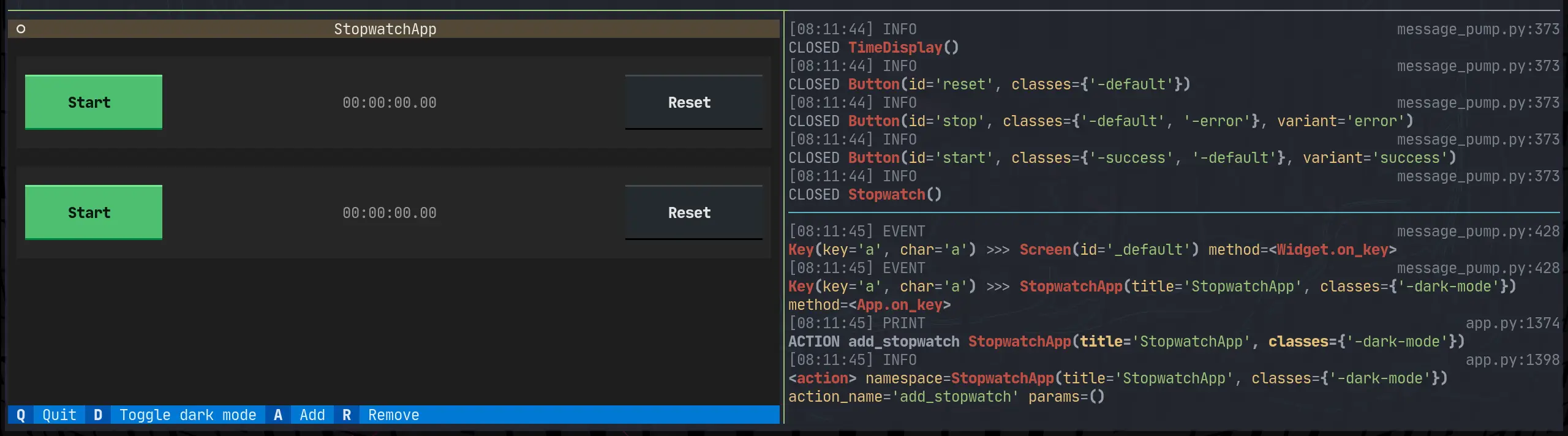
Textual has devtools in the upcoming css branch, and its pretty awesome!
It’s still early #
Textual is still very early and not really ready for prime time, but it’s quite amazing how easy some things such as creating keybindings is. The docs are coming, but missing right now so if you want to use textual be ready for reading source code and examples.
On to the devtools #
As @willmcgugan shows in this tweet it’s pretty easy to setup, it requires having two terminals open, or using tmux, and currently you have to use the css branch.
https://twitter.com/willmcgugan/status/1531294412696956930
Why does textual need its own devtools #
Textual is a tui application framework. Unlike when you are building cli applications, when the tui takes over the terminal in full screen there is no where to print statement debug, and breakpoints don’t work.
getting the css branch #
In the future it will likely be in main and not need this, but for now you need to get the css branch to get devtools.
git clone https://github.com/Textualize/textual
git fetch --alll
git checkout css
install in a virtual environment #
Now you can create a virtual environment, feel free to use whatever virtual environment tool you want, venv is built in to most python distributions though, and should just be there.
python3 -m venv .venv --prompt textual
source .venv/bin/activate
pip install .
Now that we have textual installed #
Once textual is installed you can open up the devtools by running textual console.
textual console